Easily Backup Your Games to the Cloud with Dropbox
- Feb 02, 2026 01:12 pm
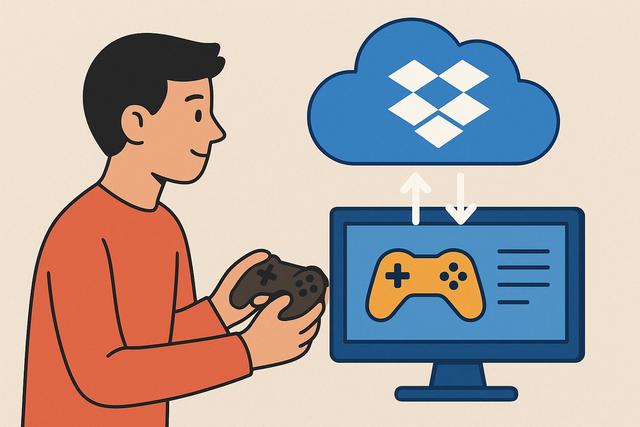
The Importance of Game Backups
Losing a game save can ruin dozens of hours of progress. However, this issue remains common as hardware failures, user errors, or changes in computers often occur. Due to these risks, more and more gamers are seeking a reliable solution to secure their data.
Why Choose Dropbox for Game Backups
Dropbox provides a simple and effective answer, as this cloud service allows you to automatically save your game backups and access them from anywhere. In this article, you will learn why and how to back up your games in the cloud with Dropbox, ensuring you can play with peace of mind, no matter what device you use.
For more information on how to download Dropbox, click here.
Why Backup Your Game Saves in the Cloud
Backing up your games in the cloud is now an essential precaution. Hard drives fail, as they remain fragile components. Laptops get lost or stolen, causing local files to disappear without warning. Additionally, gamers frequently switch machines to enjoy better performance.
The cloud prevents these problems by storing your game saves on remote servers. You can access your data at any time, as long as you have an Internet connection. This approach is reassuring, but it also offers a significant convenience boost.
Dropbox stands out as a popular solution because it is user-friendly for the general public. The service automatically synchronizes files, so you do not need to initiate complex manual backups. Due to this simplicity, even novice gamers can protect their progress without advanced technical knowledge.
Dropbox: A Cloud Solution for Gamers
Dropbox is distinguished by its reliability and ease of installation. Once the software is installed on your computer, a Dropbox folder appears. Any file placed in this folder is automatically backed up to the cloud.
For gamers, this functionality provides several clear benefits. First, the synchronization happens in the background, as Dropbox monitors file changes in real-time. Additionally, the service keeps a version history, allowing you to revert to an earlier backup in case of mistakes. Finally, Dropbox works on Windows, macOS, and Linux, which makes switching between systems easier.
Because of these features, Dropbox is suitable for both PC gamers and fans of indie or retro games. Even though some platforms offer their own cloud, Dropbox remains useful for centralizing all your game backups in one place.
What Types of Games Can Be Backed Up with Dropbox
The majority of PC games store their saves in specific folders, making it easy to integrate them with Dropbox. Indie games, for instance, often save their data in a simple accessible folder.
Older games are also good candidates, as they do not always have an online backup system. With Dropbox, you can continue a game that you started years ago.
However, some recent games use encrypted saves or are tied to an online account. In this case, Dropbox cannot replace the official cloud but provides extra security. Due to this complementarity, many gamers use both solutions together.
Here are some categories of games compatible with Dropbox:
- Indie PC games that store saves locally
- Offline single-player games
- Retro games or emulators
- Mods and custom configurations
Where to Find Game Saves on Your Computer
Before you can back up your games to the cloud with Dropbox, you need to locate the save files. This step may seem complex, but it is accessible with a few pointers.
On Windows, saves are often found in the following folders:
- Documents
- AppData (Local or Roaming)
- The game installation folder
On macOS, saves are usually hidden in the Library folder, as games store their specific data there. On Linux, they are often placed in the home folder, as hidden directories.
Due to these differences, a quick Internet search with the game's name and the phrase "save location" often yields the answer. Once you identify the folder, you can move on to the next step.
How to Backup Your Game Saves with Dropbox
The simplest method is to move the save folder into the Dropbox folder. However, this approach does not always work, as some games require a precise location.
Fortunately, Dropbox works perfectly with symbolic links. This technique allows you to leave the save folder in its original location while synchronizing it with Dropbox.
Here are the general steps to proceed:
- Install Dropbox on your computer
- Identify the game's save folder
- Create a symbolic link between this folder and Dropbox
- Launch the game to verify that everything works
Using this method, Dropbox automatically backs up every progress. You play normally because the game does not notice any difference. Furthermore, the synchronization remains seamless.
Synchronize Your Saves Between Multiple Computers
One of the great advantages of Dropbox is multi-device synchronization. You can start a game on a desktop and continue it on a laptop.
To do this, you need to replicate the same setup on each machine. You install Dropbox and create the symbolic link to the save folder. Dropbox will then automatically download the latest version.
This synchronization works well, but you must follow a few rules. You should close the game on one device before launching it on another. By taking this precaution, you can avoid file conflicts.
Managing Conflicts and Sync Errors
Even though Dropbox is reliable, conflicts can arise. They often occur when two computers modify the same save simultaneously. Dropbox then creates conflicting copies.
Fortunately, the service offers a version history. You can restore a previous backup in just a few clicks. This feature reassures cautious gamers, as it provides a second chance.
To minimize risks, adopt some simple best practices:
- Never launch the same game on two devices at once
- Wait for synchronization to finish before shutting down your computer
- Regularly check the status of Dropbox
By following these guidelines, you significantly reduce errors, ensuring that your experience remains smooth.
Dropbox Free or Paid: Which Plan to Choose
Dropbox offers a free plan with limited space. This capacity is often sufficient for game saves, as these files tend to be lightweight.
However, some players accumulate many games and emulators. In this case, a paid subscription becomes appealing, as it provides more space and advanced features.
Here’s a simple comparison table:
| Dropbox Plan | Cloud Space | Suitable for Game Saves |
|---|---|---|
| Free | About 2 GB | Yes, for a few games |
| Paid | 2 TB and more | Yes, for a large library |
Due to this flexible choice, everyone can adapt Dropbox to their needs without excessive constraints.
Security and Privacy of Game Saves
Security remains a major concern for gamers. Dropbox encrypts data during transfer and at rest. This protection limits the risk of unauthorized access.
Additionally, you can enable two-factor authentication. This measure enhances your account's security, as it blocks suspicious login attempts.
However, you must also protect your computer. A strong password and an up-to-date system reduce threats. By combining these precautions, you effectively secure your game saves in the cloud.
Dropbox vs Other Cloud Gaming Solutions
Steam Cloud, Epic Games Cloud, or OneDrive also offer online saves. These solutions work well but are often limited to a specific platform.
Dropbox, on the other hand, is independent. You can back up all your games, regardless of their source. Due to this freedom, Dropbox appeals to gamers who use multiple launchers or games outside platforms.
This versatility explains why Dropbox remains a relevant solution, even in 2026, despite increasing competition.
Best Practices for Effective Game Backup
To get the most out of Dropbox, you need to adopt a clear organization. Sort your backups by game and platform. This structure makes management and restoration easier.
Also, remember to regularly check your backups. A simple opening of Dropbox confirms that synchronization is working correctly. This habit offers peace of mind, as it avoids unpleasant surprises.
Finally, always test a backup before deleting an old computer. By conducting this check, you ensure that your data remains accessible.
Backing Up Your Game Saves with Dropbox: A Winning Choice
Backing up your game saves in the cloud with Dropbox is a simple, reliable, and accessible solution. You protect your progress, as your files remain secure on remote servers. You also gain flexibility, allowing you to play on multiple computers without hassle.
Thanks to its ease of use, Dropbox caters to all types of gamers. Whether you are a passionate or casual player, this solution helps preserve your gaming hours. By adopting Dropbox now, you turn a technical chore into a reassuring habit.


