
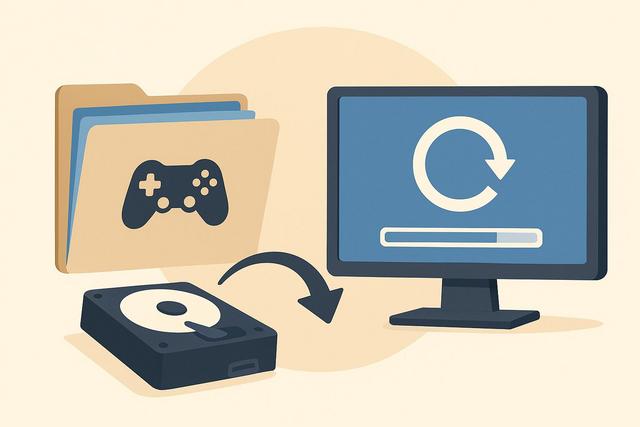
Reinstalling your system or formatting a hard drive can lead to the loss of valuable data. However, you can avoid this inconvenience by creating a backup archive of your games before any reinstallation. This simple step protects your files, backups, and personalized settings. In this article, you will discover how to effectively create a backup archive of games, which methods to prioritize, and what tools to use to ensure the safety of your data. To get started, you can download a reliable archiving tool like 7-Zip.
Why Create a Game Backup Archive Before Reinstallation?
You should create a game backup archive before any reinstallation as it protects your personal data. Reinstalling Windows or changing hard drives often erases local files, risking the loss of your saves, configurations, and sometimes even progression files.
Platforms like Steam or Epic Games offer cloud services. However, not all games automatically sync their saves. Some files remain stored locally, increasing the risk of loss. By creating a complete archive, you maintain control over your data.
Moreover, a backup reduces the reinstallation time. This way, you avoid downloading several tens of gigabytes again. This solution is therefore practical and economical, especially if your internet connection remains limited.
Identifying Important Files to Backup
Before creating a game backup archive, you need to identify essential files. This step ensures a complete and effective backup.
In general, you should keep:
- The game installation folders
- The save files
- The user profiles
- The mods and custom content
- The graphic and configuration settings
Backups are often found in the "Documents" or "AppData" folder. You can access these directories by typing %appdata% in the Windows search bar. However, some games store data directly in their main folder.
Therefore, check each game individually. This method takes some time but guarantees a complete archive.
Using Integrated Tools of Gaming Platforms
Distribution platforms often offer backup tools. You should take advantage of these options as they simplify the procedure.
Backup via Steam
Steam offers an integrated feature called "Backup and Restore Games." You can access it from the library. This option creates a compressed archive that you can store on an external drive.
Steam makes restoration after reinstallation easier. However, this method does not always backup external files or mods, so you should check the additional folders.
Cloud Gaming and Synchronization
The cloud is a convenient solution. Epic Games, Ubisoft Connect, or Xbox Game Pass automatically sync certain data. However, you need to enable synchronization in the settings.
Even though the cloud protects saves, it remains prudent to create a local copy. Indeed, an account or connection issue can block access to your data.
Create a Manual Archive on External Drive
You can manually create a game backup archive. This method offers full control over the files.
Start by plugging in an external hard drive or a high-capacity USB drive. Then, copy the game folders to this medium. Organize the files by platform or game type to facilitate restoration.
Here are the main steps:
- Locate the game's installation folder
- Copy the entire folder to the external medium
- Backup the files located in Documents or AppData
- Check the size and integrity of the copied files
This method remains reliable as it does not depend on any online service. However, it requires more attention.
Using Automatic Backup Software
Backup software automates the process. This solution is particularly suitable if you frequently change your configuration.
Tools like Acronis, EaseUS Todo Backup, or Cobian Backup allow you to schedule regular backups. You can thus create incremental copies, which reduce the space used.
Here is a quick comparison table:
| Software | Type of Backup | Main Advantage |
|---|---|---|
| Acronis | Full system image | Comprehensive disk protection |
| EaseUS Todo Backup | Incremental backup | Simple interface |
| Cobian Backup | Scheduled backup | Free and lightweight |
These programs enhance data security as they limit forgetfulness. However, you must regularly check the proper functioning of backups.
Compress the Archive to Save Space
Compression reduces file size. You can use WinRAR, 7-Zip, or the built-in compression tool in Windows.
This step makes storage on an external medium easier and allows for faster transfers to another computer. However, compression can lengthen the time taken to create the archive, especially for large games.
If your library exceeds 100 GB, opt for a high-capacity external hard drive, as modern games often take up a lot of space.
Verify the Integrity of the Backup Archive
You should always verify the integrity of your archive. This step prevents unpleasant surprises during restoration.
Try to open the compressed files. Also, check the total size of the backed-up folder. If possible, compare it with the original files.
Some software offers an automatic verification feature, enhancing security as the software detects any potential errors.
Restore Games After Reinstallation
After the system reinstallation, you can quickly restore your games. Start by installing the respective platform. Then copy the saved files to the new installation folder.
In Steam, you can use the "Restore a Previous Backup" option. If you made a manual copy, ensure the paths match.
You must also replace the saved files in the correct folders. This step ensures the recovery of your progress.
Best Practices for a Secure Backup
Adopt best practices to secure your game backup archive. This approach strengthens the protection of your data in the long term.
Keep at least two copies of your files. Store one on an external drive and the other in the cloud. This strategy reduces the risks in case of hardware failure.
Here are some key tips:
- Update your backups regularly
- Test your archives at least once a year
- Clearly label your storage media
- Protect your files with a password if necessary
By following these recommendations, you minimize potential losses.
Backup Your Games on Console
Backup is not only for PCs. You also need to protect your console games.
On PlayStation or Xbox, you can use a compatible external hard drive. Online subscriptions often include cloud storage. However, check synchronization settings.
On Nintendo Switch, you must manually enable cloud backup for certain titles. Not all games support this feature, which may surprise some users.
Conclusion: Secure Your Game Library
Creating a game backup archive before reinstallation is an essential step. You protect your progress, settings, and custom files. This approach saves you time and avoids repeated downloads.
You can choose a manual backup, an automatic tool, or a cloud solution. The ideal scenario is to combine several methods to enhance security. Act before any reinstallation, as prevention is the best protection.
By implementing a reliable backup strategy, you keep your library intact and play with peace of mind.


