How to Effectively Reduce Lag in Fortnite
- Apr 18, 2026 01:11 am
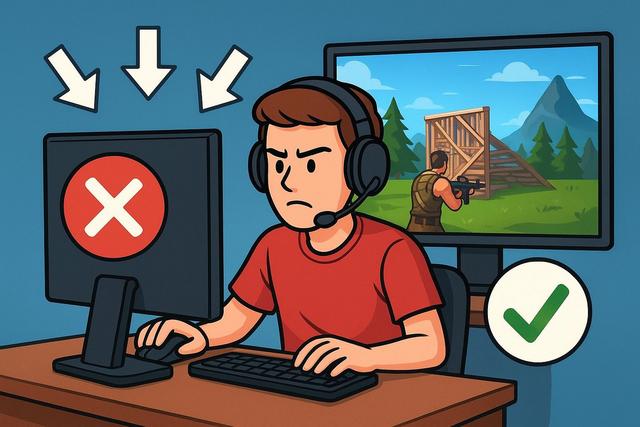
Lag in Fortnite can ruin a game in just seconds, leading to slowdowns, display delays, and loss of control. However, there are simple and effective solutions to reduce lag in Fortnite, whether you are playing on PC, PS5, Xbox, or Nintendo Switch. In this comprehensive article, you will learn how to optimize your graphics settings, improve your internet connection, and boost your hardware performance in order to play smoothly and competitively.
For those who want to enhance their gaming experience even further, you can find the latest version of Roblox for free by following this link.
Understanding the Causes of Lag in Fortnite
Lag in Fortnite occurs when your game fails to display frames quickly or when your internet connection creates a delay between your actions and their execution. There are generally two types of lag: graphical lag and network lag.
Graphical lag, also known as FPS (frames per second) drop, happens when your graphics card or CPU struggles to keep up. Network lag, on the other hand, causes high ping, packet loss, and disconnections, resulting in your character teleporting or responding late.
You need to identify the source of the problem, as solutions differ depending on the cause. Fortnite displays FPS and ping in the settings, making diagnosis easier.
Optimizing Graphics Settings to Increase FPS
If your game lacks fluidity, the first step is to adjust the graphics settings. Indeed, overly high settings heavily tax your hardware.
Here are the recommended settings to reduce lag in Fortnite on PC:
- Resolution: slightly decrease if necessary
- Display Mode: full screen
- Frame rate limit: adapt it to your screen
- Shadows: disabled
- Effects: low
- Post-processing: low
- V-Sync: disabled
- Motion blur: disabled
These adjustments often immediately improve performance as they reduce the load on the GPU. However, you should test each change to find the best balance between visual quality and fluidity.
Also, enable Performance mode in Fortnite. This mode reduces textures and optimizes rendering, making the game more stable on modest configurations.
Updating Drivers and the System
Outdated drivers often cause lag issues. Therefore, you should update your graphics card via the official NVIDIA, AMD, or Intel website.
Updates include specific fixes for Fortnite, as developers regularly work with manufacturers. Additionally, Windows Update fixes some system bugs that may slow down your PC.
Don’t forget to update Fortnite as well. Epic Games frequently releases performance patches that enhance stability.
Optimizing Your PC to Reduce Lag in Fortnite
Your computer may slow down because too many programs are running in the background. You should close unnecessary applications before launching Fortnite.
Open the Task Manager and disable resource-intensive software. Focus on:
- Web browsers
- Streaming software
- Cloud sync applications
- Active games or launchers running in the background
Also, clean your hard drive, as a full storage drive can decrease overall performance. If possible, install Fortnite on an SSD. An SSD reduces load times and improves overall responsiveness.
Add RAM if your PC is lacking. Fortnite performs better with 16 GB of RAM, especially if you are using Windows 11.
Improving Your Internet Connection to Reduce Ping
A high ping causes detrimental network lag, especially in competitive mode. Therefore, you need to optimize your internet connection.
Use an Ethernet cable instead of Wi-Fi, as wired connections are more stable. However, if you are using Wi-Fi, position yourself close to the router and avoid thick walls.
Regularly restart your internet box. This simple action often resolves micro-disconnects and improves stability.
Limit parallel downloads as they monopolize bandwidth. If multiple people are using the internet, schedule your gaming sessions during quieter times.
Here is a summary table of ideal values:
| Indicator | Ideal Value |
|---|---|
| Ping | < 30 ms |
| Packet Loss | 0 % |
| Download Speed | > 15 Mb/s |
| Upload Speed | > 5 Mb/s |
Also, choose the right server in Fortnite settings. Select the nearest region to reduce latency.
Correctly Configuring Your Console (PS5, Xbox, Switch)
Console lag exists as well, even though the hardware is optimized. You need to free up storage space, as a full console slows down performance.
Enable performance mode if available. On PS5 and Xbox Series, you can prioritize fluidity over 4K resolution.
Also, use an Ethernet connection. If your Wi-Fi is unstable, invest in a repeater or gaming router.
Finally, make sure to check for system updates, as they improve overall stability.
Adjusting Advanced Network Settings
Some advanced optimizations further reduce lag in Fortnite. You can change DNS settings to Google's (8.8.8.8 and 8.8.4.4) or Cloudflare's (1.1.1.1). These DNS sometimes improve the speed of connection to servers.
Also, enable Quality of Service (QoS) on your router if it offers this feature. This function prioritizes gaming traffic, so Fortnite takes precedence over other uses.
Disable VPNs during your sessions, as they often increase latency by adding intermediate steps.
Monitoring Equipment Temperature
Overheating causes performance drops as the CPU and graphics card reduce their power to protect themselves. Therefore, you should monitor temperatures with dedicated software.
Regularly clean the fans and dust filters. Add a more efficient cooling system if necessary. A well-ventilated PC maintains more stable FPS in Fortnite.
Enabling Low Latency Mode and Optimizing NVIDIA/AMD
If you have an NVIDIA card, enable low latency mode in the control panel. Also, enable NVIDIA Reflex in Fortnite, as this technology reduces the delay between your actions and screen display.
For AMD, enable Radeon Anti-Lag. This feature improves responsiveness by limiting image buffering.
These options provide a real competitive advantage, especially in close combat.
Checking the Status of Fortnite Servers
Sometimes, lag is not your fault. Fortnite servers can experience temporary issues. Check server status on the official Epic Games website or their social media.
If the servers are unstable, wait a few hours. There's no need to change your settings if the problem comes from Epic's side.
Testing and Regularly Adjusting Your Performance
You should test your FPS and ping after each modification, as each configuration remains unique. Use the built-in performance display in Fortnite.
Look for stability rather than a high FPS spike. A stable game at a constant 120 FPS offers a better experience than a game fluctuating between 60 and 200 FPS.
Finally, adopt a maintenance routine. Regularly update your drivers, clean your PC, and check your connection. These best practices sustainably reduce lag in Fortnite.
Conclusion: Playing Without Lag in Fortnite
Reducing lag in Fortnite requires a comprehensive approach, as several factors influence performance. You need to optimize graphics settings, improve your internet connection, and maintain your hardware. However, each improvement, no matter how small, increases fluidity and responsiveness.
By applying these tips, you enjoy a more stable experience, better reaction times, and a real competitive advantage. Test each adjustment, adapt them to your configuration, and turn your Fortnite sessions into smooth, frustration-free games.


