How to Record a Zoom Meeting for Free on Your Computer
- Jun 25, 2026 01:11 am
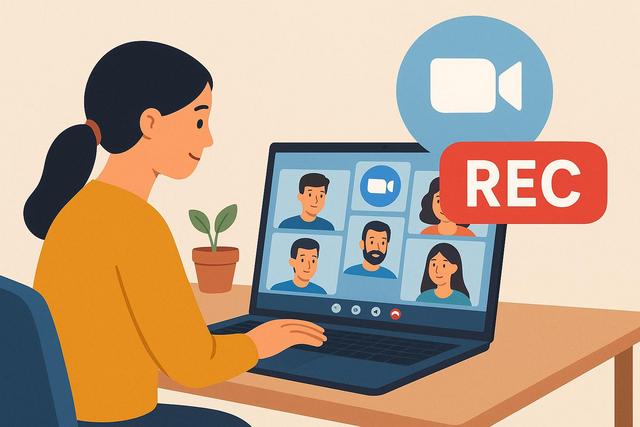
Do you want to record a Zoom meeting for free on your computer? Whether it's to review a lesson, keep minutes, or share a presentation, Zoom offers a simple solution for local recording. In this article, learn how to record a Zoom meeting for free on PC or Mac, step by step, along with practical tips to avoid common mistakes.
To get started, you can download the latest version of Zoom.
What is the free method to record a Zoom meeting?
The main intention behind searching for "record Zoom meeting for free on computer" is clear: you want to save a meeting without paying for a subscription.
Zoom allows free recording, but under certain conditions. With a free account, you can record the meeting locally on your computer. However, cloud recording remains reserved for paid accounts.
Local recording means that the video file is saved directly to your PC or Mac. You can then play, transfer, or share it.
Conditions for recording a Zoom meeting for free
Before you start, check these essential points:
- You must use the Zoom application for desktop (Windows or macOS).
- You must have a Zoom account (free or paid).
- You must be the host of the meeting.
- If you are a participant, the host must allow you to record.
If you are using Zoom solely from a web browser, local recording is not available. So be sure to install the official software from the Zoom website.
How to record a Zoom meeting on a computer (detailed steps)
Here is the complete procedure to record a Zoom meeting for free.
1. Download and install Zoom
Go to the official Zoom website. Download the version suited to your system (Windows or Mac).
Then install the application, and log in to your account.
2. Start or join a meeting
Click on "New Meeting" to launch one.
You can also join a scheduled meeting. However, to record, you must be the host or have received permission.
3. Click the "Record" button
Once the meeting has started, look at the toolbar at the bottom of the Zoom window.
Click "Record".
If you are using a free account, Zoom will automatically record locally. If you have a paid account, the application may offer you the choice between:
- Record on this computer
- Record to the cloud
Choose "On this computer" to stick with the free option.
4. Stop the recording
Click "Pause" if you wish to temporarily interrupt the recording.
Click "Stop Recording" when the meeting ends.
After the meeting, Zoom automatically converts the file to video format (usually .mp4).
5. Find your video file
By default, Zoom saves files in the folder:
Documents > Zoom
You can modify this location in the application settings.
Allow a participant to record the meeting
If you are the host, you can allow a participant to record the meeting for free on their own computer.
Here’s how to do it:
- During the meeting, click on “Participants”.
- Hover over the person's name.
- Click on "More".
- Select "Allow local recording".
The person will then see the "Record" button appear.
In this way, anyone can keep a copy without resorting to the paid cloud.
Properly configuring Zoom recording
To optimize your Zoom meeting recording on computer, take a few minutes to adjust the settings.
Access the recording settings
- Open the Zoom application.
- Click on your profile picture.
- Select “Settings”.
- Click on “Recording”.
You can then:
- Choose the destination folder.
- Record a separate audio track for each speaker.
- Enable automatic recording.
Automatic recording can be useful to avoid forgetting to record. However, always inform participants.
Best practices for successful Zoom recording
Recording a Zoom meeting for free is simple. However, certain details can make all the difference.
1. Check the microphone quality
Poor sound makes the video unusable.
Test your microphone before the meeting. Use headphones if possible. Avoid noisy rooms.
2. Inform participants
In many countries, the law requires informing people being recorded. Before starting, clearly announce that you are starting the recording.
Rules may vary by local legislation. Always check current obligations.
3. Close unnecessary applications
Video recording consumes resources.
Close resource-hungry software to avoid slowdowns. This also reduces the risk of bugs.
4. Check the storage space
A long meeting may produce a large file.
Make sure you have enough free space on your hard drive.
Advantages and limitations of free recording on Zoom
Here is a simple table to understand the differences between free local recording and paid cloud recording:
| Criterion | Local recording (free) | Cloud recording (paid) |
|---|---|---|
| Cost | Free | Subscription required |
| Storage | Personal computer | Zoom servers |
| Access | Manual file | Shareable link |
| Automatic transcription | Not included | Often included depending on the offer |
The free recording is more than enough for personal, academic, or internal use. However, if you need to quickly share links or automate transcriptions, a paid offer may be useful.
Can you record a Zoom meeting without being a host?
Yes, but only with the host's permission.
Otherwise, the record button remains disabled.
Some people use third-party software to capture the screen. However, this method can raise legal and ethical issues. Additionally, the quality varies depending on the software used.
It's better to request official permission in Zoom.
What to do if the "Record" button does not appear?
If you do not see the recording option, check:
- You are logged into your account.
- You are using the desktop application, not the browser.
- You are the host or authorized.
- Local recording is enabled in the account settings (via the Zoom website).
To enable local recording online:
- Log in to your account on the Zoom website.
- Go to "Settings".
- Look for the option "Local recording".
- Enable it if necessary.
Menus may evolve based on updates. Always check the current interface if you do not find exactly these terms.
How to share a recorded Zoom meeting?
Once your MP4 file is generated, you can:
- Send it via email (if the size allows).
- Transfer it via an online storage service.
- Compress it to reduce its size.
If the file is large, use a suitable transfer platform. Also, consider protecting sensitive data.
Conclusion
Recording a Zoom meeting for free on a computer remains simple and accessible to everyone. Just use the desktop application, have a Zoom account, and enable local recording.
This free solution meets most personal and professional needs. However, always check the settings, disk space, and legal rules before starting the recording.
With the best practices presented in this article, you will be able to record your Zoom meetings effectively and at no cost.
FAQ – Record a Zoom meeting for free
Can you record a Zoom meeting for free without an account?
No. You must have at least a free Zoom account and be logged in to access local recording.
Does free Zoom recording have a time limit?
Zoom limits the duration of free meetings according to current conditions. These rules may evolve. Check current limitations on the official site.
Where is the file after recording?
By default, it is located in the “Documents > Zoom” folder. You can change this location in the settings.
Can you record Zoom on Mac and Windows?
Yes. Local recording works on both systems via the official Zoom application.


