IPTV on Windows: How to Open M3U Files with WinRAR
- May 09, 2026 01:11 am
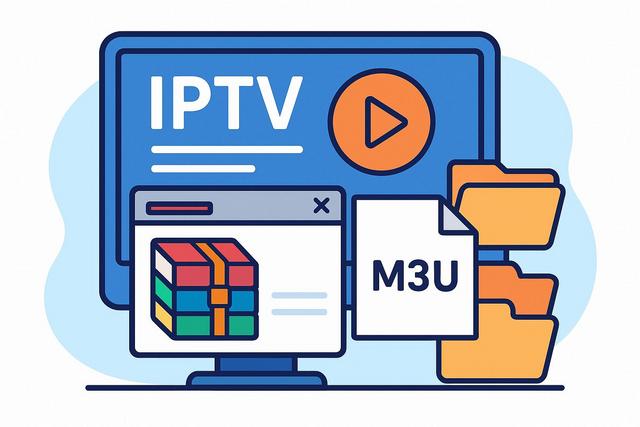
Introduction to IPTV on Windows
IPTV is increasingly attracting users on Windows, as it allows access to thousands of TV channels via the Internet. To enjoy this service, you often need to use an M3U file. However, some users attempt to open this file with WinRAR, mistakenly thinking it is a compressed archive. In this article, we will explain how to open an M3U file on Windows, the actual role of WinRAR, and what solutions to adopt for correctly reading an IPTV playlist.
For those looking to download WinRAR, you can find the latest version here.
Understanding the M3U File in IPTV
An M3U file is a text file that contains a list of multimedia stream URLs. It is mainly used to organize and play IPTV channels through a compatible player. Contrary to popular belief, this file does not contain the videos themselves, as it simply references links to streaming feeds.
The M3U format stands for "MP3 URL," even though it is no longer limited to audio files. Today, it is widely used for streaming television. When you download an IPTV playlist, you usually receive a file with the .m3u or .m3u8 extension.
Why Does Windows Sometimes Associate M3U with WinRAR?
On Windows, the system associates each file extension with a default program. Sometimes, WinRAR automatically associates itself with certain unknown formats. This happens if you checked an option during the installation of WinRAR.
In this case, the M3U file icon may look like a compressed archive. However, the M3U file is not a ZIP or RAR file. WinRAR can open it as a text file, but it does not allow you to read IPTV streams.
This confusion leads many users to search for how to open an M3U file with WinRAR. In reality, WinRAR is not the right tool to play an IPTV playlist.
Can You Open an M3U File with WinRAR?
Yes, you can technically open an M3U file with WinRAR, as it is a simple text file. However, this action only serves to display the raw contents of the file.
When you open the file with WinRAR, you see a list of HTTP or HTTPS links. Each link corresponds to an IPTV stream. You cannot directly launch a channel from WinRAR, as this software does not play streaming video feeds.
Therefore, if your goal is to watch television via IPTV on Windows, you must use a compatible media player.
How to Correctly Open an M3U File on Windows
To play an IPTV playlist, you need to use an appropriate player. Several free software options work perfectly on Windows.
1. Use VLC Media Player
VLC Media Player is the simplest and most popular solution. This free player supports M3U files without complex configurations.
Here are the steps to follow:
- Download and install VLC from the official website.
- Right-click on the M3U file.
- Select "Open with."
- Choose VLC Media Player.
You can also open VLC, then click on "Media" and "Open File." Then select your M3U playlist. VLC automatically loads the list of channels.
2. Use a Dedicated IPTV Player
Some specialized software offers more features, as they organize channels by categories and add a TV guide (EPG).
Popular solutions include:
- IPTV Smarters
- MyIPTV Player
- Kodi with IPTV add-on
These applications enhance the user experience as they provide a more suitable interface for live television.
Change the Default Application for M3U Files
If WinRAR automatically opens when you double-click an M3U file, you can change the default application.
Here’s the procedure on Windows 10 or Windows 11:
- Right-click on the M3U file.
- Click on "Open with."
- Select "Choose another app."
- Choose VLC or another IPTV player.
- Check "Always use this app."
- Confirm by clicking "OK."
From then on, Windows will correctly associate the M3U format with the chosen media player.
Compressed M3U File: When to Use WinRAR?
In some cases, your IPTV provider may send the playlist as a ZIP or RAR archive. This scenario explains why WinRAR can become useful.
Here is the difference:
| File Type | Role | Software to Use |
|---|---|---|
| .m3u / .m3u8 | IPTV Playlist | VLC or IPTV Player |
| .zip / .rar | Compressed Archive | WinRAR |
If you receive a ZIP or RAR file, you must first extract it using WinRAR. Then, you retrieve the M3U file contained in the archive. You can then open it with VLC or another compatible player.
Thus, WinRAR is only used for decompressing a file, not for playing IPTV channels.
Common Issues When Opening an M3U File
Several errors can occur when using an IPTV playlist on Windows.
Inactive IPTV Links
If no channel loads, the problem often comes from the IPTV provider. Links may expire or be disabled. In this case, request a new playlist.
Error Message in VLC
VLC may display an error message if the stream is blocked or poorly formatted. First, check your internet connection, as insufficient bandwidth prevents smooth playback.
Empty M3U File
If you open the file in a text editor and it contains no links, the download likely failed. Download the playlist again.
Tips for Securing IPTV Usage on Windows
IPTV operates via the internet, which makes security a critical point. You should adopt some good practices.
First, always download your files from a reliable source. Then, scan ZIP or RAR archives with an antivirus, as some files may contain malware.
Furthermore, avoid installing unknown software offered with the playlist. Favor recognized players like VLC, as they receive regular updates.
Finally, make sure your provider complies with the laws in your country. Using an illegal service can lead to legal risks.
Difference Between M3U and M3U8
You may encounter two similar extensions: .m3u and .m3u8. The difference mainly lies in the encoding.
The M3U8 file uses UTF-8 encoding, which allows special characters to be displayed correctly. This version is better suited for modern streams and HLS-type streaming.
However, the method of opening remains the same on Windows. You should use a compatible media player rather than WinRAR.
Why Use VLC Instead of WinRAR for IPTV?
VLC stands out for its extensive compatibility with audio and video formats. It directly plays network streams, making it easy to access IPTV channels.
WinRAR, on the other hand, is only used to compress or decompress files. It does not handle real-time streams. Even if you see the links in the file, you cannot start the playback.
Therefore, using VLC simplifies the experience, as you access channels immediately without complex handling.
Summary: Opening an M3U File with WinRAR on Windows
You can open an M3U file with WinRAR, but this action does not allow you to watch IPTV. The M3U file contains only links to video streams. To play these streams on Windows, you must use a media player like VLC or a dedicated IPTV software.
WinRAR becomes useful only if the playlist is in a compressed archive. In this case, you must first extract the file before opening it with a compatible player.
By correctly configuring the default application and using the right tools, you can fully enjoy IPTV on Windows. You also avoid frequent errors related to incorrect file associations. With these tips, you now know how to effectively manage an M3U file and understand WinRAR's real role in this process.


