
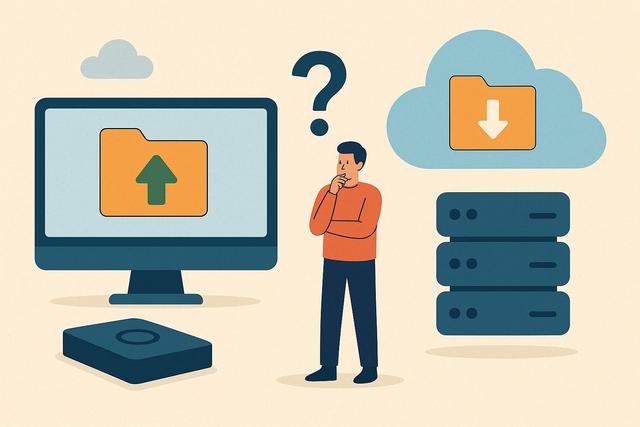
Choosing Between Local and Online Backup
Choosing between local backup and online backup depends on your files, usage, and the level of protection you require. Both solutions have their advantages as well as limitations. The best choice often involves combining both methods to prevent data loss due to a breakdown, theft, or human error.
For a comprehensive solution, consider downloading Dropbox.
Local Backup or Online Backup: What is the Difference?
A backup involves creating a copy of your important files. This copy allows you to restore your data if the original is lost, corrupted, or becomes inaccessible. Photos, administrative documents, professional projects, and databases deserve this protection.
The local backup stores files on a physical medium close to you. This could be an external hard drive, SSD, USB stick, NAS server, or another computer. You maintain control over both the hardware and access to your data.
The online backup, also known as cloud backup, sends your files to servers accessible via the Internet. A specialized service or an online storage space keeps a copy of your data. You can typically access it from multiple devices.
These two options do not exactly answer the same risks. An external drive protects against accidental deletion. However, it can be lost along with your computer during a burglary or fire. The cloud provides better protection against these types of disasters. However, it relies on an Internet connection and the reliability of the chosen service.
Why Backing Up Data is Essential
A computer is not a backup. A smartphone is not either. Even a recent device can fail unexpectedly. A failed update, malicious software, or user error can also render files unusable.
Many people think about backing up after losing important photos or documents. It is, however, easier to establish a routine before the incident. An automatic backup prevents forgetfulness and limits the consequences of a problem.
The main risks are varied:
- failure of a hard drive, SSD, or phone;
- accidental deletion of a folder;
- ransomware infection;
- theft, loss, or damage to a device;
- fire, water damage, or power surge;
- sync errors between multiple devices.
Backing up does not replace caution. However, it greatly reduces the consequences of an incident. It also allows you to retrieve an older version of a file when a document has been mistakenly modified.
Advantages of Local Backup
Local backup appeals due to its simplicity and direct control. You connect an external drive, initiate a copy, or configure software, and your files remain at home. You do not need to send your data to a remote server.
Quick Access to Backed-Up Files
A backup on an external drive often provides quick restoration. This is important if you need to recover a large volume of photos, videos, or work files. The transfer does not depend on your Internet speed.
This solution is therefore practical for large content. A videographer, designer, or small business can more easily restore multiple large folders from local storage.
Better Control Over Data
With a local backup, you choose the medium, software, and storage location. You do not have to accept the technical rules of a cloud provider. You can also keep your data offline when you unplug the drive.
This storage method is suitable for people who want to limit data exchanges over the Internet. It can also meet certain internal constraints in a company. However, physical security of the medium is required.
Often More Predictable Cost
The purchase of an external hard drive or NAS represents an initial cost. Afterwards, you might not have a monthly subscription. This approach can become interesting if you store a lot of data over several years.
However, the hardware wears out. You will need to plan for its replacement and regularly check its functioning. A medium purchased once does not guarantee data preservation forever.
Limitations of Local Backup
The main drawback of a local backup concerns location. If the computer and the backup drive remain in the same room, they often suffer from the same disasters. A theft, flood, or fire can therefore destroy both copies.
An external drive left plugged in all the time also presents a risk against malware. Some ransomware seeks connected drives and encrypts backup files as well. Unplug the medium after the copy if your method allows.
Local backup also requires some discipline. You must connect the medium, control the copies, and organize the folders. An automatic system reduces this work but does not eliminate the need for checks.
Finally, a USB stick is not always a good primary backup solution. It is easy to lose and often limited in capacity. Reserve it for a one-time transfer or an additional encrypted copy.
Advantages of Online Backup
Online backup sends a copy of your data to a remote storage center. Its primary asset is distance. If your home or office experiences a disaster, your files remain available elsewhere.
Off-Site Protection Against Disasters
The cloud provides a separate copy of your devices. This separation better protects against theft, a domestic accident, or a widespread failure of your hardware. You can restore your files on a new computer if the old one stops working.
This is a major advantage for essential documents. For example, you can keep an online copy of your administrative documents, family photos, or work files.
Access from Multiple Devices
With cloud backup, you can often retrieve your files from a computer, tablet, or smartphone. This flexibility facilitates telecommuting and controlled sharing with friends or colleagues.
Be careful not to confuse online storage with complete backup. A folder synchronized across multiple devices may propagate deletion everywhere. Ensure that the service retains previous versions and a trash bin for an appropriate duration.
Easier Automation
Many online backup services offer automatic backup. Once the folders are selected, the software sends new versions without daily action. This regularity is valuable because it limits forgetfulness.
The initial upload may take time, especially with large volumes. After that, the service generally transfers only modified files. The speed depends on your Internet connection and the settings chosen.
Limitations of Online Backup
Online backup depends on the Internet. Without a connection, you cannot send or retrieve your files. A complete restoration of several hundred gigabytes can also take time with a slow connection.
Cost deserves your attention as well. Free offers are often limited. Paid plans may evolve, as can their capabilities or terms of use. Check current rates, storage limits, and any potential fees before choosing a service.
Confidentiality is another important point. Your files pass through the Internet and are hosted by a third party. Choose a recognized provider, enable two-factor authentication, and use a unique password. If you store sensitive data, consider also encrypting before sending.
Finally, read the recovery options. Some tools synchronize files but do not offer a true backup of the entire computer. Others keep a version history, which helps after a deletion or ransomware attack.
How to Choose Between Local and Cloud Backup?
The choice primarily depends on your priorities. Ask yourself concrete questions: which files do you need to protect? How much volume does it represent? How quickly do you need to restore your data? Can you afford a subscription?
The table below helps compare the two solutions.
| Criterion | Local Backup | Online Backup |
|---|---|---|
| Access to Files | Very fast near the medium | Depends on Internet connection |
| Protection Against a Home Disaster | Limited if the medium stays in place | Good due to remote storage |
| Control of the Hardware | Very high | Depends on the chosen provider |
| Automation | Possible with software or NAS | Often simple to configure |
| Cost | Purchase of hardware and maintenance | Often a recurring subscription |
| Restoration of Large Volumes | Generally quick | Sometimes long depending on speed |
Choose a local backup if you have a lot of data, if you want to restore quickly, or if you prefer to control your hardware. A dedicated external drive is suitable for many households. A NAS may be appropriate if multiple people use the same network and if you are comfortable with its setup.
Choose an online backup if you want to protect your files against local disasters and access them on the go. It is particularly suitable for essential documents and for those who wish to automate copies.
Most of the time, you do not need to choose just one method. A hybrid strategy offers stronger protection.
The Best Solution: Combine Local and Online Backup
Combining local backup and cloud backup allows you to cover more risks. You can quickly restore your files from a nearby disk. In parallel, a distant copy protects your data if that disk disappears or becomes unusable.
You can draw inspiration from the backup principle often called "3-2-1". The idea is simple: keep multiple copies of your data, use different media, and place at least one copy off-site from your home or office. Adapt this method to your budget and risk level.
A simple organization might look like this:
- work files remain on your computer;
- an external drive performs regular local backups;
- an online service keeps the most important folders;
- you occasionally test the restoration of a document;
- you keep passwords and recovery codes safe.
This approach avoids relying on a single device, a single drive, or a single provider. It also provides a more effective response to both failures and major disasters.
Setting Up a Reliable Backup in Practice
Start by sorting your files. Do not try to back up everything without thought. Identify irreplaceable folders: photos, contracts, health documents, creations, client files, and active projects.
Then choose a realistic frequency. A work folder that changes every day deserves a daily backup. Personal archives can be copied less often. The key is to maintain a regular routine.
Enable automatic backups when possible. On computers, built-in tools or specialized software can copy your folders to an external drive. Online backup services also offer scheduled or continuous settings.
Next, protect access to copies. Encrypt your computer and backup drive if it contains sensitive documents. Enable two-factor authentication on your cloud accounts. Also, avoid sharing a backup account among multiple people.
Finally, check that restoration works. Open a backed-up file. Try to find a previous version. Ensure your photos and documents are not just visible but also usable. An untested backup can hold a nasty surprise on the day you need it.
FAQ about Local and Online Backup
Does the Cloud Suffice to Back Up Photos?
The cloud can protect your photos from losing a phone or computer. However, also keep a local copy on an external drive. You will be able to restore a large library faster and avoid relying on a single online account.
What is the Difference Between Sync and Backup?
Sync updates the same files across multiple devices. It facilitates document access. A backup retains a recovery copy, ideally with a version history. If you delete a synced file, the deletion can propagate everywhere.
Should You Leave a Backup Drive Plugged In All the Time?
A connected drive makes automatic backups easier. However, it can be affected by power surges, theft, or malware. If you perform manual copies, unplug it after the backup. With an automatic backup, add an online copy or a second unplugged medium.
How to Protect an Online Backup?
Use a long, unique password. Enable two-factor authentication. Check encryption options and file retention policies. Do not share your account unnecessarily, as cloud security also depends on your habits.
Conclusion
Local backup offers speed, control, and simplicity. Online backup better protects against disasters affecting your devices and home. To truly protect your data, ideally combine both. Automate copies, secure access, and regularly test the restoration of your important files.


