Mastering VLC Media Player: Play All Video Formats Effortlessly
- Jul 17, 2026 01:11 pm
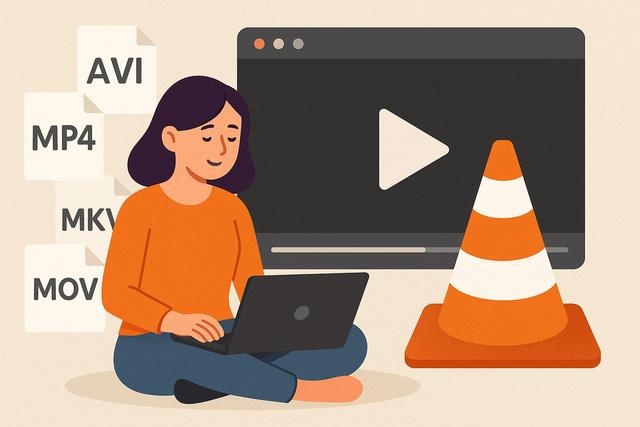
Are you looking for a media player that can handle all your videos without the need to install complicated codecs? VLC media player is a free, simple, and powerful solution. It allows you to play almost every video and audio format without complex configuration. Here’s how to use VLC to play your videos in all formats and make the most of its features.
To download VLC media player, visit this link.
Why Use VLC Media Player to Play All Video Formats
The main intention of a user searching for "play videos all formats with VLC media player free" is clear: to find simple and free software capable of opening any video without errors or missing codec messages.
VLC media player precisely meets this need. This free, open-source media player available on Windows, macOS, and Linux supports a very wide range of formats.
Unlike other players, VLC includes its own codecs. Therefore, you don’t need to install additional packs. This saves you time and prevents software conflicts.
Which Video Formats Can VLC Play?
VLC can play most commonly used video and audio formats. For example:
- MP4
- AVI
- MKV
- MOV
- WMV
- FLV
- MPEG
- WebM
- 3GP
It also supports numerous audio formats like MP3, AAC, FLAC, or WAV.
VLC can also play DVDs, some Blu-rays (depending on the protections), and ISO files. You can even play network streams and streaming videos.
However, if a very recent or specific file is problematic, check that you are using the latest version of VLC. Updates often improve compatibility.
How to Download VLC Media Player for Free
To play your videos in all formats with VLC media player for free, download the software from the official VideoLAN website. This ensures a safe version without unwanted software.
Installation Steps
- Go to the official VLC website.
- Click on "Download VLC".
- Select the version suitable for your system.
- Launch the downloaded file.
- Follow the on-screen instructions.
The installation takes a few minutes. After that, you can immediately open your video files.
How to Play a Video with VLC
Using VLC is very simple, even for a beginner.
Quick Method
- Right-click on your video file.
- Select "Open with".
- Choose "VLC media player".
The video starts automatically.
From the Software
You can also:
- Open VLC.
- Click on "Media".
- Select "Open File".
- Choose your video.
This method remains convenient if you wish to play multiple files in a row.
Play High Definition and 4K Videos with VLC
VLC handles HD, Full HD, and 4K videos. However, smooth playback also depends on your computer.
If the video stutters, you can:
- Update VLC.
- Update your graphics drivers.
- Enable or disable hardware acceleration in the settings.
To modify this setting:
- Click on "Tools".
- Then "Preferences".
- Go to "Input / Codecs".
- Change the hardware acceleration option.
Test after modification. This way, you can identify the best configuration for your system.
Customize Video Playback
VLC is not limited to just playing videos. It offers advanced functions that enhance the experience.
Add Subtitles
To add a subtitle file:
- Click on "Subtitle".
- Select "Add Subtitle File".
VLC recognizes many formats like SRT. You can also adjust the synchronization if the text doesn’t perfectly match the video.
Adjust Image
You can adjust:
- Brightness
- Contrast
- Saturation
- Gamma
Go to "Tools" then "Effects and Filters". These options are useful if your file is dark or poorly encoded.
Change Playback Speed
You can slow down or speed up a video. This function helps, for example, to take notes or to review a specific part.
Use the commands in the "Playback" menu or the keyboard shortcuts.
Create Playlists and Manage Your Library
VLC allows you to create a simple playlist.
- Click on "View".
- Activate "Playlist".
- Drag your files into the window.
You can then organize your videos in the desired order. This function is suitable for classes, series, or training videos.
However, VLC does not offer an advanced library like some specialized software. It remains primarily a media player.
Play Streaming Videos with VLC
Few people know that VLC can play online streams.
To do this:
- Click on "Media".
- Select "Open Network Stream".
- Paste the stream URL.
- Click on "Play".
You can thus play some videos online or IPTV streams, provided you have a legal source.
Always check the legality of the content you are viewing.
Convert a Video File with VLC
VLC is not just for playing videos. It also allows you to convert files.
Steps to Convert a Video
- Click on "Media".
- Select "Convert / Save".
- Add your file.
- Click on "Convert".
- Choose the output format.
- Start the conversion.
This function is practical if you need to adapt a file for a smartphone or TV.
However, for complex or professional conversions, a dedicated software is more suitable.
Troubleshoot Common Issues with VLC
Even though VLC plays almost all video formats, some issues may arise.
No Sound
- Check that the VLC volume is not set to zero.
- Test another file.
- Check the audio output in the settings.
Stuttering Image
- Disable hardware acceleration.
- Close other programs.
- Ensure your computer is powerful enough.
File Not Playable
- Update VLC.
- Verify that the file is not corrupted.
If the problem persists, the file may be incomplete or damaged.
VLC on Mobile: Play All Your Videos Anywhere
VLC is also available on Android and iOS. The app remains free.
It allows you to:
- Play videos stored on your phone.
- Access files on a local network.
- Manage subtitles.
The mobile interface remains simple. However, some advanced options differ from the desktop version.
Check compatibility with your device according to the current version of the system.
Advantages and Limitations of VLC Media Player
To better understand why VLC remains so popular, here’s a clear summary:
Advantages:
- Free and open-source
- Compatible with numerous formats
- Available on multiple systems
- Ad-free
- Lightweight and fast
Limitations:
- Sober interface
- Limited library organization
- Uncertain playback of protected Blu-rays
Despite this, VLC remains one of the best free players for playing videos in all formats.
Conclusion
VLC media player allows you to play almost all video formats for free and without complex setup. It includes its own codecs, works on multiple systems, and offers many useful options.
If you are looking for a simple, reliable, and free media player to open your MP4, AVI, MKV files or others, VLC is an effective solution. Just make sure to check that you are using the most recent version to enjoy optimal compatibility.
FAQ
Is VLC Really Free?
Yes, VLC media player is completely free and open-source. You can use it without limitations.
Do I Need to Install Additional Codecs with VLC?
No. VLC includes its own codecs. You can play most formats without installing any external pack.
Can VLC Play MKV Files?
Yes, VLC plays MKV files without any issues in most cases.
Why Isn’t a Video Playing in VLC?
The file may be corrupted. It may also have been downloaded incorrectly. Also, check that your version of VLC is up to date.


