Optimize Slow IPTV on PC for Free with CCleaner
- May 07, 2026 01:11 pm
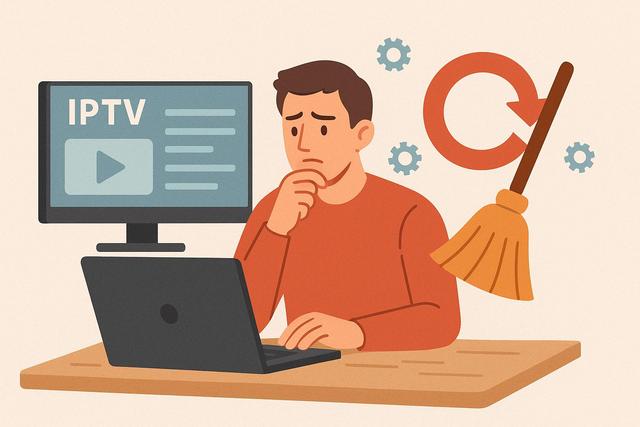
Are you watching your favorite IPTV channels on your PC, but the image freezes or the sound cuts out? A slow PC can quickly ruin your streaming experience. Fortunately, you can easily optimize your computer using CCleaner for free. In this article, we will explain why your IPTV on PC may be slowing down and how to use CCleaner to improve performance, speed up Windows, and enjoy smooth streaming.
To download CCleaner, visit this page: CCleaner Free Download.
Why is IPTV slow on PC?
Your IPTV on PC can slow down for various reasons. The problem does not always stem from your Internet connection. Often, your computer accumulates unnecessary files, registry errors, or background programs.
Several factors explain slow IPTV performance on PC:
- Accumulation of temporary files and browser cache
- Too many software programs at startup
- Lack of available RAM (memory)
- Full hard drive
- Cluttered Windows registry
When these factors accumulate, your PC works more slowly. The IPTV player then struggles to load video streams, leading to interruptions or poor image quality.
Why use CCleaner to optimize your PC?
The free CCleaner allows you to clean and optimize Windows with just a few clicks. This software removes unnecessary files that slow down the system. It also improves startup management and fixes certain registry errors.
You can use CCleaner to:
- Clean temporary files
- Remove browser cache
- Uninstall unnecessary programs
- Manage startup applications
- Clean the Windows registry
Thus, you free up disk space. You also reduce CPU load. Your IPTV on PC then runs more smoothly as the system has more resources available.
Step 1: Download CCleaner for free
Start by downloading CCleaner from the official site. Always prefer the official free version, as some third-party sites offer modified versions.
Then install the software by following the on-screen instructions. The installation is straightforward and quick, allowing you to start optimization within minutes.
Step 2: Clean unnecessary files to speed up IPTV
Open CCleaner and start a scan. The software examines temporary files, Internet cache, and unnecessary items.
Temporary files take up disk space. However, they are no longer useful after use. Due to their accumulation, your system gradually slows down.
Click on "Clean" to remove detected items. This action often frees up several hundreds of megabytes, or even several gigabytes.
Thanks to this cleaning, your PC can read IPTV streams more easily. The hard drive works less since it accesses essential data more quickly.
Step 3: Disable startup programs
A slow PC at startup also slows down IPTV. Indeed, when too many applications launch automatically, they use RAM right from startup.
In CCleaner, open the "Tools" tab, then "Startup." You will see a list of programs that launch with Windows.
Disable non-essential software such as:
- Instant messaging software
- Game launchers
- Non-priority update applications
Do not disable security or system-related programs. If in doubt, do a quick search before changing a setting.
This optimization improves overall performance. Your IPTV player then benefits from more memory and better responsiveness.
Step 4: Clean the Windows registry
The Windows registry stores numerous system settings. However, after repeated uninstallations, some entries become unnecessary.
CCleaner provides a registry cleaning tool. Start a scan and then fix detected errors. The software recommends a preliminary backup, which we strongly suggest.
A cleaner registry makes Windows more stable. Thus, your IPTV on PC experiences fewer crashes or unexpected slowdowns.
Before and after optimization comparison
The table below illustrates the impact of optimization with CCleaner:
| Item | Before Optimization | After Optimization |
|---|---|---|
| Free Disk Space | Low | Increased |
| Startup Time | Slow | Faster |
| RAM Usage | High | Reduced |
| IPTV Smoothness | Stuttering | Smooth Playback |
Results may vary depending on your PC's configuration. However, most users notice a significant improvement.
Also optimize your connection for IPTV
Even though CCleaner improves system performance, your Internet connection plays a key role. Check your speed, as an HD IPTV stream requires sufficient bandwidth.
Restart your Internet box if necessary. Use an Ethernet cable instead of Wi-Fi, as wired connections are more stable. Also, close any background downloads to avoid network saturation.
Update Windows and drivers
An outdated system can slow down IPTV playback. Windows regularly releases updates that fix bugs and enhance performance.
Also check your graphics drivers. Indeed, the graphics card handles video display. An updated driver improves streaming smoothness.
You can combine these updates with CCleaner cleaning for optimal results.
Other tips to speed up IPTV on PC
If your IPTV remains slow despite cleaning, apply these additional tips:
- Increase RAM memory if your PC is old
- Replace an HDD with an SSD
- Close unnecessary browser tabs
- Use a lightweight and updated IPTV player
An SSD greatly enhances system responsiveness. Due to its fast read and write speeds, it reduces loading times.
Does free CCleaner suffice?
The free version of CCleaner is more than adequate for optimizing a PC dedicated to IPTV. It offers the essential cleaning and startup management functions.
The professional version adds advanced tools. However, for standard home use, the free version meets basic needs.
Should I clean my PC regularly?
We recommend monthly cleaning. Indeed, temporary files accumulate quickly, especially if you frequently watch IPTV on PC.
Regular maintenance prevents slowdowns. It also extends the lifespan of your computer, as it limits component overload.
Schedule a reminder to run CCleaner each month. This simple habit ensures a more stable IPTV experience.
Conclusion: fluid IPTV through simple optimization
A slow IPTV on PC does not necessarily mean your hardware is outdated. Often, a simple cleaning is enough to restore good performance. With free CCleaner, you can remove unnecessary files, manage startup, and improve Windows stability.
Combine this optimization with a stable Internet connection and regular updates. You will then enjoy smooth IPTV streaming, without interruptions or stuttering. By applying these tips, you can transform your PC into a truly efficient and reliable multimedia platform.


