Optimizing Valorant Settings for Enhanced FPS and Performance
- Mar 27, 2026 02:11 am
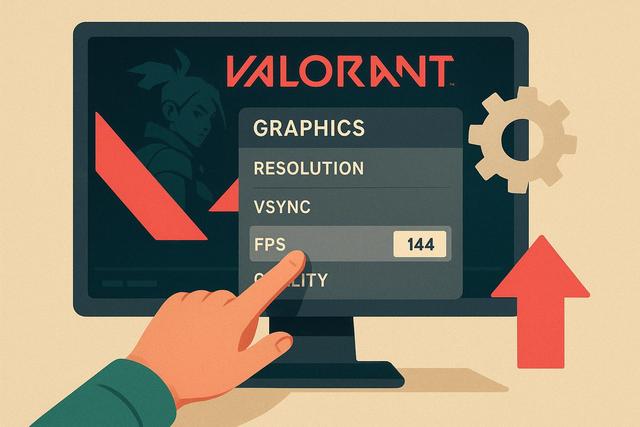
Do you want to increase your FPS in Valorant and enjoy a smoother gaming experience? You're right, as a higher frame rate improves accuracy, responsiveness, and visual comfort. Although Valorant is well-optimized, certain graphic, system, and hardware settings can limit your performance. In this article, you'll discover the best Valorant settings for more FPS, along with simple tips to boost your PC's performance. You can also download the latest version of Roblox here.
Why Boost FPS on Valorant?
FPS (frames per second) represent the number of images displayed every second by your screen. The higher this number, the smoother the animation becomes. In a competitive FPS like Valorant, smoothness enhances shooting accuracy and reaction speed.
A low FPS count causes stuttering, tearing, or noticeable input lag. These issues hinder your gameplay by delaying the display of essential information. Conversely, high FPS makes movement sharper and fights clearer.
If your monitor displays 144 Hz, you should aim for at least 144 stable FPS. However, even with a 60 Hz monitor, high FPS reduces display latency.
Best Valorant Graphics Settings for More FPS
You can quickly increase your FPS by adjusting the graphics settings in Valorant. Riot Games designed the game to run on modest setups, so often a few tweaks are enough.
Here are the recommended settings to maximize performance:
- Display Mode: Fullscreen
- Resolution: Native resolution (or slightly lower if necessary)
- FPS Limit: Enabled based on your monitor's refresh rate
- Material Quality: Low
- Texture Quality: Low or Medium
- Detail Quality: Low
- User Interface Quality: Low
- Vignette: Off
- V-Sync: Off
- Anti-aliasing: None or MSAA 2x minimum
- Anisotropic Filtering: 1x or 2x
- Clarity Boost: Off
- Shadows: Off
The fullscreen mode improves performance as it prioritizes the game. You should disable V-Sync, as it increases input lag. Shadows and visual effects also consume a lot of resources.
If you're still lacking power, you can slightly reduce the resolution. This solution decreases the load on the graphics card, which can gain you several FPS.
Optimize NVIDIA Settings for Valorant
If you have an NVIDIA graphics card, you can adjust settings in the control panel.
Open the NVIDIA Control Panel, then go to "Manage 3D settings". Next, select the "Program Settings" tab and choose Valorant.
Apply these settings:
- Power Management Mode: Prefer maximum performance
- Low Latency Mode: On or Ultra
- Vertical Sync: Off
- Texture Filtering - Quality: High performance
These settings force the graphics card to run at its full potential. You also reduce latency, improving in-game responsiveness.
Optimize AMD Settings for More FPS
If you're using an AMD card, open the AMD Adrenalin software. Select Valorant from the list of detected games.
Activate the following options:
- Radeon Anti-Lag: On
- Radeon Boost: On if compatible
- Texture Filtering Quality: Performance
- Wait for Vertical Refresh: Always off
These settings improve FPS stability and reduce input lag. However, test each option separately, as some configurations may respond differently.
Windows Settings to Improve Performance
Your Windows system directly influences Valorant's performance. Thus, you need to optimize a few key settings.
Enable Game Mode
Open Windows settings, then go to "Gaming". Enable Game Mode, as it limits background tasks.
Disable Startup Applications
Press Ctrl + Shift + Esc to open the Task Manager. Click on the "Startup" tab, then disable unnecessary software. This frees up system resources.
Update Drivers
Recent graphics drivers often improve performance on Valorant. Download the latest versions from the official NVIDIA or AMD site.
Choose High Performance Power Mode
Go to the control panel, then to power options. Select the High Performance mode, as it prevents the processor from reducing its frequency.
Optimize Your PC for More FPS on Valorant
If you want to sustainably increase your FPS, you also need to check your hardware.
Add More RAM
Valorant doesn't consume a lot of RAM, but 16 GB provides better comfort. If you're using 8 GB, you risk slowdowns during multitasking.
Install an SSD
An SSD does not directly increase FPS; however, it reduces loading times. The game becomes more stable as the system reads data faster.
Clean Your PC
Dust increases the temperature of components. Your processor and graphics card then reduce their performance to avoid overheating. Regularly clean the fans to maintain a stable temperature.
Limiting FPS: Good or Bad Idea?
Limiting FPS may seem counterproductive. However, this method stabilizes performance if your PC experiences significant fluctuations.
If your FPS constantly toggles between 200 and 120, you could set a limit of 144 FPS. This provides a more stable experience as fluctuations decrease.
Use the built-in FPS limit in Valorant. Avoid external software, as they may create conflicts.
Resolution and Aspect Ratio: Should You Change for More FPS?
Some players lower the resolution to increase FPS. This technique works because the graphics card processes fewer pixels.
You can also try a stretched resolution. However, this option mainly changes the visual display and may not always offer a significant performance gain.
Here’s a simple comparison table:
| Resolution | FPS Gain | Visual Quality | Recommendation |
|---|---|---|---|
| 1920x1080 | Standard | Excellent | Ideal for powerful PC |
| 1600x900 | Moderate | Good | Good compromise |
| 1280x720 | High | Acceptable | Low-end PC |
Choose a balance between performance and clarity.
Disable Unnecessary Background Software
Many software applications consume CPU and RAM in the background. Discord, web browsers, or multiple launchers can sometimes reduce your FPS.
Close unnecessary programs before launching Valorant. You can also disable overlays as they use graphical resources.
Overlays to check include:
- Discord Overlay
- NVIDIA GeForce Experience
- Xbox Game Bar
- Steam Overlay
Each deactivation frees up some valuable resources.
Minimum and Recommended Configuration for More FPS
Valorant runs on modest configurations as the graphics engine remains lightweight. However, to achieve stable 144 FPS, you need to aim for a solid setup.
Recommended configuration for 144 FPS:
- Processor: Recent Intel i5 or Ryzen 5
- Graphics Card: GTX 1660 or equivalent
- RAM: 16 GB
- Storage: SSD
With this type of configuration, you can play in 1080p with low or medium settings while maintaining excellent smoothness.
Conclusion: Best Valorant Settings to Boost Your FPS
You can increase your FPS on Valorant by combining several optimizations. Start by lowering the graphics settings, as this action provides immediate gains. Then adjust NVIDIA or AMD settings to fully exploit your graphics card.
Also, optimize Windows and disable unnecessary programs, as every resource counts. If needed, enhance your hardware, especially RAM or storage.
By applying these Valorant settings for more FPS, you will enjoy a smoother, more stable, and competitive experience. You gain a real advantage in the game, as every millisecond can make a difference.


