Removing a Mod Safely Without Breaking Your Game
- Mar 12, 2026 02:11 am
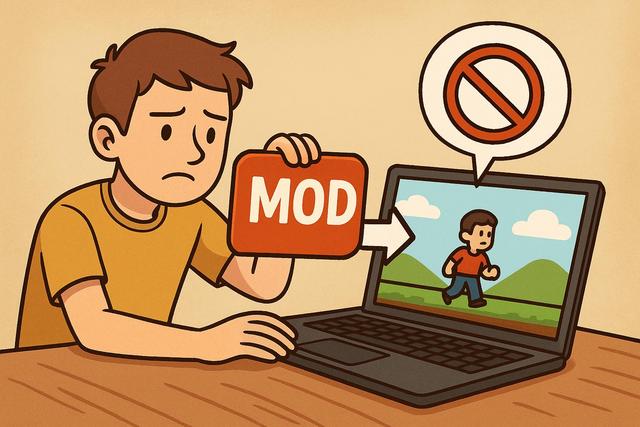
Removing a mod may seem straightforward, but improper handling can corrupt a save file, cause crashes, or make a game unstable. Many players install mods to enhance graphics, add content, or fix bugs. However, few know how to remove a mod properly without breaking their game. In this comprehensive guide, you will learn how to safely uninstall a mod, protect your save files, and avoid common mistakes. Follow these practical tips to maintain a stable and efficient gaming experience.
For those interested, you can download Roblox to enhance your gaming experience.
Why You Should Never Delete a Mod Lightly
Many players think that simply deleting a file is enough to remove a mod. This quick method often leads to serious problems, as some mods modify scripts, textures, or system files of the game.
A mod can add objects, modify quests, or alter internal mechanics. If you delete it abruptly, the game may look for data that no longer exists. This situation can lead to bugs, crashes on launch, or corrupted saves.
Therefore, you need to adopt a clean and structured approach. This method minimizes risks and protects your data.
Backing Up Your Game Before Uninstalling
You should always create a complete backup before removing a mod, as a mistake can occur despite all precautions.
Start by backing up your save files in an external folder. You can use an external hard drive or a cloud service. This step secures your progress.
Next, copy the entire game folder if possible. This precaution may seem excessive, but it allows you to quickly restore your installation in case of problems.
Here are the elements to prioritize for backup:
- The save files (Save, Savegames, Profiles)
- The main game folder
- The mod manager folder
- The configuration files
This method takes a few minutes but can save you hours of reinstallation.
Identifying the Type of Installed Mod
Not all mods work the same way. You need to identify their type before deleting them, as the procedure varies depending on how they were installed.
Mod Installed via a Mod Manager
Managers like Vortex, Mod Organizer, or Nexus Mod Manager simplify mod management. They isolate files and allow for a clean uninstallation.
If you used a manager, open it and disable the mod. Then test the game. If everything works correctly, you can permanently delete the mod from the interface.
This method is the safest, as the manager automatically restores the original files.
Mod Installed Manually
A manual installation requires more vigilance. You probably copied files directly into the game folder.
In this case, you need to precisely identify the added files. Check the original mod page to verify the list of installed files.
Never delete a file without certainty. If you delete an essential system file, you will need to reinstall the game.
Uninstalling a Scripted Mod Without Breaking Your Save
Scripted mods are the most sensitive. They deeply modify the internal behavior of the game.
Some games like Skyrim, Fallout, or Minecraft retain traces of scripts in the saves. Even if you remove the files, the save may continue to call non-existent data.
To properly remove a scripted mod:
- Consult the official documentation of the mod.
- Check if there is a specific uninstallation procedure.
- Disable the mod in-game if an option is available.
- Create a new clean save.
- Exit the game and then delete the files.
This method greatly reduces the risk of corruption. However, some mods do not support any uninstallation during gameplay. In this case, start a new save.
Cleaning Up Residual Files After Deletion
A mod can leave residual files even after it has been removed. These remnants can cause conflicts with other mods.
You should check the following folders:
- Data
- Scripts
- Textures
- Plugins
If you are using a mod manager, perform a conflict scan. This check detects still-active files.
You can also use a cleaning tool suited for your game. For example, some games have editors or community tools to clean saves.
Checking the Load Order of Mods
The load order plays a crucial role in the stability of the game. When you remove a mod, you alter this order.
A wrong load order can create conflicts since some files depend on other extensions.
After each removal:
- Automatically sort your plugins with an appropriate tool
- Check for error messages
- Test the game for several minutes
This quick check confirms that your installation remains stable.
Testing the Game After Mod Removal
You should always test the game immediately after removing a mod. Start a test game rather than your main save.
Explore different areas, open your inventory, and trigger several actions. If the game remains stable for 10 to 15 minutes, the removal appears successful.
However, if you notice slowdowns or error messages, restore your previous save.
When to Start a New Game?
Some situations make clean removal impossible. Overhaul mods, massive gameplay mods, or quest expansions deeply alter saves.
In these specific cases, starting a new game is the safest solution. This decision may seem frustrating, but it protects your long-term experience.
You can identify these mods through the following descriptions:
| Type of Mod | Risk After Removal | New Game Recommended |
|---|---|---|
| Cosmetic Mod (textures) | Low | No |
| Interface Mod | Low | No |
| Simple Object Mod | Medium | Sometimes |
| Complex Scripted Mod | High | Yes |
| Total Gameplay Overhaul | Very High | Yes |
This table helps you make an informed decision.
Avoiding Common Mistakes When Removing a Mod
Many errors come from haste. You need to be methodical at every step.
Avoid these risky practices:
- Deleting files without a backup
- Removing multiple mods simultaneously
- Installing a new mod immediately after removal
- Ignoring error messages
Always remove one mod at a time. This way, you can easily identify the cause of a problem.
Maintaining a Stable Game After Modification
You need to adopt good habits if you regularly mod your games.
Keep a list of installed mods, their versions, and their addition dates. This organization simplifies maintenance.
Read user comments carefully before any installation, as some mods have known issues during uninstallation.
Update your mods cautiously. An update can change dependencies and complicate future removal.
Finally, prefer a reliable mod manager. This tool centralizes your extensions and secures their removal.
Conclusion: Removing a Mod Cleanly Without Risk
Removing a mod cleanly requires method, but you can avoid most problems through a rigorous approach. Always back up your data, identify the type of mod, and follow a suitable procedure.
Systematically test your game after each modification. Clean up residual files and check the load order to ensure optimal stability.
If a mod deeply alters gameplay, consider starting a new game rather than risking a corrupted save. This decision protects your long-term experience.
By following these tips, you can remove a mod without breaking your game and continue to fully enjoy your modified adventure safely.


