Send Free WhatsApp Messages from Your PC
- Jun 25, 2026 01:11 pm
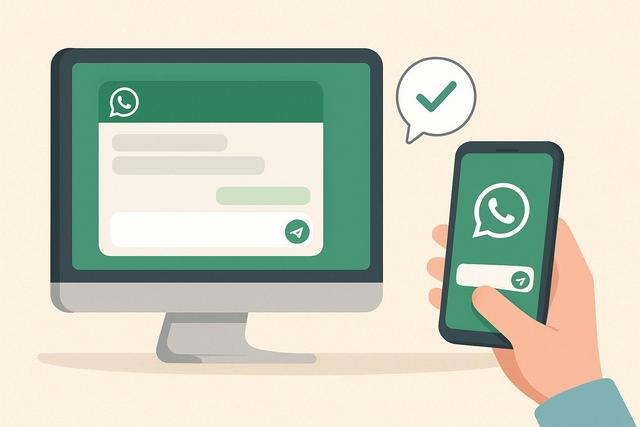
Do you want to send a free WhatsApp message from a PC without constantly using your phone? Good news: it's simple, quick, and accessible to everyone. Whether you are working at the office or from home, WhatsApp provides several solutions for chatting from your computer. Here is a complete guide to understanding how to use WhatsApp on PC easily and for free.
To get started, you can download the latest version of WhatsApp on your computer. This guide will walk you through all the steps to ensure a smooth experience.
Why Send a WhatsApp Message from a PC?
The main intention behind this search is clear: you want to know how to send a free WhatsApp message from a computer without technical complications.
Using WhatsApp on PC offers several advantages:
- You type faster with the keyboard.
- You manage professional messages more easily.
- You share files stored on your computer.
- You work without switching devices.
Thus, whether you are a student, an employee, or an entrepreneur, WhatsApp on PC enhances your comfort and productivity.
Can You Send a WhatsApp Message for Free from a PC?
Yes, absolutely. WhatsApp remains free, even on a computer. You just need:
- An active WhatsApp account;
- A valid phone number;
- An Internet connection.
WhatsApp does not charge for sending messages. However, your Internet service provider may apply charges related to your Internet connection, so check your plan if necessary.
Using WhatsApp Web to Send a Message from a PC
WhatsApp Web is the fastest solution. You don't have to install anything.
How to Access WhatsApp Web?
Follow these simple steps:
- Open your internet browser on your PC.
- Go to the official WhatsApp website.
- Click on "Log in" or "WhatsApp Web".
- A QR code will appear on the screen.
- Open WhatsApp on your phone.
- Go to settings and then "Linked Devices".
- Scan the QR code displayed on your PC.
In a few seconds, your conversations will appear on your screen.
You can then:
- Send text messages;
- Share photos and videos;
- Send PDF or Word documents;
- Use voice messages.
The interface remains clear and resembles that of the phone, making it easy to find your way around.
Does WhatsApp Web Work Without a Connected Phone?
Currently, WhatsApp allows using linked devices. This means your phone no longer needs to stay connected to the Internet continuously after the initial setup. However, your account must remain active on your mobile.
Features may evolve, so check the conditions on the official site if necessary.
Installing the WhatsApp Application on PC
If you frequently use WhatsApp on your computer, you can install the official application.
How to Download WhatsApp on PC?
Here's the procedure:
- Go to the official WhatsApp website.
- Download the version suitable for your system (Windows or Mac).
- Install the software.
- Open the application.
- Scan the QR code with your phone.
Once connected, you will access all your conversations.
The application offers a significant advantage: it sends direct notifications to your desktop, so you won't miss any messages.
WhatsApp Web or Application: Which Solution to Choose?
Here's a simple comparison table:
| Criteria | WhatsApp Web | PC Application |
|---|---|---|
| Installation | No | Yes |
| Notifications | Limited according to browser | Yes, complete |
| Access Speed | Very fast | Fast |
| Regular Use | Occasional | Ideal |
If you use WhatsApp occasionally, WhatsApp Web is sufficient. However, if you work on it daily, the application is more practical.
Sending a WhatsApp Message to a New Contact from a PC
Do you want to send a message without saving the contact? It's possible.
Simple Method via the Browser
In the address bar of your browser, type:
Replace "number" with the full number including the country code, without spaces.
Example:
Press Enter. Then click on "Continue to chat." You can then send your message directly.
This method works on both WhatsApp Web and through the application.
Sending Files and Documents from a PC
One of the major advantages of WhatsApp on PC is file sharing.
From a conversation:
- Click on the paperclip icon.
- Select the type of file.
- Choose the document from your computer.
- Click send.
You can send:
- PDF documents;
- Word or Excel files;
- High-quality images;
- Videos;
- Contacts.
This is particularly useful in a professional context.
Sending a Voice Message via WhatsApp from a PC
You can also send voice messages.
To do this:
- Open a conversation.
- Click on the microphone icon.
- Allow microphone access if prompted.
- Record your message.
- Send it.
Just make sure your computer has a functioning microphone.
Troubleshooting Common Issues
The QR Code Is Not Working
Check:
- Your Internet connection;
- The update of your mobile application;
- The brightness of your screen.
If the problem persists, disconnect all linked devices and try again.
WhatsApp Web Disconnects Often
This happens if:
- Your Internet connection is unstable;
- Your session has expired;
- You have cleared the browser's cookies.
Simply reconnect by scanning the QR code again.
Unable to Send Files
Check the file size. WhatsApp imposes a limit. If necessary, compress your document before sending.
WhatsApp Business on PC
If you are a professional, you can use WhatsApp Business on PC.
The principle remains the same:
- Connection via QR code;
- Management of conversations;
- Sending automated messages.
WhatsApp Business allows you to add:
- Welcome messages;
- Quick replies;
- A product catalog.
It's a useful tool for customer service.
Practical Tips for Using WhatsApp on PC Efficiently
To optimize your experience:
- Activate notifications so you don't miss anything.
- Organize your conversations with archives.
- Use keyboard shortcuts to save time.
- Lock your session if you share your computer.
- Log out on public PCs.
Security is essential. WhatsApp uses end-to-end encryption. However, always protect your access.
Is WhatsApp on PC Really Free?
Yes, sending WhatsApp messages from a PC is free. The application does not charge any usage fees.
However, you need to have an active Internet connection. If you use a mobile network via tethering, your provider may charge data according to your plan.
So check your subscription terms if in doubt.
Is It Possible to Use WhatsApp on PC Without a Phone?
Currently, you must have an account linked to a mobile number. You cannot create a WhatsApp account directly on a PC without a phone.
However, once the device is connected, you can use WhatsApp Web or the application without necessarily keeping your phone nearby, depending on the available linked device options.
Conditions may evolve. Check the official site for the most up-to-date information.
Conclusion
Sending a free WhatsApp message from a PC is simple and quick. You can use WhatsApp Web without installation or download the official application for more comfort. Sending messages, files, and voice messages remains entirely free, aside from the cost of your Internet connection. By following the outlined steps, you can enjoy a practical and efficient solution for communicating from your computer.
FAQ
1. Can You Send a WhatsApp Message from a PC Without a Phone?
You must have an account linked to a mobile number. However, once connected, you can use WhatsApp on PC without keeping the phone connected continuously.
2. Is WhatsApp Web Secure?
Yes, WhatsApp uses end-to-end encryption. However, always log out on a public computer.
3. Can You Make WhatsApp Calls from a PC?
Yes, the desktop application allows voice and video calls if your computer has a microphone and camera.
4. How to Send a Message to an Unregistered Number?
Use the link https://wa.me/ followed by the complete number with the country code, then start the chat.
5. Does WhatsApp on PC Work on All Browsers?
WhatsApp Web works on the major modern browsers. Be sure to use an updated version to avoid display or connection issues.


