Acrobat Reader: Effortlessly Convert Word to PDF
- Sep 24, 2025 02:51 am
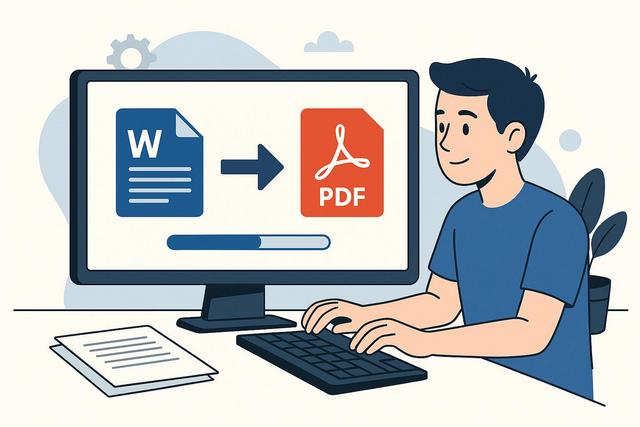
Transform Your Documents with Acrobat Reader
Discover how Acrobat Reader allows you to convert a Word file to PDF in just a few simple steps. Increasingly popular for its simplicity and efficiency, Acrobat Reader offers a quick solution to transform your Word documents into PDFs, ensuring their integrity and portability. For the latest version of Adobe Acrobat Reader, click here.
Why Convert a Word File to PDF?
Converting Word files to PDF offers numerous advantages. The PDF format is widely used and accepted in the professional and academic world for its portability and ability to preserve the original layout, regardless of the software used to open it. By converting your Word documents to PDF, you ensure they will display correctly on any device or platform.
Acrobat Reader: An Essential Tool
Acrobat Reader, developed by Adobe, is a powerful tool for reading and interacting with PDF files. While primarily recognized for its reading capabilities, Acrobat Reader also provides useful conversion options for users wishing to convert Word documents to PDF.
Simple Steps to Convert Word to PDF with Acrobat Reader
- Open and Prepare the Document: Ensure you have installed the latest version of Acrobat Reader. Before you start, open the Word file you wish to convert.
- Use the Conversion Option: In Acrobat Reader, you can use the "Create PDF" option to initiate the conversion. This is typically located under the ‘File’ tab in the main ribbon.
- Select the File: After clicking on ‘Create PDF’, you will be prompted to select the target Word file. Navigate through your file system to choose the document to convert.
- Configure Conversion Settings: Once the file is selected, Acrobat Reader allows you to configure some conversion options. You may, for instance, specify the quality of embedded images, the overall resolution of the document, etc.
- Convert and Save: After configuration, start the conversion. The process will be quick, and once finished, you can choose to save the resulting PDF file to a location of your choice on your hard drive.
Advantages of Using Acrobat Reader for Conversion
One of the main advantages of Acrobat Reader is its ability to maintain the quality and original structure of the Word document during conversion. Unlike other tools, Acrobat Reader minimizes layout errors often encountered when converting text, images, and graphics. Additionally, it offers a user-friendly interface for users of all computer skill levels.
Alternatives to Acrobat Reader for Converting Word to PDF
Although Acrobat Reader is a powerful and widely used tool, there are several free and paid alternatives available on the market. Software like PDF Converter Pro, Nitro PDF, and online solutions such as Smallpdf and PDF2Go are among those that offer similar conversion options. However, each of these tools has its advantages and disadvantages regarding functionality, cost, and ease of use.
Conclusion
Acrobat Reader remains an essential solution for those seeking a reliable and easy way to convert Word files to PDF. Not only does it ensure the quality and fidelity of your documents, but it is also backed by a reputable developer, ensuring ongoing support and regular updates. For efficient and hassle-free conversion, Acrobat Reader is the smart choice.


