PDF: How to Sign and Fill Forms Using Acrobat Reader
- Aug 11, 2025 02:51 am
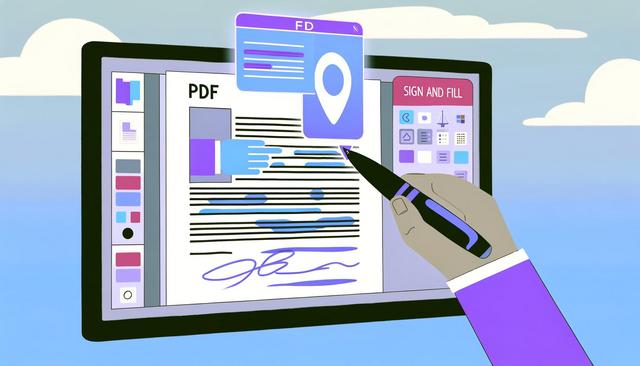
PDF documents are ubiquitous in our professional and personal lives. Learning how to sign and fill out forms directly in Acrobat Reader greatly simplifies document management. Discover how to do this efficiently.
To download the latest version of Adobe Acrobat Reader, visit this page.
In today's digital world, PDF documents have become a standard for sharing professional and personal files. Acrobat Reader has established itself as an essential solution for interacting with these PDF files, particularly concerning routine tasks such as signing and filling out forms.
Why Use Acrobat Reader to Sign and Fill PDFs
Aside from being free, Acrobat Reader offers a user-friendly interface for managing your PDF documents. It is optimal for quickly completing tasks such as electronic signing and form filling, essential functions for anyone seeking an efficient and secure solution.
How to Sign a PDF with Acrobat Reader
Signing a PDF document in Acrobat Reader is a simple and quick process. Here’s a step-by-step guide:
- Open your PDF document: Launch Acrobat Reader and open the document you wish to sign.
- Access the 'Sign' tool: In the main menu, click on 'Tools', then select 'Fill & Sign'.
- Add your signature: Click on 'Sign' in the toolbar, then choose 'Add Signature'. You can type your name, draw your signature with the mouse, or upload an image of your signature.
- Place the signature: Once your signature is created, move it to the desired location in the document, then adjust the size if necessary.
- Save your document: Once you are satisfied with the result, save the signed document to your computer.
How to Fill a PDF Form with Acrobat Reader
Filling out PDF forms in Acrobat Reader is just as easy:
- Open the PDF form: Launch Acrobat Reader and open the form you want to fill out.
- Use the 'Fill' tool: Click on 'Tools' then select 'Fill & Sign'. You can now click on each field in the form to enter the required information.
- Add annotations if necessary: Some boxes or sections may require comments or annotations that you can insert using the dedicated tools.
- Review and save: Before finalizing your work, ensure all information is accurate. Then save the completed form.
Tips to Optimize the Use of Acrobat Reader
- Update regularly: Ensure your version of Acrobat Reader is always up-to-date to benefit from the latest features and security patches.
- Use comment tools: For more effective collaboration, use the comment tools to share annotations with other users.
- Customize the toolbar: Adjust the tools displayed for quicker access to the features you use most often.
Acrobat Reader is a powerful tool that can significantly enhance your efficiency in document management. Whether you need to sign or fill out a PDF form, it is designed to make these tasks as simple and fast as possible. By mastering these features, you'll save time and increase productivity in your daily routine.


