Audacity: How to Record a High-Quality Podcast
- Sep 25, 2025 02:51 am
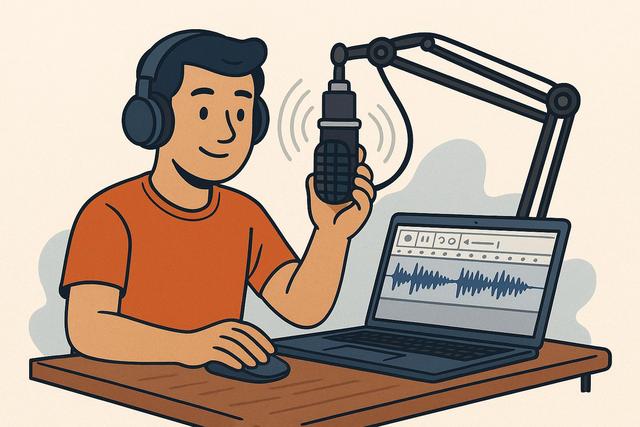
Audacity is an essential software for podcasters looking to record content with optimal sound quality. With its varied and free features, it enables the production of professional podcasts. Discover how to use Audacity to capture clear and impactful sound.
To get started with Audacity, you can download the latest version here.
Why Choose Audacity to Record Your Podcast?
Audacity is renowned for its ease of use and performance. Completely free and open-source, it is accessible to everyone, from beginners to professionals. It supports various audio formats, making it flexible for editing and mixing your podcasts.
Preparing for Recording
Before you start recording, it is crucial to prepare your environment. Choose a quiet space to minimize background noise. Use a high-quality microphone, as the initial sound capture is vital. Install Audacity on your computer and connect your microphone.
Setting Up Audacity
Configure Audio Preferences: Go to the 'Edit' menu > 'Preferences' > 'Devices'. Select your microphone in the 'Recording' field.
Set Recording Quality: In 'Edit' > 'Preferences' > 'Quality', set the sample rate to 44100 Hz and the sample format to 32 bits to ensure good sound quality.
Record Your Podcast
Initial Recording
Press the red 'Record' button to start. Speak directly into the microphone, maintaining a consistent distance for uniform sound capture.
Vocal Techniques
Clear Articulation: Speak distinctly to ensure that every word is understandable.
Tone and Rhythm: Vary your tone to maintain interest and use pauses to give rhythm to your narration.
Editing and Mixing Sound
Once the recording is complete, the next step is to edit your content to achieve a high-quality final product.
Removing Background Noise
Use Audacity's 'Noise Reduction' effect: select a noise sample, then apply it to the entire recording to mitigate unwanted sounds.
Adding Effects and Intros
Add sound effects to enrich your podcast. Import your intro file or other complementary sounds via 'File' > 'Import'.
Perfect Mixing
Ensure that your audio does not clip. Use normalization and compression options to balance the volume. Audacity offers tools such as the compressor to smooth out sound peaks.
Exporting the Final File
After editing, export your podcast for distribution. Go to 'File' > 'Export'. Choose the required format, typically MP3, for its compatibility and quality.
Conclusion
With Audacity, you have all the necessary tools to record, edit, and publish a professional podcast. Its ease of use combined with a comprehensive range of features ensures high-quality sound. Follow these steps to successfully start your podcasting journey.


