Audacity: How to Trim Audio Clips and Eliminate Background Noise
- Aug 12, 2025 02:51 am
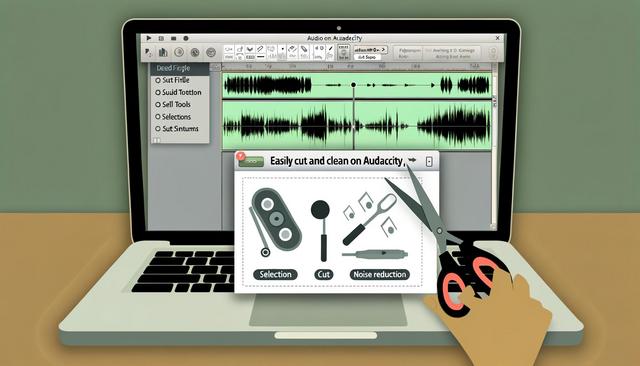
Audacity is a popular open-source software favored by both audio enthusiasts and professionals. This powerful tool allows users to perform various operations on audio files, such as cutting clips and reducing background noise. In this article, we will guide you through the essential steps to master these features with Audacity. You can download the latest version of Audacity here.
Understanding the Audacity Interface
Before diving into specific features like cutting audio samples or removing noise, it is crucial to familiarize yourself with the Audacity interface. This software offers an intuitive layout made up of menus, toolbars, and a central waveform view. These elements greatly facilitate audio editing and mixing.
Cutting an Audio Sample with Audacity
Cutting audio samples in Audacity is a simple task that can be completed in a few steps. Here’s how to do it:
- Open the audio file: Launch Audacity, then open the audio file you want to edit by going to the 'File' menu and selecting 'Open'.
- Select the portion to cut: Use the selection tool (shaped like an 'I' cursor) to highlight the part of the audio you want to cut.
- Cut or copy the sample: You can now cut the sample using the keyboard shortcut Ctrl + X (Cmd + X on Mac), or copy it with Ctrl + C (Cmd + C on Mac) if you want to paste it elsewhere.
- Save the changes: Once editing is complete, save the modified file under a new name to keep the original intact.
Removing Background Noise with Audacity
Noise removal is an essential feature of Audacity for achieving a clean and professional sound. Here’s how to effectively remove background noise:
- Analyze the noise: Before removing it, it’s important to identify a portion of your audio file where only noise is present. Select a few seconds of this noise.
- Obtain the noise profile: Go to the 'Effects' menu, select 'Noise Reduction', then click on 'Get Noise Profile'. This allows Audacity to know what is considered noise.
- Apply noise reduction: Now select the entire track or the portion to clean. Return to 'Effects' > 'Noise Reduction', adjust the levels as needed, and click 'OK' to apply.
- Review the effect: Listen to your audio file to ensure the noise has been effectively removed without affecting the overall sound quality.
Additional Tips for Effective Audio Editing
- Use keyboard shortcuts: Learning and utilizing shortcuts can speed up your workflow in Audacity.
- Always keep an original copy: Before making any edits, be sure to save a copy of your original file to prevent any irreversible loss of information.
- Experiment with effects: Audacity offers many editing effects; don’t hesitate to experiment with them to enhance your sound.
Conclusion
Whether cutting samples or eliminating unwanted noise, Audacity offers robust and intuitive tools. Mastering these functions will enhance your ability to produce professional-quality sound with minimal effort. So why not start exploring what this amazing software has to offer right now?


