Blender and 3D Printing: Exporting Your Models in 2025
- Mar 08, 2025 09:22 pm
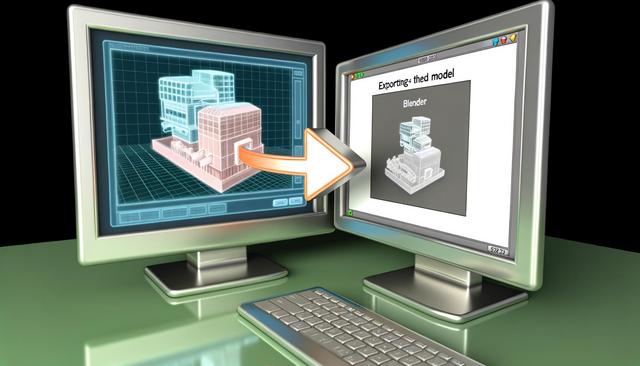
With the constant evolution of technology, Blender, the open-source 3D modeling tool, continues to be a popular choice among artists and engineers. By 2025, Blender introduces new features to optimize the export of 3D models for printing. This article will guide you through the essential steps for effectively exporting your creations.
For the latest version of Blender, you can download it here.
The Importance of Blender in 3D Printing
Blender is renowned for its ability to create complex 3D models while remaining accessible to users of all levels. When it comes to 3D printing, the accuracy and compatibility of exported models are crucial. Blender 3.5, the flagship version in 2025, offers enhanced tools for preparing your models for 3D printing.
Steps to Export a 3D Model from Blender
Preparing the 3D Model
Before starting the export process, ensure that your model is properly prepared. Here are some tips:
- Check the geometry: Use Edit mode to make sure there are no overlapping faces or unnecessary vertices.
- Clean the model: Remove duplicate vertices and recalculate normals.
- Apply modifiers: Before exporting, apply all modifiers to avoid printing errors.
Choosing the Right Export Format
Blender 2025 supports several export formats for 3D printing. The most common ones include:
- STL (STereoLithography): Ideal for most 3D printers, this format is simple and widely supported.
- OBJ (Wavefront): Although more complex, it supports textures and is useful for detailed models.
- PLY (Polygon): Used for color models, this format can also store topological information.
Exporting the Model
To export your model correctly:
- Select your object in Blender.
- Go to
File > Export, then choose the desired format (STL,OBJ,PLY). - Adjust the export settings according to your needs (e.g., scale, orientation).
- Click on Export to complete the process.
Tips to Improve 3D Model Export
- Error checking: Utilize built-in tools to check for common errors that could affect printing, such as holes or non-manifold edges.
- Size optimization: Ensure that your model's scale is within the limits of your 3D printer.
What's New in Blender 2025 for 3D Printing?
In 2025, Blender introduced several new features to facilitate model exports for 3D printing. These include:
- Improved user interface: More intuitive menus make selection and export easier.
- New geometry checking tools: These tools allow for quick identification of potential issues.
- Direct compatibility with online printing services: You can now upload your creations directly to popular platforms.
Conclusion
In 2025, Blender continues to enhance modeling and 3D printing capabilities. With advanced features and a dynamic community, Blender users can ensure their models are printed successfully. Use the tips in this article to ensure a seamless export of your 3D projects.


