CS2 Audio Settings: Enhance Footstep Sounds for Better Gameplay
- Apr 24, 2026 01:11 am
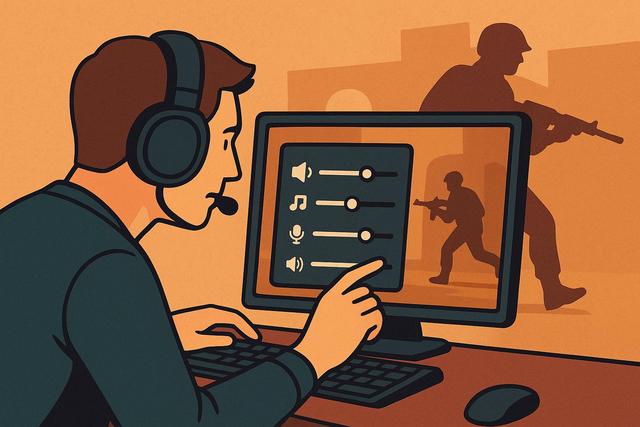
In Counter-Strike 2, sound plays a crucial role. You may have excellent aiming skills, but if you can’t hear your opponents’ footsteps, you lose a key advantage. The audio settings in CS2 can significantly enhance your awareness of enemy movements. With optimized settings, you can anticipate rotations, detect pushes, and secure your positions. In this comprehensive guide, discover how to adjust the sound settings in CS2 to better hear footsteps and increase your competitiveness.
For the latest version of Roblox, make sure to check the download page here.
Why Audio Settings are Essential in CS2
CS2 relies heavily on sound information. The developers have enhanced the audio engine, ensuring that every movement produces a more accurate sound. However, many players still use default settings that are not well-suited for optimal performance.
You need to optimize your audio settings because footsteps indicate the distance, direction, and sometimes the surface on which the enemy is walking. With this information, you can make quicker decisions. You might prefer to hold an angle rather than rotate, or choose to back off instead of taking a risky duel.
By improving your awareness of footsteps in CS2, you gain an immediate tactical advantage.
Choosing the Right Audio Device for CS2
Before modifying the game's settings, you should check your equipment. A poor-quality headset can limit sound quality, even if your settings are optimized.
Prioritize a Quality Stereo Headset
Many players think that 7.1 surround sound enhances spatial awareness. However, CS2 works very well in stereo. The audio engine already recreates an accurate sound scene. You often achieve better clarity by disabling virtual surround.
A closed stereo headset offers several advantages:
- It isolates external noise.
- It enhances the perception of subtle sounds like footsteps.
- It avoids distortions caused by software surround processing.
If your headset provides integrated software, test both modes. However, prefer the one that offers the most natural sound.
Avoid External Speakers
Speakers broadcast sound throughout the room, reducing directional accuracy. It becomes harder to discern if footsteps are coming from the left or right. To play CS2 seriously, always use a headset.
Recommended Audio Settings in CS2
You can access the audio settings from the main menu. Several options directly influence the perception of footsteps.
Optimal Settings Configuration
Here are the recommended audio settings to better hear footsteps in CS2:
| Setting | Recommended Adjustment |
|---|---|
| Main Volume | 0.8 to 1.0 |
| Audio Device | Stereo Headset |
| Audio Profile | Headset |
| Advanced Audio Activation | Yes |
| Loud Sound Isolation | Off or Low |
The main volume should remain high, as you want to hear the most subtle details. However, adjust it to your comfort level to avoid auditory fatigue.
Activate Advanced Audio
CS2 offers an advanced audio option. You should enable it, as it improves spatial awareness. With this feature, you can more accurately locate footsteps behind a wall or on a different floor.
If you disable this option, the sound appears flatter and less directional.
Correctly Adjust Sound Dynamics
Dynamics influence the gap between loud and soft sounds. If you reduce it too much, gunfire can drown out footsteps. However, if you keep it too wide, some explosions may become overwhelming.
Look for a balance. You need to clearly hear footsteps without making gunfire deafening.
Optimize Windows Audio Settings
System settings also play a significant role. Even with good settings in CS2, Windows can distort sound.
Disable Audio Enhancements
Windows sometimes activates effects like spatial sound or automatic enhancements. These processes alter the original signal.
To optimize the sound:
- Open Windows audio settings.
- Select your output device.
- Disable all enhancements.
- Turn off Windows Sonic or Dolby Atmos for testing purposes.
Then, launch CS2 and compare. You'll often notice improved directional accuracy.
Adjust Sampling Frequency
In the device properties, choose 24-bit, 44100 Hz or 48000 Hz. These formats provide clear and stable sound, avoiding audio artifacts or loss of detail.
Adjust the Equalizer to Amplify Footsteps
Footsteps in CS2 mainly fall within the mid and high frequencies. If you use an equalizer, you can slightly amplify these areas.
Moderately increase the frequencies between 2000 Hz and 6000 Hz. Identify the sound of footsteps partially. Adjust gradually, as excessive amplification will make the sound harsh.
Lightly reduce bass if it is overwhelming. Explosions often take up a lot of space in the low frequencies. By lowering them, you clear space for subtler sounds.
However, keep it moderate. An extreme setting causes ear fatigue and reduces overall quality.
Console Settings to Improve Audio in CS2
CS2 allows the use of certain commands via the console. Enable it in the game settings.
Although the options are more limited than in older versions, you can adjust your personal configuration. Check for updates regularly, as Valve sometimes modifies audio behavior.
You can also create a custom config that saves your sound preferences, ensuring you retain your settings after each update.
Adapt Your Playstyle to Better Utilize Sound
Audio settings in CS2 are not sufficient if you do not modify your in-game behavior.
Play with Consistent Volume
Many players max out the volume because they want to hear every detail. However, excessive volume can reduce concentration over time.
Choose a comfortable level. You need to hear footsteps without feeling discomfort after several rounds.
Reduce Distractions
Close background applications. Disable unnecessary music. The quieter your environment, the easier it is to identify subtle sounds.
If possible, play in a quiet room. External noises decrease your ability to distinguish subtle differences.
Learn the Sound Surfaces
CS2 features different surfaces such as wood, metal, or concrete. Each material produces a distinct sound. By practicing, you can quickly associate a noise with a specific area of the map.
Start an offline game. Walk on each surface. Listen closely to the difference. This exercise will help you react faster in real situations.
Common Mistakes to Avoid
Certain settings clearly hinder the perception of footsteps in CS2.
- Activating multiple surround effects at once.
- Using excessive audio compression.
- Setting the bass too high.
- Constantly changing settings without prolonged testing.
Test each modification over several games. You need to evaluate the results over time, as the ear gradually adapts.
Simple Method to Test Your CS2 Audio Settings
Take a structured approach. Change one setting at a time. Then, start a map in training mode with bots.
Position yourself in a fixed spot. Listen to movements around you. Identify the direction without looking at the radar.
If you can accurately locate opponents, your setup is working. Otherwise, make slight adjustments and try again.
Why Professional Players Optimize Their Sound
Professional players place great importance on audio settings in CS2. They know that sound information often determines the outcome of a tight round.
They typically use:
- A high-quality stereo headset.
- Simple and stable settings.
- Few or no unnecessary software effects.
They prioritize consistency, as predictable sound improves decision-making.
Conclusion: Improve Your Audio Settings to Dominate in CS2
Audio settings for better hearing of footsteps in CS2 represent a powerful progression lever. You must combine a good headset, optimized in-game settings, and appropriate Windows configurations. Then, fine-tune your equalizer if necessary.
With these adjustments, you will locate enemies quicker. You will anticipate rotations. You will secure your positions with greater confidence.
Take the time to test each modification, as sound precision requires diligence. Once your configuration is stabilized, you will notice a significant improvement in your performance in CS2.
Optimize your audio today, as every footstep heard can make the difference between victory and defeat.


