
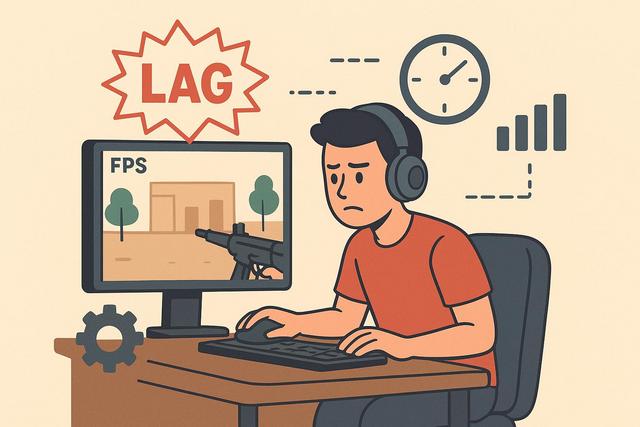
Lag in Escape from Tarkov can turn a good game into a frustrating experience. FPS drops, micro-freezes, desynchronization, or high ping originate from different causes. This guide will help you identify the issues and apply the most useful settings for smoother gameplay.
For those looking to improve their gaming experience further, make sure to check out the latest version of Roblox available for download here.
Identifying the Type of Lag in Tarkov
Before adjusting your settings, identify what you mean by "lag." In Escape from Tarkov, this term refers to several very different problems. An effective solution, therefore, depends on the actual cause.
The main symptoms are as follows:
- FPS Drops: the image lacks continuous fluidity, especially in busy areas.
- Micro-freezes or Stutters: the game briefly freezes, then resumes.
- High Ping: your actions seem delayed, and players sometimes move jerkily.
- Desynchronization: what you see does not always exactly match what the server calculates.
- Long Loading Times: entering a raid, returning to the menu, or loading textures takes too long.
Open the performance information in the game if it's available in your version. This allows you to monitor FPS, ping, and, in some cases, packet loss. Also, check for game updates, graphics driver updates, and system updates. Tarkov's options can change with patches, so their names or effects should be verified after a major update.
Reducing FPS Drops in Escape from Tarkov
FPS drops often stem from the CPU, graphics card, RAM, and visual settings. Tarkov features large maps, numerous objects, and complex effects. It can demand a lot of resources, even if your computer runs other games without difficulty.
Start by playing in full-screen mode. Choose your screen's native resolution unless your hardware is really struggling. Lowering the resolution can help the graphics card. However, this does not always solve a CPU-related bottleneck.
Next, set the maximum frame rate to a value consistent with your screen and machine. A stable cap can reduce sharp fluctuations in fluidity. If your PC cannot maintain a high frame rate, prioritize a realistic and steady value rather than an ambitious ceiling.
Graphic Settings to Adjust First
Some settings have more impact than others. Change them one at a time, then test them in a similar situation. Avoid changing all settings at once, as you won’t know what improved or degraded performance.
First, reduce:
- the quality and distance of shadows;
- the draw distance and distant details;
- grass, secondary objects, and terrain details;
- heavy visual effects, like certain reflections or post-processing effects;
- anti-aliasing if your graphics card is already heavily taxed.
Shadows and visibility can heavily impact performance. Gradually reduce them. However, don’t lower all settings to the minimum without testing. A too degraded image can make movement and enemy detection less comfortable.
Occlusion, visibility, or distant detail options can enhance rendering, but they also require resources. Test them based on the maps you play the most. Urban areas and densely packed maps often better reveal the limits of your setup.
Also, disable aesthetic effects you do not appreciate, such as blur, visual noise, or certain image corrections. They do not always cause a major FPS boost, but they can improve readability. A clear image also helps you spot movements.
Optimizing Windows to Limit Tarkov Stutters
Micro-freezes do not only depend on graphics options. Windows, open programs, and the state of storage also play a significant role. An overloaded PC can cause stutters, even if the FPS counter seems correct.
Close unnecessary applications before launching the game. Browsers with many tabs, editing software, file syncing, and certain overlays can consume RAM or CPU. Keep only the tools you need, such as your voice software.
Restart your computer before a long session if you notice unusual slowdowns. This simple action closes stuck processes running in the background and frees up resources. It doesn't fix a hardware issue, but it can eliminate a temporary cause.
Install Escape from Tarkov on an SSD with sufficient free space. Slow storage can worsen load times and certain file access. Also, ensure that the disk is not constantly working due to a download, backup, or background scan.
RAM is significant in Tarkov. If your system lacks RAM, Windows may use the disk as temporary memory. This can sometimes create noticeable freezes. Therefore, close demanding software and avoid running multiple heavy applications during a raid.
Drivers, Power Settings, and System Settings
Update your graphics card driver from the manufacturer's official site. A recent driver can fix a bug or improve compatibility with a game. However, if a problem appears right after an update, check recent feedback and consider rolling back to a stable version.
Use a performance-oriented power mode when playing on a desktop or plugged-in laptop. When on a laptop, play with the charger connected. Power-saving mode can limit CPU and graphics card power.
You can also disable non-essential overlays: video recorders, widgets, chat overlays, or tracking tools. These functions remain useful for some players. Test them one by one instead of removing them for no reason.
Avoid miracle "optimizers" and software that promises to double FPS. Many simply close useful processes or alter Windows without explaining their actions. Prefer simple, reversible, and easy-to-control settings.
Reducing Ping and Network Issues in Tarkov
High ping does not depend on your PC's performance. It indicates the time required to exchange data with the server. An unstable connection can also cause packet loss, apparent teleportation, or delayed actions.
Select the servers closest to your location in the launcher or in the settings intended for this purpose. Preferably choose those that show reasonable and consistent latency. A more distant server may sometimes offer a better experience than a saturated nearby server, but this situation remains variable.
Connect your computer via Ethernet if possible. Wi-Fi is convenient, but it is more susceptible to interference, distance, and obstacles. A network cable often reduces connection fluctuations, especially in a household where multiple devices are using Wi-Fi.
During your matches, limit bandwidth-heavy usages: downloads, high-quality video streaming, cloud syncing, or updates on other devices. Stability matters as much as speed. A very fast but unstable connection can create more problems than a more modest and consistent one.
Here’s a simple method to isolate the cause:
- Test a match with downloads and streaming turned off.
- Switch from Wi-Fi to Ethernet if you can.
- Select another nearby server with better displayed latency.
- Restart your modem or router if the connection remains abnormally unstable.
- Compare with other online games at the same time.
If several games experience disconnections or significant packet loss, contact your internet service provider. If the problem only affects Tarkov and appears suddenly, check the game service status and official updates. Server incidents are temporary and will not be resolved by graphical adjustments.
Managing Desynchronization and Server Lag
Desynchronization, often called "desync," is particularly frustrating in a demanding shooter. You might feel like you're taking cover only to be hit by a shot that seems impossible. The server enforces actions based on the data it receives and the game's rules.
Your connection may reduce the risk of visible desynchronization, but it cannot fix everything. Even with a good ping, an overloaded server or a game-side incident can create strange behaviors. In such cases, adjusting graphical options won't help.
To limit your share of the problem, use a stable connection, avoid distant servers, and close programs that use the network. Do not resort to a VPN solely to bypass server selection. It may increase latency, complicate diagnostics, and harm your experience.
When server lag becomes evident, avoid drawing definitive conclusions about your hardware after a single match. Run several tests at different times and on various servers. This comparison helps distinguish a local issue from a temporary infrastructure problem.
Testing Your Settings Without Skewing Results
Successful optimization relies on regular testing. Always use a map or area you know well. Maintain comparable test durations and observe the same passages: outside, inside, busy area, and combat if possible.
Note your average perceived FPS, sudden drops, freezes, and your hardware temperature if you have a reliable tool. Don't focus solely on the maximum number. A stable experience with fewer variations often offers better comfort than a high peak followed by significant slowdowns.
Change only one group of parameters at a time. For example, first reduce shadows. Then test the draw distance. Afterward, examine visual effects. This way, you keep the settings that bring real benefits while avoiding unnecessarily low image quality.
When to Consider a Hardware Upgrade?
If you have closed unnecessary applications, optimized settings, and installed the game on an SSD, but Tarkov remains unstable, your hardware may be the main limitation. The CPU, amount of RAM, SSD, and graphics card can all affect the experience depending on your setup.
Before purchasing a component, identify which one maxes out during a match. A graphics card being fully utilized may justify lower settings or a graphics upgrade. However, if the CPU or RAM is bottlenecking the game, simply replacing the graphics card may not give the expected result.
Also, check the current official requirements and recommendations for Tarkov before making any decision. They may change over the development and updates. If you ask for advice, provide your CPU, graphics card, amount of RAM, type of disk, and screen resolution.
Conclusion
To reduce lag in Tarkov, start by identifying its source: FPS, stutters, ping, or desynchronization. Next, adjust the heaviest graphic settings, close unnecessary programs, use an SSD, and prioritize an Ethernet connection. Test each modification separately. This way, you'll achieve a smoother experience and settings tailored to your PC.
FAQ about Tarkov Lag
Why Does Tarkov Lag When My Ping is Low?
A low ping mainly indicates that your connection to the server responds quickly. Lag can come from FPS, lack of RAM, slow disks, overloaded CPUs, or micro-freezes related to open programs. Also, check your connection’s stability, as an average correct ping does not rule out fluctuations or packet loss.
Should I Play with All Settings at Minimum?
No. Start by reducing shadows, visibility, distant details, and costly effects. Maintain a readable image, as too low quality can hinder your gameplay. Test each setting to find the best balance between smoothness and visibility.
Does an SSD Reduce Lag in Escape from Tarkov?
An SSD does not directly lower your ping and does not guarantee more FPS. However, it generally improves file access and loading times compared to a traditional hard drive. It can also limit certain slowdowns related to storage access when the system is low on resources.
Is Wi-Fi Sufficient for Playing Tarkov?
Wi-Fi can work well if the signal is stable. However, a wired Ethernet connection remains preferable to reduce interference and latency variations. If you must use Wi-Fi, get closer to the router and limit devices that heavily use the network.


