
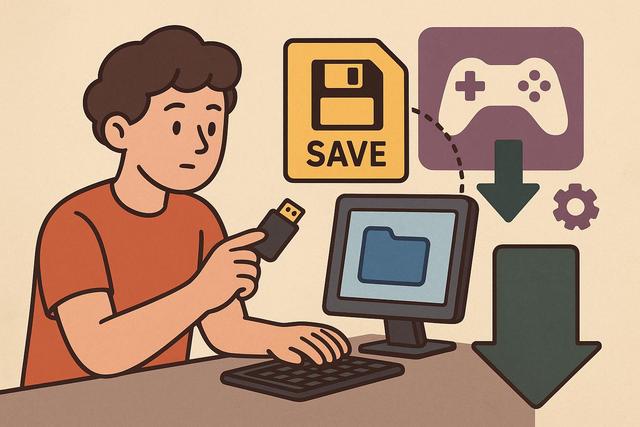
Installing a mod can completely transform your gaming experience by adding content, enhancing graphics, or fixing certain flaws. However, a mod can also cause bugs, conflicts, or even corrupt your save files. To avoid losing dozens of hours of progress, you must back up your games before making any modifications. In this simple guide, you will discover a clear and accessible method to protect your save files before installing a mod, whether you are playing on PC or console.
For an easy way to manage your game mods, you can visit the download page here.
Why Backup Your Games Before Installing a Mod?
A mod modifies the files of a game to add or change content. This modification often brings interesting enhancements, but it also comes with risks. If the mod is incompatible with your version of the game, a crash may occur. If multiple mods conflict, your save file may become unusable.
You can avoid these problems by making a backup beforehand. In case of an error, you can simply restore your original files. This saves you time, as you won't have to restart your entire progress.
Moreover, some games automatically update their files. An update may render a mod obsolete, leading to malfunctions. A backup allows you to quickly return to a stable state.
Where Are Backup Files Located?
Before backing up your games, you must locate the backup files. Their location varies depending on the platform and the game.
On PC, backups are often found in:
- The "Documents" or "My Games" folder
- The game installation folder
- The "AppData" folder on Windows
- The user folder on macOS or Linux
On consoles, the system generally stores backups in internal memory or on external storage. In this case, you use the system settings to copy the data to a USB drive or to the cloud.
If you're unsure, check the official documentation for the game or search for "backup location + game name" in a search engine. This method is quick and efficient.
Simple Method to Backup Your Games on PC
The manual method remains the simplest and most reliable if you're using a computer.
1. Locate the Backup Folder
Open the file explorer and navigate to the appropriate folder. Ensure that you see recent files corresponding to your progress.
2. Copy the Files
Select all the files, then right-click and choose "Copy." Paste them into a dedicated folder, for example, "Game Backups Before Mod."
You can also create a subfolder with today's date. This organization makes it easier to restore if you install multiple mods.
3. Store the Backup on an External Device
For added security, copy this folder to:
- A USB flash drive
- An external hard drive
- A cloud storage service
This reduces the risk of loss, as a system issue can also affect your main drive.
Use the Cloud to Secure Your Backups
Many platforms offer automatic cloud backup services. Steam, Epic Games, Xbox, and PlayStation provide this service.
However, you need to ensure that synchronization is active. A corrupt local backup may sync to the cloud if you're not careful.
To avoid this issue:
- Temporarily disable automatic synchronization.
- Make a manual local copy.
- Ensure that the backup works.
- Then reactivate synchronization.
This precaution protects your data, especially if you're testing an experimental mod.
Backup Your Games on Console Before a Mod
On consoles, modding is more regulated than on PC. However, some games allow mod installation through an official interface.
Before making any modifications, open the system settings. Then access the saved data management. Copy your files to a USB drive or to the cloud.
The procedure varies depending on the console, but the logic remains the same: duplicate the data before any installation. This step takes a few minutes but prevents permanent loss.
Check Mod Compatibility Before Installation
You can reduce risks by checking a mod's compatibility. Read the full description and check user comments.
Specifically, check:
- The required game version
- The necessary dependencies
- Known conflicts with other mods
- The date of the latest update
If a mod is no longer maintained, it may cause problems after a game update. Therefore, you limit errors by installing only recent and well-rated files.
Safely Test a Mod
After backing up your games, install one mod at a time. This method makes it easier to identify any potential conflicts.
Then launch the game and try a new playthrough if possible. Avoid using your main save immediately. If the mod causes a bug, you'll notice it quickly without risking your progress.
Some players even create a dedicated game profile for mods. This practice separates modified playthroughs from standard ones, thus reducing unforeseen interactions.
How to Restore a Backup in Case of Issues?
If a mod damages your game, you can quickly restore your files.
Here’s the simple procedure:
- Uninstall the problematic mod.
- Delete any corrupted backup files.
- Copy the backup to the original folder.
- Restart the game to check if it's working correctly.
If the problem persists, also check the integrity of the game files through the platform used. Steam, for example, offers an automatic verification function.
The table below summarizes essential actions:
| Step | Action | Goal |
|---|---|---|
| 1 | Copy Backups | Protect Progress |
| 2 | Install a Mod | Modify the Game |
| 3 | Test on a New Playthrough | Reduce Risks |
| 4 | Restore if Necessary | Recover a Stable Version |
Best Practices to Secure Your Modded Games
You enhance your security by adopting a few simple habits.
First, make regular backups even without mods. A bug can occur at any time. Next, download your mods only from reputable sites. This precaution limits the risks of malicious files.
Also, update your mods when their authors release patches. However, make a new backup before each major update. Even an enhancement can alter internal data.
Finally, organize your files clearly. A well-structured folder makes management easier, especially if you use multiple games.
Backing Up Your Games: An Essential Step
Backing up your games before installing a mod remains an essential step for any player. This simple method protects your hours of progress and reduces the stress associated with technical errors.
You gain peace of mind, knowing that you can revert at any moment. This way, you can enjoy the benefits of modding without the fear of losing everything.
So take a few minutes to copy your files before each installation. This reflex quickly becomes automatic, allowing you to secure your gaming experience for the long term. With this approach, you explore new content with confidence while keeping control over your backups.


