How to Boost FPS for Free Without Upgrading Your Graphics Card
- Jan 28, 2026 04:51 am
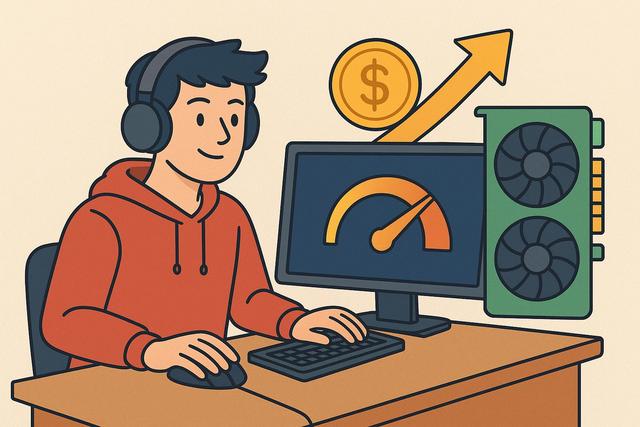
Many gamers are looking to increase their FPS for free to enjoy smoother gameplay, as graphics cards can be quite expensive. Fortunately, there are numerous simple and effective solutions to enhance PC performance without spending any money. By optimizing Windows, game settings, and existing hardware, it is possible to significantly boost your frames per second. This means that even with modest configurations, players can enjoy a great gaming experience. In this article, you will discover practical methods that are accessible to everyone, allowing you to boost your FPS without the need to change your graphics card. For the latest version of Roblox, you can download it here.
Understanding What FPS Are and Their Importance in Gaming
FPS, or frames per second, indicate the number of images your computer displays each second. The higher the number, the smoother the image appears. Gamers often seek 60 FPS, as this threshold ensures a comfortable experience. However, some competitive games require even higher FPS due to the speed of actions.
When FPS drop, you experience slowdowns, stutters, or longer response times. These issues directly detract from the gaming experience. Nevertheless, the graphics card is not the only factor influencing performance. The CPU, RAM, storage, and software settings also play key roles. This is why it's possible to gain FPS for free by working on these elements.
Optimizing Game Graphics Settings to Gain FPS
Graphic settings often represent the quickest source of FPS gains. Developers add high-demand visual options because they enhance aesthetics. However, these options consume many resources.
Start by lowering the overall graphic quality. For example, switch from "High" to "Medium". This simple action often immediately increases FPS. Next, disable or reduce some specific options.
Here are the settings to prioritize:
- Shadows, as they heavily tax both the GPU and CPU
- Anti-aliasing, where disabling it often offers a significant gain
- Post-processing effects such as motion blur or grain
- Render distance, especially in open-world games
Also, reduce the resolution if needed. Playing in 1600x900 instead of 1920x1080 can greatly increase FPS, due to the number of pixels being calculated. Even if the image appears slightly less sharp, the increased fluidity more than compensates.
Smartly Updating Graphics Drivers
Graphics drivers play a central role in performance. Manufacturers regularly release optimizations for recent games. Thus, a simple update can improve FPS without changing hardware.
Always download drivers directly from the official NVIDIA, AMD, or Intel websites. Avoid unreliable third-party software. After installation, restart your PC, as this step allows the system to properly apply changes.
However, do not always install every new version immediately upon release. Read the release notes to know if optimizations pertain to your favorite games. This approach also avoids certain bugs.
Optimizing Windows for Better Gaming Performance
Windows consumes resources in the background. By optimizing the system, you free up power for your games. Start by checking the startup programs.
Open the Task Manager and disable unnecessary applications at startup. This operation speeds up the system, as fewer processes run in the background.
Next, enable the "High Performance" mode in power options. This setting prevents the CPU from unnecessarily reducing its frequency. Consequently, games benefit from consistent power.
You can also disable some visual effects in Windows, such as animations or window shadows. These adjustments provide a small FPS boost, especially in modest setups.
Cleaning and Lightening the System to Gain FPS
A cluttered system performs worse. Temporary files, unnecessary software, and redundant services slow down the computer. Therefore, regular cleaning enhances overall performance.
Use the built-in Disk Cleanup tool in Windows. Remove temporary files and outdated caches, as they waste space unnecessarily. Also, uninstall games or software that you no longer use.
Finally, check background services. Some programs, such as launcher tools or sync applications, consume resources. Closing them before gaming can provide free FPS gains.
Optimizing CPU and RAM Usage
The CPU significantly influences performance, especially in online games or open worlds. If the CPU hits 100%, the graphics card waits, causing FPS to drop.
Close all unnecessary software before launching a game. Browsers with many open tabs use significant RAM. Running out of memory leads to substantial slowdowns.
Also, check that the game is properly utilizing all CPU cores. Some games provide a multithreading management option. Enable it if possible, as it improves FPS stability.
Adjusting Specific Settings via NVIDIA or AMD Panels
Graphics drivers offer advanced configuration panels. These tools allow you to optimize performance without touching the hardware.
In the NVIDIA or AMD panel, select the "Maximum Performance" mode for games. Disable vertical sync at the driver level, as it often limits FPS. You can also force some performance options at the expense of visual quality.
These settings apply globally or on a per-game basis. So take the time to create custom profiles. This way, each game benefits from the best possible settings.
Using Internal Game Options for FPS Stability
Some games offer hidden or advanced technical options. These settings directly affect fluidity. For example, limiting FPS can sometimes stabilize the experience by avoiding sharp fluctuations.
Also, enable scaling technologies, such as FSR or DLSS, when the game offers them. These solutions increase FPS by rendering the image at a lower resolution and then enhancing it. Even without changing your graphics card, you can achieve a notable gain.
Monitoring Temperatures to Avoid FPS Loss
Overheating causes automatic performance drops, known as "throttling." The CPU and graphics card reduce their frequency to protect themselves. As a result, FPS drop.
Monitor temperatures using free tools. If the values appear high, clean the fans and ventilation grilles. Good airflow sustainably improves performance.
You can also ensure that the PC rests on a flat and clear surface. This simple precaution enhances cooling, allowing components to maintain their full power.
Optimizing HDD or SSD for Smoother Gaming
Storage influences loading times and sometimes in-game stutters. A very slow or fragmented hard drive creates micro-freezes, especially in demanding games.
If you use a hard drive, perform regular defragmentation. This operation reorganizes files and speeds up data access. On an SSD, check the free space, as a full drive loses performance.
Also, install games on the fastest drive available. This choice improves overall fluidity due to quicker access to resources.
Adjusting Screen Resolution and Refresh Rate
Screen settings directly influence perceived FPS. Ensure that the refresh rate of the screen corresponds to its actual capabilities. For instance, a 144 Hz monitor should be configured to 144 Hz in Windows.
Even with fewer FPS, a correct refresh rate enhances the sense of fluidity. If necessary, slightly lower the resolution to achieve a more stable frame rate.
Summary of Free Optimizations to Gain FPS
| Action Taken | Impact on FPS | Difficulty |
|---|---|---|
| Reducing graphic settings | High | Easy |
| Updating drivers | Medium | Easy |
| Optimizing Windows | Medium | Medium |
| Closing unnecessary software | Low to medium | Easy |
| Cleaning the system | Low | Easy |
Conclusion: Gaining FPS for Free Is Possible
It is entirely feasible to gain FPS for free without changing your graphics card. By combining suitable graphic settings, Windows optimization, and better resource management, you can significantly improve the fluidity of your games. These methods mainly require time and a bit of curiosity, as none necessitate a financial investment.
Therefore, before purchasing new hardware, take the time to apply these tips. You may be surprised by the gains obtained, transforming your gaming experience.


