
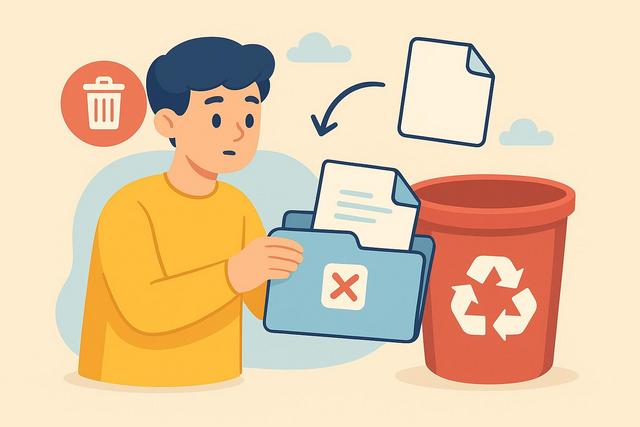
Have you accidentally deleted an important document? This situation occurs frequently, as it only takes a simple click to erase a vital file. However, recovery of deleted files remains possible in many cases. With built-in tools on your computer or specialized data recovery software, you can quickly restore deleted files. In this article, discover how to recover a deleted file on Windows, Mac, USB flash drive, or external hard drive, and adopt best practices to prevent data loss in the future.
To download the latest version of OneDrive, click here.
Understanding File Deletion
When you delete a file, your system does not immediately erase it from the hard drive. Instead, it simply removes its location from the list of visible files. Thus, the data remains on the storage medium until it is overwritten by another file.
This information changes everything, as it means you can recover a deleted file if you act quickly. However, the more you use your device after deletion, the higher the risk of permanent data overwriting.
Check the Recycle Bin First
You should always start by checking the Recycle Bin, as operating systems typically place deleted files there.
On Windows
Open the Recycle Bin from the desktop. Look for the deleted file, then right-click and select “Restore.” The system will then place the file back in its original folder.
On Mac
Click on the Recycle Bin icon in the Dock. Locate the deleted document, then click “Put Back” to restore it to its initial location.
This method remains the simplest, as it does not require any additional software. However, it will not work if you have emptied the Recycle Bin.
Use the System Backup Function
If the Recycle Bin no longer contains the file, you can use an automatic backup. Indeed, both Windows and macOS come with robust backup tools.
Restore a File with File History (Windows)
Windows offers the “File History” feature, which creates regular copies of your documents if you have enabled it.
Here’s how to proceed:
- Open the folder where the file was located.
- Right-click and select “Restore previous versions.”
- Choose an earlier version, then click “Restore.”
This method works effectively if you have set up a prior backup.
Recover a File with Time Machine (Mac)
Apple provides Time Machine, a powerful tool that automatically backs up your files.
Open the original folder, then launch Time Machine. Navigate through previous backups to find your file. Finally, select it and click “Restore.”
This solution remains very reliable, as it allows you to recover different versions of the same document.
Use Data Recovery Software
If no backup exists, you can use file recovery software. These programs scan your hard drive to find non-overwritten data.
Popular Recovery Software
Here are some effective solutions:
- Recuva (Windows)
- EaseUS Data Recovery Wizard (Windows and Mac)
- Disk Drill (Windows and Mac)
- Stellar Data Recovery (Windows and Mac)
These tools deeply scan your storage medium. They then display recoverable files with an estimated integrity level.
However, you should install the software on another drive if possible, as installation on the affected drive may overwrite the data you wish to recover.
Recover a Deleted File from a USB Drive or External Hard Drive
Data recovery from a USB drive works on the same principle as from an internal hard drive. However, you need to act quickly, as these devices often undergo frequent writes.
Plug the USB drive or external hard drive into your computer. Then, launch recovery software and select the concerned device. Start the in-depth scan to increase your chances of restoration.
If the file appears in the list, recover it immediately and save it to another device.
What to Do After Emptying the Recycle Bin?
Many people think that a file disappears permanently after emptying the Recycle Bin. However, this is not always the case.
When you empty the Recycle Bin, the system deletes references to the files. However, the physical data remains until a new item replaces it.
In this case, you should:
- Immediately stop using the affected computer.
- Avoid downloading or installing new files.
- Launch recovery software from another device.
This method significantly increases the success rate.
Can We Recover a Deleted File from a Smartphone?
Yes, you can recover deleted photos or documents on Android or iPhone, as these devices often feature a temporary Recycle Bin.
On Android, open Google Photos and check the Recycle Bin. On iPhone, check the “Recently Deleted” album in the Photos app.
If the retention period exceeds 30 days, you will need to use an iCloud or Google Drive backup. However, recovery becomes more complex without a prior backup.
Summary Table of Recovery Solutions
| Situation | Recommended Solution | Difficulty |
|---|---|---|
| Recently deleted file | Restore from Recycle Bin | Very Easy |
| Recycle Bin emptied | Use recovery software | Medium |
| Backup enabled | Restore previous version | Easy |
| Formatted USB drive | Scan with specialized software | Medium to High |
| Smartphone | Check Recycle Bin or cloud backup | Easy |
This table helps you quickly identify the appropriate method for your situation.
Why Do Some Files Remain Unrecoverable?
Certain circumstances render recovery impossible. For example, complete data overwriting permanently deletes old information. Additionally, a secure format erases storage blocks irreversibly.
SSD drives also complicate recovery, as the TRIM function automatically deletes unused data to optimize performance. Thus, recovery chances decrease significantly on a recent SSD.
Contact a Professional Data Recovery Service
If the data is critically important, you may contact a specialized laboratory. These companies operate in a cleanroom to recover data from damaged storage media.
However, these services can be expensive, as they require advanced technical equipment. Prices generally range from 300 to 2000 euros, depending on the complexity of the issue.
Therefore, you must assess the importance of the files before incurring this expense.
Preventing Future File Loss
The best solution is prevention, as it saves you from stress and wasted time.
Adopt these good practices:
- Enable automatic backup (cloud or external drive).
- Use an online storage service like Google Drive or Dropbox.
- Avoid emptying the Recycle Bin without prior verification.
- Install antivirus software to prevent deletions related to malware.
You can also apply the "3-2-1" rule: keep three copies of your data on two different media, with one stored off-site. This strategy significantly reduces the risk of permanent loss.
Conclusion
You can recover a deleted file in many cases, as deletion does not always mean immediate erasure. The Recycle Bin is the first simple and quick solution. However, if that is insufficient, automatic backups and specialized software offer excellent alternatives.
Act quickly, as each new piece of data written reduces your chances of recovery. Finally, implement a reliable backup strategy to protect your important documents in the long term. With these practical tips, you will know how to effectively recover a deleted file and limit the risk of data loss.


