How to Extract Heavy Game Mods Using WinRAR
- Mar 01, 2026 01:11 am
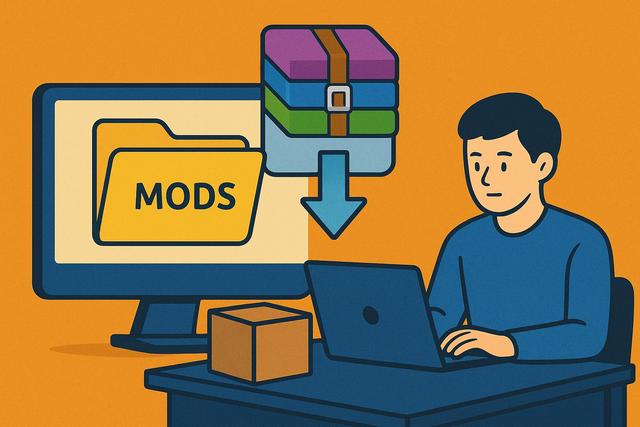
Every day, gamers download mods to enhance their favorite video games. However, these files are often large and compressed in RAR or ZIP format. To use them correctly, you need to know how to extract them without errors. WinRAR remains one of the most reliable tools for uncompressing heavy game mods. In this article, you will learn how to use WinRAR effectively, avoid common problems, and optimize the installation of your mods. For the latest version of WinRAR, visit this page.
Why Are Game Mods Compressed?
Mod creators publish their compressed files because they want to reduce download size. A mod can contain HD textures, audio files, scripts, or complete maps. These elements often take up several gigabytes. Compression helps to decrease the file size and speed up the download.
Furthermore, the archive protects the file structure, preventing errors during transfer. As a result, the user receives an intact folder, ready to be decompressed.
However, a large mod requires a powerful tool. Therefore, you need to use reliable software like WinRAR to avoid corrupted files.
Why Use WinRAR to Extract a Large Mod?
WinRAR remains a benchmark in managing compressed files. It supports numerous formats such as RAR, ZIP, and 7Z. It also offers great stability when extracting large files.
WinRAR has several advantages:
- It quickly extracts large archives.
- It manages split archives into multiple parts.
- It repairs some damaged RAR files.
- It checks the integrity of the extracted files.
These features are essential when installing a large mod for GTA, Skyrim, Minecraft, or another popular game.
How to Install WinRAR on PC
First, you need to download WinRAR from the official website. This step ensures a secure and malware-free software. Then, launch the installation file and follow the displayed instructions.
The program installs in a few minutes. Once installed, WinRAR automatically integrates into the Windows context menu. You can then right-click on any archive.
This simplicity facilitates extraction, especially if you frequently handle compressed mods.
Steps to Extract a Large Game Mod with WinRAR
Extracting a large mod requires a bit of method. You need to follow a clear procedure to avoid errors.
1. Check Available Disk Space
First and foremost, check the free space on your hard drive. A 5 GB compressed mod may take up 10 GB once extracted. Therefore, you need to ensure you have enough storage.
If your disk space is insufficient, extraction will fail. In some cases, the file may become unusable.
2. Download All Parts of the Mod
Some large mods are divided into several RAR files. For example, you may find:
mod_part1.rar
mod_part2.rar
mod_part3.rar
You need to place all parts in the same folder. Then, right-click only on the first part. WinRAR automatically detects the other files and assembles them.
3. Extract the File with WinRAR
Right-click on the main archive. Then select "Extract to..." or "Extract here."
If you choose "Extract to...", you can select a specific folder. This option is preferable as it avoids mixing files.
WinRAR then starts the extraction process. The time depends on the size of the mod and the performance of your hard drive.
4. Check Extracted Files
Once the operation is complete, open the created folder. Check for the presence of files like:
- data folders
- .esp or .dll files
- README files
- installation instructions
Always read the instructions provided by the mod creator. Some modifications require specific installation steps.
Troubleshoot Common Extraction Errors
Even though WinRAR works very well, some errors may occur.
Corrupted File
If WinRAR displays an error message, the download may be incomplete. You should then re-download the mod from a reliable source.
WinRAR also offers an "Repair Archive" function. This option can recover some partially damaged files.
Password Required
Some protected mods require a password. You can usually find this code on the download page. Without this password, extraction will not be possible.
Insufficient Disk Space
If extraction halts abruptly, check your storage. Delete temporary files if necessary, as a lack of space blocks the process.
Optimize Extraction of Large Mods
You can improve the speed and stability of extraction with a few best practices.
First, install the mod on an SSD if possible. SSDs offer much faster speeds than regular hard drives. Then, close resource-intensive programs during extraction. Your computer will process the data faster.
You can also modify certain settings in WinRAR.
| Setting | Recommendation | Why |
|---|---|---|
| Extraction Mode | Normal | Avoids system conflicts |
| Target Folder | Secondary Drive | Reduces system load |
| Antivirus | Scan After Extraction | Speeds up the process |
These adjustments greatly enhance the user experience, especially if you often handle very large mods.
Correctly Install the Mod After Extraction
Decompression is only the first step. You then need to install the mod in the correct game folder.
Most PC games store their files in the main installation folder. However, some titles use a dedicated mod manager. This is the case for Skyrim with Nexus Mod Manager or Vortex.
Always read the provided documentation. If you install a mod incorrectly, the game may crash on startup.
Security and Best Practices
Only download your mods from recognized platforms. Well-known sites often verify the files offered. This precaution reduces the risk of viruses.
Always scan the archive with an antivirus before extraction. Even though WinRAR is secure, it does not block malware embedded in the files.
Additionally, make backups of your game before installing a large mod. You can restore the previous version in case of issues.
Why WinRAR Remains a Reliable Choice in 2026
Several alternatives exist, such as 7-Zip or PeaZip. However, WinRAR maintains excellent compatibility with complex archives. It manages split files and large archives better.
Its simple interface is user-friendly. You can use it without advanced technical knowledge. Due to its stability, many mod creators still recommend WinRAR.
Conclusion: Effectively Extracting a Large Mod
Extracting large game mods with WinRAR remains a straightforward operation if you follow the right steps. You need to check disk space, download all parts, and extract the file correctly. WinRAR offers you speed, stability, and advanced functions beneficial for large files.
If you apply the advice in this article, you will reduce errors and save time. You can then fully enjoy your mods, without stress or technical complications. A clean installation ensures a smooth gaming experience, as a well-extracted mod works correctly from the game's launch.


