
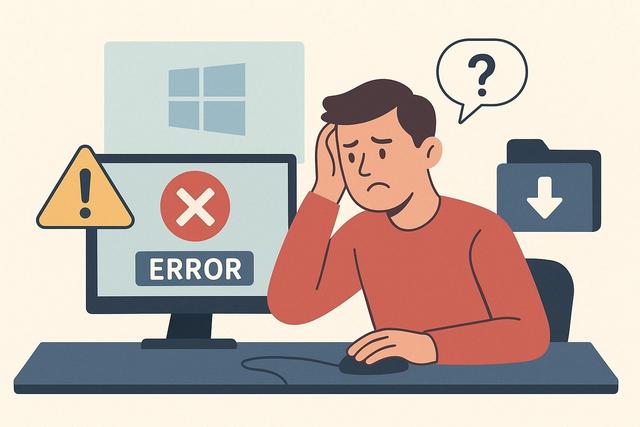
Are you trying to install a program on your PC and Windows is displaying an error message? Installation blocked, file not launching, access denied, or security message: these issues are common. In this article, you will discover why it can sometimes be impossible to install software on Windows and, more importantly, how to resolve the issue step by step.
If you are looking to download Google Chrome, you can do so from this link: Download Google Chrome Latest Version.
Why Does Software Installation Fail on Windows?
Before seeking a solution, it's essential to understand the cause of the blockage. Generally, Windows prevents installation to protect your computer. However, other technical reasons may also explain the issue.
Here are the most common causes:
- Insufficient administrator rights
- Antivirus or Windows Defender too strict
- Corrupted installation file
- Incompatible Windows version
- Insufficient disk space
- Conflict with an older program
- Blockage related to Windows S mode
Identifying the cause allows you to apply the correct solution quickly.
Check Administrator Rights
Windows limits software installation to administrator accounts. If you are using a standard account, the installation may fail.
To check:
- Right-click the installation file.
- Select "Run as administrator".
- Confirm the User Account Control prompt.
If the installation works this way, the issue is indeed related to permissions.
What to Do If You Are Not an Administrator?
You need to contact the person who manages the computer. This often happens on a professional or school PC. Without administrator rights, you won't be able to install standard software.
Temporarily Disable Antivirus or Windows Defender
Sometimes, Windows blocks software it considers dangerous. However, the program may be perfectly legitimate.
In this case:
- Temporarily disable the antivirus.
- Launch the installation.
- Re-enable protection afterwards.
Be careful, always download your software from the official website. Never install a file from a questionable source.
If Windows Defender blocks the file, you can:
- Open "Windows Security".
- Go to "Virus & threat protection".
- Check the protection history.
- Allow the file if you are sure of its reliability.
However, remain cautious. Security should always be a priority.
Check Software Compatibility with Your Version of Windows
Some older software does not function on Windows 10 or Windows 11. Conversely, some recent programs are not compatible with older versions.
To verify:
- Right-click the file.
- Select "Properties".
- Open the "Compatibility" tab.
- Try "Compatibility mode".
Select an earlier version of Windows and test the installation.
If the software remains incompatible, check the publisher's website. Verify the minimum requirements. This information may change according to updates.
Check Available Disk Space
A lack of space often prevents software installation on Windows.
To check:
- Open File Explorer.
- Click on "This PC".
- Check the available space on the primary disk (usually Local Disk C:).
If space is low, you can:
- Delete unnecessary files
- Empty the recycle bin
- Uninstall old programs
- Use the "Disk Cleanup" tool
Free up enough space, then restart the installation.
Remove Traces of a Previous Installation
If you have previously installed the software, residual files may block the new installation.
In this case:
- Open the Control Panel.
- Go to "Programs and Features".
- Uninstall any existing version of the software.
Then, restart your computer. This reboot resets Windows services.
If the problem persists, you can use an uninstallation utility to remove leftover files. However, only use recognized tools.
Check That Windows is Up to Date
An outdated system may prevent the installation of some recent software.
To check:
- Open Settings.
- Click on "Windows Update".
- Check for updates.
- Install any that are available.
Then restart your PC. Some updates fix errors related to application installation.
Be aware that procedures may vary depending on the version of Windows. Always check the steps appropriate for your system.
Disable S Mode on Windows
If you are using Windows 10 or 11 in S mode, you can only install applications from the Microsoft Store.
In this case, installing an .exe file will be impossible.
To check:
- Open Settings.
- Go to "System" then "Activation".
- Check if S mode is enabled.
If necessary, you can exit S mode via the Microsoft Store. This operation is typically permanent.
Check Errors Related to the Installation File
A file downloaded incompletely can cause an error.
Here are common signs:
- Message "corrupted file"
- Installation stops for no reason
- Cannot open the file
In this case, delete the file and download it again from the official website.
Avoid unknown platforms. They may provide modified or infected versions.
Run the Troubleshooter
Windows offers built-in troubleshooting tools. They automatically detect certain installation errors.
To access:
- Open Settings.
- Click on "System".
- Go to "Troubleshoot".
- Select the appropriate tool.
This tool doesn’t fix everything, but it can correct simple errors.
Issue with Microsoft Installer (MSI)
Some software uses the Windows Installer service.
If this service is not functioning correctly, the installation will fail.
To check:
- Press Windows + R keys.
- Type "services.msc".
- Look for "Windows Installer".
- Check that it is running.
If it is stopped, start it manually.
Summary of Main Solutions
Here is a summary table of causes and recommended actions:
| Identified Problem | Recommended Solution |
|---|---|
| Access Denied | Run as administrator |
| Antivirus Blockage | Temporarily disable protection |
| Incompatible Software | Use compatibility mode |
| Insufficient Disk Space | Free up space |
| Previous Version Installed | Completely uninstall |
| Outdated Windows | Install updates |
| S Mode Active | Disable S mode |
| Corrupted File | Download again |
This table helps you quickly identify the source of the problem.
Practical Tips to Avoid Blockages
To limit installation problems in the future:
- Always download from the publisher's official website.
- Keep Windows up to date.
- Avoid installing multiple antivirus programs at once.
- Keep at least several gigabytes free on the primary disk.
- Create a restore point before a significant installation.
These habits significantly reduce errors.
When to Reach Out to a Professional?
If no solution works, the problem may be deeper. It could be a corruption of the system or malware.
In this case, you can:
- Run a complete antivirus scan.
- Use the System File Checker (SFC) tool.
- Consult an IT technician.
Don’t wait if the problem recurs frequently. This could indicate a more serious malfunction.
Conclusion
It is common to encounter the message "unable to install software on Windows." However, the problem almost always has a solution. First, check administrator rights, compatibility, and disk space. Then, control the antivirus and Windows updates. By following these simple and concrete steps, you can install your software without difficulty.
FAQ
Why Does Windows Block Software Installation?
Windows sometimes blocks a program to protect your computer. This can stem from an antivirus, lack of rights, or a file deemed suspicious.
How to Know if Software is Compatible with My Version of Windows?
Check the publisher's official website. Verify the minimum required configuration. You can also test compatibility mode.
Can You Install Software Without Administrator Rights?
In most cases, no. Windows requires administrator rights to modify the system.
Does S Mode Prevent Installation of an .exe File?
Yes. In S mode, Windows allows only applications from the Microsoft Store. You need to disable this mode to install external software.


