Inkscape for Web Design: Creating Mockups and Icons
- Aug 17, 2024 03:06 am
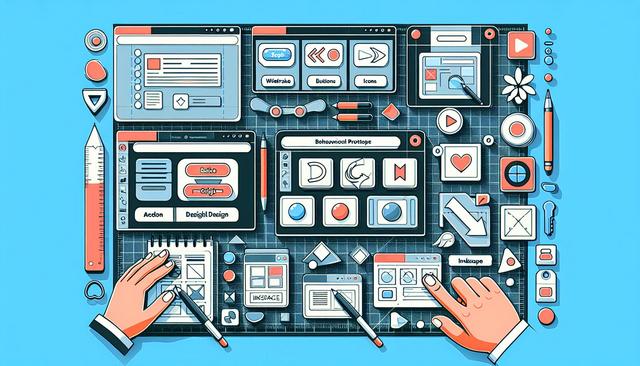
In the modern world of web design, creating mockups and icons plays a vital role in developing attractive and functional websites. Inkscape, an open-source vector graphics software, proves to be a powerful and versatile tool for designers. This article explores how to use Inkscape for creating mockups and icons intended for web design.
Download Inkscape and start enhancing your web design projects!
Why Choose Inkscape for Web Design?
Inkscape is a free vector graphic design software widely used for creating illustrations, graphics, and typography. But why specifically choose Inkscape for web design?
Freedom and Accessibility
Inkscape is open-source software, which means everyone can use it for free. This makes it extremely accessible for freelancers, small businesses, and design students.
Versatility and Power
Inkscape offers powerful tools to create high-quality vector graphics. Additionally, its advanced features, such as node editing, gradients, and filters, make it an ideal choice for designing sophisticated web design elements.
Web Mockup Design with Inkscape
Creating web mockups is a crucial step in the web design process. A well-designed mockup allows you to visualize the layout and interaction of different components of the page before moving to the coding stage.
Mockup Planning
Before you start drawing, it's important to plan. Define the objectives of the website, the target audience, and necessary features. Create a list of elements to include in the mockup, such as headers, footers, content sections, and call-to-action buttons.
Using Grids and Objects
Inkscape features a grid function that is very useful for creating a well-aligned mockup. Activate grids and guides to ensure that all elements are proportionately aligned.
To activate grids in Inkscape:
- Click on "View" in the main menu.
- Select "Show Grid".
To use guides:
- Click on the ruler and drag to create a guide.
Adding Colors and Typography
Colors and typography play a crucial role in the aesthetics and usability of a website. Use Inkscape's color palette to choose harmonious colors that enhance brand identity. Inkscape also makes it easy to add and manipulate text, facilitating the integration of typography into your mockup.
Mockup Export
Once the mockup is complete, it's time to export it. Inkscape allows exporting in various image formats such as PNG and SVG, which are widely used on the web.
To export an image as PNG:
- Click on "File" > "Export as PNG".
- Select the desired export settings.
- Click on "Export".
To export as SVG:
- Click on "File" > "Save As…".
- Choose the SVG format and click "Save".
Icon Design with Inkscape
Icons are essential visual elements in web design. They enhance the user interface by adding visual indicators, making the site more intuitive and engaging.
Choosing the Right Icon Style
Before starting the design, choose the icon style that matches the aesthetics of the website. Styles can range from minimalist to detailed, including flat or skeuomorphic designs.
Drawing Icons
Inkscape offers a variety of tools to draw icons accurately. Use basic shapes (circles, squares, lines) to create the main contours. Then, refine the details with the freehand drawing tools and node editing.
To draw with basic shapes:
- Select the shape drawing tool from the toolbar.
- Draw the shape on your canvas.
- Use the "Node and Object Editing" tool to refine the shape.
Using Path Operations
Path Operations are particularly useful for combining or cutting complex shapes. They allow you to create more sophisticated and customized icons.
To use Path Operations:
- Select the objects you want to combine or cut.
- Go to "Path" in the main menu.
- Choose the desired operation (Union, Difference, Intersection, etc.).
Saving and Exporting
Finally, after completing your icons, export them as SVG or PNG for use on the website. SVGs are particularly recommended for icons, as they are scalable without losing quality.
To export an icon as SVG:
- Click on "File" > "Save As…".
- Select SVG and click "Save".
Conclusion
Inkscape is a powerful and accessible tool for web designers looking to create high-quality mockups and icons. Its wide range of features and open-source nature make it a preferred choice for designers of all levels. By integrating Inkscape into your workflow, you can effectively design visual elements that enhance the look and functionality of your websites. Use Inkscape to turn your ideas into exceptional mockups and icons, elevating your web design to new heights.
Download the latest version of Inkscape


