Inkscape Free: Easily Vectorize Images
- Jul 26, 2025 02:50 am
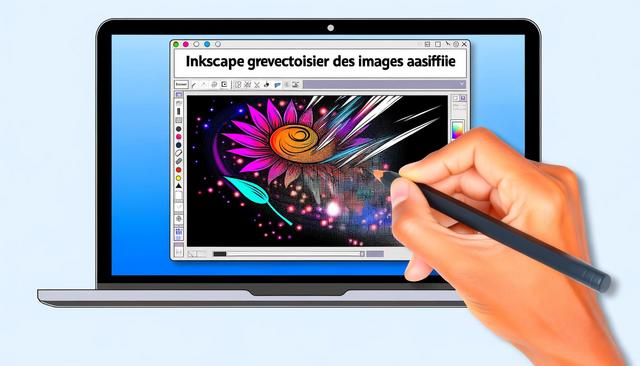
Inkscape is a free vector graphic design software that allows users to convert raster images into vector graphics. In this article, we will explore how to use this free application to easily vectorize an image, step by step.
For those interested in downloading Inkscape, you can find the latest version here.
What is Image Vectorization?
Image vectorization is the process of converting a raster image, made up of pixels, into a vector image, consisting of points, lines, and curves that are all based on mathematical formulas. This allows the image to be resized indefinitely without loss of quality, which is essential for many graphic tasks, including printing large banners or creating logos.
Why Choose Inkscape for Image Vectorization?
Inkscape stands out for its powerful vector drawing features while being completely free. Additionally, it is compatible with Windows, macOS, and Linux, making it accessible to a large majority of users. Inkscape has both automatic and manual vectorization tools, allowing users to precisely control the process.
How to Download and Install Inkscape
To get started, visit the official Inkscape website and download the version that matches your operating system. Follow the provided installation instructions to have the software ready to use in just a few minutes.
Step 1: Open the Image in Inkscape
Once Inkscape is installed, open it and import the image you want to vectorize. To do this, click on File > Import and select your image file (JPEG, PNG, etc.). The image will be loaded into the Inkscape workspace.
Step 2: Use the Automatic Vectorization Function
Inkscape offers a feature called 'Trace Bitmap', which is ideal for automatically vectorizing an image.
- Select the image you want to vectorize.
- Go to Path > Trace Bitmap.
- A window will open with several vectorization options. Users can choose from options such as 'Edge detection' or 'Color threshold', depending on their needs.
- Click OK to start the vectorization process.
Step 3: Edit the Vectorized Path
Once the image has been vectorized, it will appear superimposed over the original. You can now delete the original raster image and start editing the vector path as needed.
- Use the Edit paths by nodes tool to adjust the anchor points and refine the lines and curves of your image.
- Use the Transform tool to resize or rotate your image without losing quality.
Step 4: Export the Vectorized Image
After making all the necessary adjustments to your vectorized image, you can export it for use in other projects or prints. To export your image, go to File > Export PNG Image (or PDF, SVG for a vector format) and choose your save destination.
Tips for Successful Vectorization
- Work with a high-quality image: the clearer and sharper the original image, the more accurate the vector output will be.
- Experiment with different 'Trace Bitmap' settings to see which one gives the best result for your specific image.
- Take the time to refine the path: manually editing the vector path can significantly improve the final output.
Conclusion
Thanks to Inkscape, image vectorization is an accessible and cost-effective process, regardless of your graphic design skills. By following the steps outlined above, you can transform any image into a high-quality vector graphic, ready to be used in all your creative projects.


