IPTV on Android: How to Transfer M3U Files Using Dropbox
- May 05, 2026 01:11 pm
Introduction to IPTV on Android
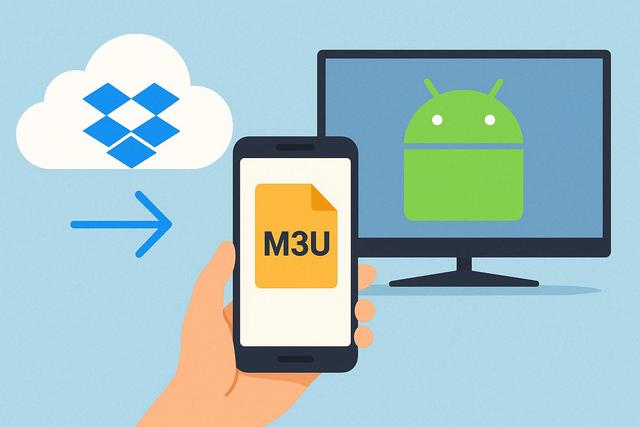
IPTV on Android is increasingly attracting users, as it allows them to watch thousands of channels streaming through a simple Internet connection. To fully enjoy this service, you often need to import an M3U file into your IPTV application. However, transferring this file can sometimes be problematic. Dropbox provides a simple, fast, and secure solution for sending an M3U file to an Android smartphone or box. In this article, discover how to transfer an M3U file with Dropbox, step by step, while optimizing your IPTV setup on Android.
For more details, you can download Dropbox here.
Why use Dropbox to transfer an M3U file to Android?
Dropbox makes file transfer between multiple devices easy, as it operates in the cloud. You can send an M3U file from a computer to an Android smartphone without a USB cable. This solution remains simple, even if you are just getting started with IPTV.
The M3U file contains an IPTV playlist. It consolidates links to streaming TV channels, movies, or series. If you are using an IPTV application like IPTV Smarters, TiviMate, or GSE Smart IPTV, you need to import this file to access the content.
Dropbox offers several advantages:
- Automatic synchronization between devices
- Secure access via a personal account
- Easy sharing through a direct link
- Compatibility with Android, Windows, macOS, and iOS
Thus, you save time and avoid handling errors. Additionally, you centralize your IPTV files in one place.
Prepare Your M3U File for IPTV on Android
Before transferring your M3U file with Dropbox, you need to check a few items. This step ensures optimal operation in your IPTV application.
First, make sure the M3U file works correctly. Open it on your computer with a compatible media player, such as VLC Media Player. If the channels load normally, your file is valid.
Next, rename the file with a simple name. Avoid special characters, as some Android applications may struggle with accents or complex symbols.
Finally, ensure that your IPTV subscription is still active. Even if the transfer of the M3U file is successful, the links will not open if your provider has disabled access.
Install and Configure Dropbox on Android
To transfer an M3U file to Android, you need to install Dropbox on your devices. The procedure is quick.
- Download Dropbox from the Google Play Store.
- Install the application.
- Log in with your Dropbox account or create one for free.
Then, also install Dropbox on your computer if you haven’t already. You can use the desktop application or simply access the official website.
With automatic synchronization, any file added to your Dropbox space will appear on your smartphone or Android box, as long as you are logged into the same account.
Steps to Transfer an M3U File with Dropbox
The transfer of an M3U file to Android using Dropbox follows a simple logic. However, you must follow each step to avoid import errors.
1. Add the M3U file to Dropbox
Open Dropbox on your computer. Then, click on "Upload a file" or simply drag and drop your M3U file into the Dropbox folder.
Dropbox automatically uploads the file to the cloud. This operation takes a few seconds unless your Internet connection is slow.
2. Check Synchronization
Once the file is uploaded, open the Dropbox app on your Android device. Look for the M3U file in your storage space.
If you do not see it immediately, refresh the page. Generally, synchronization occurs very quickly because Dropbox optimizes the transfer of small files.
3. Download the M3U file on Android
Tap on the M3U file in the Dropbox app. Then, select the "Download" or "Save to device" option.
The file will be stored in the internal memory of your smartphone or Android box. You can then import it into your IPTV application.
Import the M3U File into an IPTV Android Application
Once the M3U file is downloaded on Android, you need to integrate it into your IPTV player.
For example, using IPTV Smarters:
- Open the application.
- Select "Add User."
- Choose "Load your playlist or URL file."
- Select "File."
- Locate your M3U file in the local storage.
Then confirm. The application will automatically load the channels and categories. This process may take a few seconds, especially if the list contains thousands of streams.
Other IPTV applications on Android follow a similar procedure. However, the exact location of the options may vary depending on the interface.
Use a Dropbox Link Instead of a Local File
You can also use a direct Dropbox link instead of downloading the M3U file to your device. This method is suitable if your IPTV application accepts remote URLs.
To do this:
- Click on your M3U file in Dropbox (web version).
- Select "Copy Link."
- Paste this link into the URL field of your IPTV application.
However, you may sometimes need to change the link settings to make it accessible for direct download. Some links include a preview parameter, which prevents the IPTV application from reading the file correctly.
This method avoids taking up storage space on Android. However, it requires a constant Internet connection to load the IPTV playlist.
Troubleshoot Common Issues with an M3U File on Android
Even though the procedure is simple, some issues may arise. Fortunately, you can resolve them quickly.
| Problem | Possible Cause | Solution |
|---|---|---|
| M3U file not recognized | Incorrect extension | Ensure the file ends with .m3u |
| Channels not loading | Expired IPTV subscription | Contact your IPTV provider |
| URL error message | Incorrect Dropbox link | Generate a valid direct link |
| Unstable playback | Weak Internet connection | Test your bandwidth or use Wi-Fi |
If the issue persists, reinstall your IPTV application. This action may reset any corrupted settings.
Security and Best Practices with Dropbox and IPTV
You must protect your M3U file, as it often contains your IPTV subscription information. Never share this file publicly.
Enable two-step verification on your Dropbox account. This measure strengthens the security of your data.
Additionally, regularly delete old M3U files. This helps avoid confusion between multiple versions of IPTV playlists.
Finally, prioritize recognized IPTV applications on Android. Some unofficial applications may expose your personal data.
Why This Method is Ideal for IPTV on Android
Transferring an M3U file with Dropbox provides an accessible solution for everyone. You do not need cables or a complex connection between devices. This method is suitable for both smartphones and Android TV boxes.
Moreover, Dropbox allows you to easily update your M3U file. If your IPTV provider sends you a new playlist, you simply replace the old file in your cloud space. Your Android device can then download the updated version in seconds.
This flexibility enhances your IPTV experience, as you quickly access new channels or any modifications to your subscription.
Conclusion: Transfer an M3U File with Dropbox Simply
You can transfer an M3U file to Android with Dropbox in a matter of minutes, as the procedure is intuitive and quick. This method simplifies the installation of an IPTV playlist on your smartphone or Android TV box.
By following the steps outlined in this article, you limit import errors and optimize your IPTV setup. Dropbox offers a reliable, secure solution compatible with most Android IPTV applications.
Thus, you can fully enjoy your IPTV service anywhere, with smooth access to your channels and streaming content.


