IPTV on Smart TV: Casting via Google Chrome for Streaming Excellence
- May 06, 2026 01:11 am
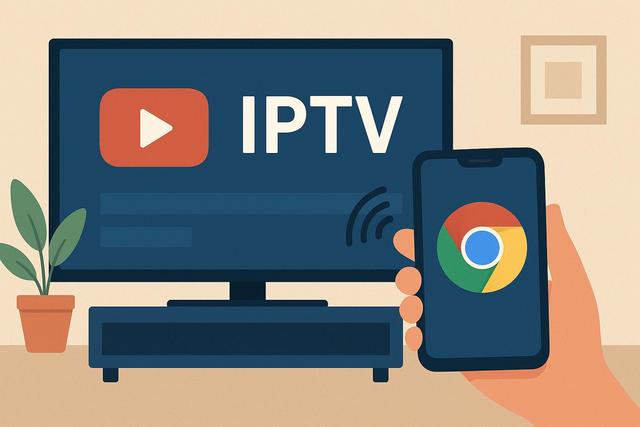
Watching IPTV on a Smart TV becomes easy and quick thanks to Google Chrome and its built-in casting feature. You can display your IPTV channels, favorite movies, and series on a big screen without the need to install complex applications. This method is perfect for users who want to cast IPTV content from their computer to their connected TV. In this comprehensive guide, you will learn how to use Google Chrome to cast IPTV on a Smart TV, the steps to follow, and the solutions to adopt in case of issues.
Download Google Chrome here for the latest version and enhance your IPTV experience!
Why Use Google Chrome for IPTV on Smart TV?
Many users are looking for a straightforward solution to watch IPTV on Smart TVs. However, not all smart televisions support native IPTV applications. Google Chrome offers an effective alternative, as it integrates Google Cast functionality.
This solution has several advantages. First, it does not require complex installation on the Smart TV. Second, you can use a simple IPTV web browser on your computer. Finally, streaming works with most Chromecast-compatible TVs or those equipped with Android TV.
This way, you enjoy a smooth experience, as Chrome transmits both picture and sound directly to your TV. This method is suitable for both beginners and experienced users.
Prerequisites for Casting IPTV with Google Chrome
Before you start, you need to check some essential elements. An incorrect setup could prevent streaming.
Here are the necessary prerequisites:
- A Smart TV compatible with Chromecast or equipped with Android TV
- A computer with Google Chrome installed
- A stable and fast internet connection
- A valid IPTV subscription or an IPTV playlist (M3U)
- Both devices connected to the same Wi-Fi network
If your TV does not have built-in Chromecast, you can use an external device like a Google Chromecast. This remains a very accessible solution, as it only requires a simple HDMI connection.
How to Cast IPTV on Smart TV with Google Chrome
The procedure is simple if you follow the steps in order. Take a few minutes to properly configure each setting.
1. Open Your IPTV Service in Google Chrome
Start by launching Google Chrome on your computer. Then, log in to your IPTV platform through a web player or a compatible site. Some IPTV providers offer direct access via a browser.
If you are using an M3U playlist, open it in an IPTV online player compatible with Chrome. Ensure that the playback is working correctly before proceeding to the next step.
2. Enable the "Cast" Function in Chrome
Click on the three small dots located in the top right corner of the browser. Then select the “Cast” option. Chrome will automatically search for available devices on your network.
When your Smart TV appears in the list, click on it. You can choose to cast:
- The current tab (ideal for IPTV)
- The entire desktop
- A specific file
In most cases, select “Cast Tab.” This choice optimizes video quality and reduces latency.
3. Enjoy IPTV on Your Smart TV
Once the connection is established, the image from your Chrome tab will appear on your television. Start the IPTV channel or the desired video content.
You control playback from your computer. However, the display is on the big screen, which significantly enhances visual comfort.
Optimize IPTV Streaming Quality
Proper configuration greatly improves the IPTV experience. Indeed, quality directly depends on your network and selected settings.
Improve Internet Connection
Prefer a 5 GHz Wi-Fi connection if your internet box allows it. This frequency offers a more stable bandwidth, reducing interruptions. If possible, connect your computer via Ethernet, as the cable provides maximum stability.
Reduce Network Interference
Avoid downloading large files during IPTV streaming. Also, reduce the number of devices connected to the network. This way, you optimize the available bandwidth.
Adjust IPTV Quality
Some IPTV services allow you to select video resolution. If your connection is weak, choose a lower quality. This way, you avoid frequent buffering.
Advantages and Limits of IPTV Casting via Google Chrome
This method appeals to many users because it combines simplicity and effectiveness. However, it also has some limitations.
Main Advantages
- Quick installation without additional TV app
- Compatible with many Smart TVs
- Easy control from a computer
- Free solution integrated into Google Chrome
Main Limits
- Dependent on Wi-Fi quality
- Resource consumption on the computer
- Possible slight latency
If you seek absolute stability, a native IPTV application on Android TV may occasionally offer better performance. However, casting via Chrome remains perfect for occasional or flexible use.
Comparison: Google Chrome vs Native IPTV Application
The choice depends on your needs. Here’s a comparative table to help you:
| Criterion | Google Chrome (Cast) | Native IPTV Application |
|---|---|---|
| Installation | Very simple | Installation on TV |
| Performance | Good depending on Wi-Fi | Very stable |
| Compatibility | Wide (Chromecast) | Depends on TV system |
| Control | From PC | From remote control |
| Flexibility | High | Medium |
If you regularly use a computer, Chrome makes IPTV casting easy. In contrast, a native application offers more autonomy.
Troubleshooting Common IPTV Casting Problems
Some users encounter difficulties. Fortunately, most issues can be resolved quickly.
Smart TV Not Appearing in Chrome
Check that your TV and computer are using the same Wi-Fi network. Also, restart both devices to refresh network detection.
IPTV Image Freezes
This issue often arises from insufficient bandwidth. Test your internet connection. If the speed remains low, reduce the video quality.
No Sound
Check the audio settings in Chrome. Ensure that the Smart TV is using the correct audio source.
IPTV Security and Legality
You should always check the legality of your IPTV service. Indeed, not all providers comply with broadcasting rights. Choose a legal IPTV subscription to avoid any legal risks.
Additionally, protect your personal data. Use a secure password and avoid dubious platforms. You can also install antivirus software, as some ads may contain malware.
Why This Method Remains Popular in 2026
IPTV streaming via Google Chrome continues to attract users, as it remains universal and quick to set up. Smart TVs increasingly integrate Chromecast, which enhances the appeal of this solution.
Many households seek a simple alternative to traditional TV boxes, as conventional subscriptions often cost more. Therefore, IPTV represents a flexible and economical solution.
Google regularly improves Chrome, making the cast function more stable each year. This evolution reassures users looking for a sustainable solution.
Conclusion: A Simple and Effective Solution
Casting IPTV on Smart TV with Google Chrome offers a fast, accessible, and efficient method. You do not need complex equipment, as Chrome directly integrates Google Cast technology.
If you have a good internet connection and a compatible TV, you can enjoy your IPTV channels in just a few minutes. This technique is perfect for beginners but also meets the needs of advanced users.
By choosing a reliable IPTV service and optimizing your network, you significantly improve streaming quality. Thanks to Google Chrome, the Smart TV becomes a true connected and versatile multimedia center.


