IPTV Not Working on Chrome: Effective Solutions
- May 03, 2026 01:11 am
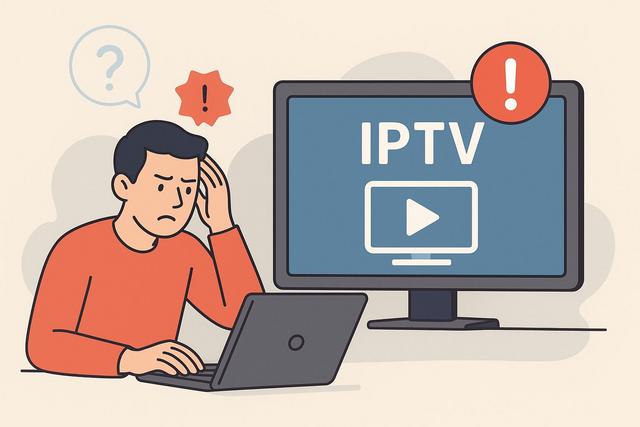
Are you trying to launch your IPTV service on Google Chrome, but the video won't load, remains black, or shows an error message? This issue affects many users, as Chrome implements strict security rules and frequent updates. However, you can fix most malfunctions in just a few simple steps. In this article, you will discover why IPTV is not working on Chrome and how to effectively resolve the issue.
For those looking to ensure they have the latest features and security improvements, you can download the latest version of Google Chrome here.
Why Does IPTV Not Work on Chrome?
Google Chrome blocks or limits certain multimedia content to protect users. Due to these restrictions, some IPTV streams may not launch correctly. Other technical factors can also cause playback errors.
Here are the most common causes:
- Corrupted cache and cookies
- Incompatible Chrome extensions
- Mixed content blocking (HTTP/HTTPS)
- Overly strict security settings
- Outdated version of Chrome
- Unsupported video codec issues
Therefore, before assuming that your IPTV subscription is no longer working, you should first check these points.
Check Your Internet Connection
You must first check your internet connection. A low bandwidth can hinder smooth playback of IPTV channels.
Test your speed using an online tool. For stable HD playback, you need at least 10 Mbps. For 4K, plan for 25 Mbps or more.
If your connection seems slow, restart your internet box. You can also connect your computer via Ethernet cable, as Wi-Fi can sometimes cause interruptions.
Update Google Chrome
Google regularly releases updates to improve multimedia content compatibility. However, if you are using an old version, some IPTV streams may be blocked.
To check the version:
- Click on the three dots in the top right corner.
- Select "Help".
- Click on "About Google Chrome".
Chrome will automatically install the latest version if necessary. Then restart your browser and test your IPTV again.
Clear Cache and Cookies
A saturated cache can prevent IPTV players from loading correctly. The stored data can conflict with new streams.
Here’s how to clear the cache:
- Open Chrome settings.
- Click on "Privacy and security".
- Select "Clear browsing data".
- Check "Cached images and files" and "Cookies".
- Confirm.
After this action, reload your IPTV page. This simple solution resolves many playback issues.
Disable Problematic Chrome Extensions
Some extensions, like ad blockers or built-in antivirus, can block IPTV streams. Due to their security filters, they might prevent video players from loading.
To test:
- Open chrome://extensions/
- Temporarily disable all extensions
- Reload your IPTV service
If IPTV works, re-enable the extensions one by one to identify the source of the blockage.
Allow Insecure Content (HTTP)
Many IPTV services still use HTTP links. However, Chrome automatically blocks this type of content when the main page is on HTTPS.
You can allow insecure content:
- Click on the padlock icon in the address bar.
- Open "Site settings".
- Allow insecure content.
- Refresh the page.
Be careful, enable this option only if you trust your IPTV provider.
Check Video Codec Compatibility
Certain IPTV streams use codecs like H.265 (HEVC). However, Chrome does not always support them natively.
In this case, you can:
- Install a compatible extension
- Use an external IPTV player (like VLC)
- Use a dedicated IPTV application
Here’s a quick comparison table:
| Solution | Advantage | Disadvantage |
|---|---|---|
| Chrome only | Simple and quick | Limited compatibility |
| IPTV Extension | Easy installation | May slow down the browser |
| VLC | Highly compatible | Requires external software |
Thus, if Chrome fails, VLC often remains the most reliable solution.
Disable Hardware Acceleration
Chrome uses hardware acceleration to improve performance. However, this option can sometimes cause black screens with IPTV.
To disable it:
- Open Chrome settings.
- Click on "System".
- Disable "Use hardware acceleration when available".
- Restart the browser.
Then test your IPTV stream. Many users notice immediate improvement.
Check Firewall and Antivirus Settings
Your firewall or antivirus may block the IPTV stream, as some services use specific ports or protocols.
Temporarily disable your antivirus to check if the problem disappears. If it does, add your IPTV site to the exceptions list.
However, always reactivate your protection after testing to ensure your device's security.
Test IPTV in Another Browser
If the problem persists, test your IPTV service on Firefox, Edge, or Opera. This step helps identify if Chrome is indeed causing the malfunction.
If your IPTV works elsewhere, you can:
- Reset Chrome
- Uninstall and reinstall the browser
To reset Chrome:
- Open settings.
- Click on "Reset and cleanup".
- Select "Restore settings to their original defaults".
This action removes problematic configurations without deleting your bookmarks.
Check the Validity of Your IPTV Subscription
Your IPTV provider may be experiencing a server outage. Some services undergo temporary interruptions.
Contact customer support or check their official website. If the servers are down, you will simply need to wait.
However, if your subscription has expired, you will need to renew it.
Use a Dedicated IPTV Application
If Chrome continues to block your stream, consider using a dedicated IPTV application. These applications better support M3U and Xtream Codes protocols.
They often provide:
- Better stability
- Fewer blockages
- Optimized image quality
This way, you enhance your user experience while avoiding the browser's limitations.
Tips to Avoid IPTV Problems on Chrome
You can prevent malfunctions by applying these good practices:
- Keep Chrome updated
- Regularly clear the cache
- Avoid accumulating too many extensions
- Use a stable internet connection
- Choose a reliable IPTV provider
By adopting these reflexes, you significantly reduce the risk of errors.
Conclusion: Easily Fix IPTV on Chrome
When IPTV does not work on Chrome, the cause often comes from a security setting, a saturated cache, or a blocking extension. Fortunately, you can resolve these issues quickly by following the appropriate steps.
Always start by checking your connection and updating your browser. Then clear the cache and test without extensions. If the problem persists, disable hardware acceleration or use an external player like VLC.
In most cases, these solutions are enough to restore IPTV channel playback. You then enjoy a stable, fast service that is compatible with your browser.


