Photo Editing with GIMP: The Ultimate Guide
- Jul 11, 2024 03:39 am
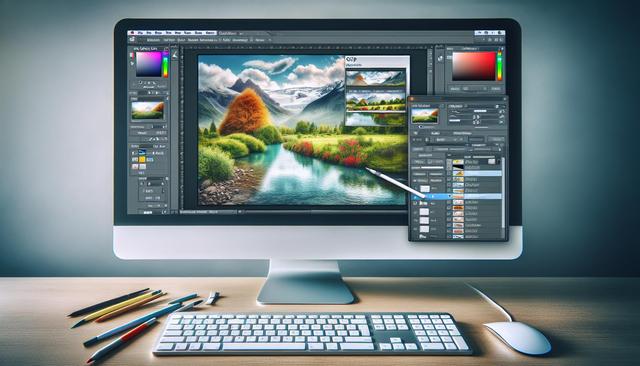
Introduction to Photo Editing with Gimp
Photo editing has become a valuable skill in our digital age. Among the various software options available, Gimp stands out for its free availability and powerful features. This complete tutorial on photo editing with Gimp will guide you through the essential steps to enhance your images. Whether you are a beginner or an advanced user, this guide will be beneficial for you.
Introduction to Gimp: Free Photo Editing Software
Gimp (GNU Image Manipulation Program) is an open-source image editor, which means it is not only free but also supported by an active community. Gimp offers a multitude of features comparable to paid software like Adobe Photoshop. To make the most of this tool, follow our comprehensive photo editing tutorial with Gimp.
Installing and Launching Gimp
Installing Gimp on Windows/Mac/Linux
The first step in our complete photo editing tutorial with Gimp is to install the software. You can download Gimp for free from the official website. The installation process is simple and quick:
- Go to the official Gimp website.
- Download the version compatible with your operating system.
- Follow the on-screen installation instructions.
Once installed, launch Gimp to start your first photo edit.
Gimp Interface: Getting Started
Different Areas of the Interface
The Gimp interface may seem intimidating at first, but don't worry. Here are the main elements:
- The Toolbox: Located on the left, it contains tools such as the brush, selection tool, and more.
- The Layers Panel: On the right, you'll find layers, channels, paths, and history.
- The Workspace: This is the central area where you will perform your edits.
Customizing the Interface
You can customize the interface to suit your needs. Go to "Windows" > "Single Window Mode" for a simpler organization.
Photo Editing Tutorial with Gimp
1. Importing and Preparing the Image
To get started, open your image by going to "File" > "Open". Once your image is imported, start by cropping it if necessary, using the crop tool.
2. Adjusting Colors and Brightness
Good photo editing requires precise adjustments of color and brightness. Go to "Colors" to discover several options:
- Levels: Adjust the light and shadow levels.
- Curves: For finer adjustments.
- Color Balance: Modify the tones of the image to achieve the desired effect.
3. Reducing Noise and Improving Sharpness
Digital images can contain noise, especially when taken in low light. Use "Filters" > "Enhance" > "Noise Reduction". To improve sharpness, go to "Filters" > "Enhance" > "Sharpen".
4. Using Layers
Layers allow you to work on different elements of the image independently. This is essential in our photo editing tutorial with Gimp. The main layer tools include:
- Adjustment Layers: To apply changes without altering the original image.
- Layer Masks: For more precise local edits.
5. Using Selection Tools
The selection tools in Gimp are numerous and powerful:
- Rectangular/Elliptical Selection: Simple yet effective for regularly shaped areas.
- Lasso: For freeform selections.
- Magic Wand and Contiguous Selection: To select areas of similar color.
Use these tools to isolate parts of the image to edit.
6. Adding Filters and Effects
Gimp offers a wide range of filters and effects to transform your photos. Go to "Filters" to explore options like Gaussian blur, artistic filters, and distortion filters.
Exporting and Saving the Image
Once your photo editing with Gimp is finished, it's time to save your work. You have several options:
- Save As: To save the file in Gimp's native format (.xcf).
- Export As: To save in common formats like JPEG or PNG.
Don't forget to choose the best quality possible when exporting to retain all the detail of your edit.
Conclusion
We hope this comprehensive photo editing tutorial with Gimp has provided you with the necessary foundations to start enhancing your images. By practicing regularly, you will quickly become comfortable with this powerful tool. Gimp is an excellent and versatile free alternative for photo editing, so don't hesitate to explore all its features.
By following the steps in this tutorial, you will be able to transform your ordinary photos into true works of art. Happy editing!
You can download Gimp for free here.


