GIMP: How to Cut Out an Object from a Photo in 3 Simple Steps
- Aug 24, 2025 02:50 am
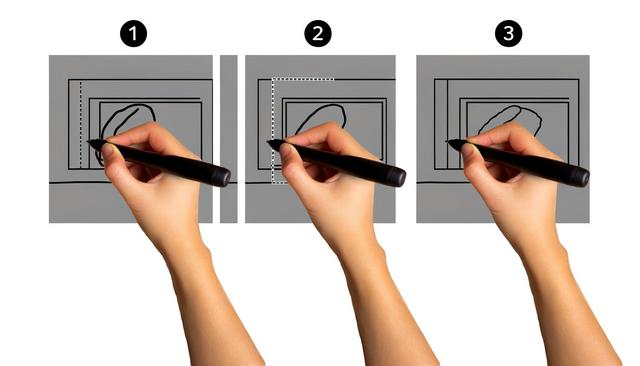
Cutting out an object is essential for highlighting it in your photos. Discover how GIMP simplifies this task in just three steps.
To get started, download GIMP and follow along with our guide.
Step 1: Select the Cutout Tool in GIMP
To begin your cutout project in GIMP, it's essential to choose the right tool. GIMP, as a free photo editing software, offers several tools that allow you to select objects in an image. Two of these tools are particularly effective for cutouts: the contiguous selection tool and the pen tool.
- Contiguous Selection Tool: This tool, also known as the 'magic wand', allows you to select a region with one click. It is ideal for images with high contrast between the object and the background.
- Pen Tool: More precise and aimed at advanced users, this tool allows you to draw a path around the object. Useful for more complex outlines, it requires a bit more time and practice.
Step 2: Refine the Object Selection
After using the right tool to make an initial selection, it's time to fine-tune your selection. With GIMP, you can easily activate the 'Quick Mask' mode to visualize the selected area precisely.
- 'Quick Mask' Mode: By activating this mode, your image is covered with a semi-transparent red layer, allowing you to see the areas that are currently outside of your selection. Use the brush tool to add or subtract parts of your selection by adjusting the mask.
- Edge Enhancement: Use options like 'Blur' or 'Contrast' available under 'Select' to soften and make the edges of the selection look more natural. This is particularly useful when the object to be cut out has irregular or blurry edges.
Step 3: Cut Out and Export Your Object
Once you have a clean selection, the final step is to detach your object from the background and save it. GIMP offers several options to finish this task neatly.
- Inverting and Removing the Background: Before removing the background, consider inverting the selection (via the 'Select' menu) to ensure that it is the background that will be erased. Then, delete the background to keep only your object.
- Saving in PNG Format: Finally, export your image in PNG format. This preserves the transparency of the background and is ideal for directly integrating the cutout object into other projects or platforms.
With these three steps, cutting out in GIMP becomes a simple and accessible task. Whether you are an amateur or a professional, mastering these techniques will allow you to transform your photos dramatically.


