
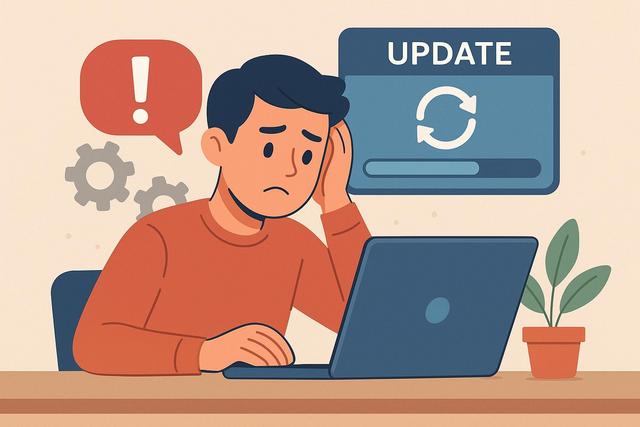
Having a problem after an update can hinder a computer, smartphone, or software. The device may become slow, certain functions may disappear, or an application may refuse to open. These situations are common, but they often have simple solutions. Here’s how to identify the cause of the problem and resolve it effectively.
To ensure you have the latest version of your software, you can download Google Chrome here.
Why Do Problems Occur After an Update?
An update modifies the system or software. It adds patches, enhances security, or introduces new features. However, it can also create conflicts.
Several causes can explain a problem after an update:
- incompatibility with an old driver or software;
- lack of storage space;
- corrupted files during installation;
- interruption during the update;
- outdated hardware configuration.
Generally, the system functions correctly after a restart. However, if a bug persists, action is needed.
Identifying the Type of Problem
Before seeking a solution, specify the malfunction. This helps save time.
The Device Is Slow
A slowdown often occurs after a major update. The system optimizes files in the background. If the problem lasts more than a few hours, check disk space and startup programs.
An Application Is Not Working
Some applications become incompatible with a new version of the system. In this case, check if an update for the application is available.
The Device Will Not Start
This case is rarer, but it can occur after an incomplete system update. Safe mode or a repair tool can help.
Internet Connection or Defective Devices
An update may modify network or USB drivers. The problem then concerns a specific component.
Clearly identifying the symptom helps in choosing the right solution.
Simple Solutions to Test First
Always start with the simplest methods. They are often sufficient to correct a problem after an update.
Restart the Device
This may seem obvious, yet many forget this step. Restarting completes the installation and reloads system services.
Check Storage Space
Insufficient space can block certain functions. Delete unnecessary files or move documents to external storage.
Look for a New Update
Sometimes, the publisher quickly releases a fix. Check the settings to see if another update is available.
Update Drivers
Drivers ensure communication between hardware and the system. After an update, an outdated driver can cause malfunctions. Download the latest versions from the manufacturer's official website.
Uninstall the Problematic Update
If the problem persists, you can remove the latest update. This solution is particularly suitable for computers.
Navigate to the update settings. Look for the update history. Select the one that poses problems. Then initiate the uninstallation.
Note: This may temporarily reduce the system's security. Reinstall the update only when the publisher offers a corrected version.
Use System Restore
System restore returns the device to a previous state. It keeps personal files. However, it removes software installed after the chosen date.
This solution works if a restore point exists. Always enable this option in advance. It facilitates resolving a problem after an update.
Reset the Device Without Losing Data
If no solution works, consider a reset. Most systems offer an option that retains personal files.
Before starting the operation:
- back up your important documents;
- note your passwords;
- ensure you have the necessary credentials.
A reset often corrects deep system errors.
Specific Case: Problem After Windows Update
Windows regularly installs automatic updates. If a bug occurs:
- Open the settings.
- Access “Windows Update.”
- Check the history.
- Uninstall the recent update if necessary.
You can also launch the built-in troubleshooter. It automatically detects some conflicts.
If the computer won't start, use the advanced startup options. Press the designated key at startup, depending on your model. This information should be verified with the manufacturer, as it varies.
Specific Case: Problem After Android or iPhone Update
On smartphones, bugs often appear as a quickly draining battery or unstable applications.
Try these actions:
- Restart the phone.
- Update the applications.
- Reset network settings.
- Free up storage space.
If the problem persists, back up your data and then perform a factory reset.
Resolve Software Issues After an Update
A software may stop functioning after an internal update.
In this case:
- Completely close the program.
- Clear the cache if this option exists.
- Uninstall and then reinstall the software.
Always download the file from the official site. Avoid unverified platforms.
Prevent Problems After an Update
You can limit risks with a few good practices.
Regularly Backup
Use an external drive or a cloud service. A recent backup protects your data in case of failure.
Gradually Update
Avoid installing several major updates at the same time. Wait a few days after the release of an important version. This way, you allow publishers to correct initial bugs.
Maintain Sufficient Free Space
A saturated device operates poorly. Always keep a margin of available storage.
Update Essential Software
Do not neglect updates for drivers or key applications. They ensure compatibility with the system.
When to Call a Professional?
Contact a technician if:
- the device will not start at all;
- a critical error message appears;
- you suspect a hardware problem.
A professional has advanced tools to diagnose the failure. Do not attempt to disassemble the device if you lack technical skills.
Summary of Solutions
| Observed Problem | Recommended Solution |
|---|---|
| Slow Device | Restart, check storage, disable startup programs |
| Application Frozen | Update or reinstall the application |
| Device Not Recognized | Update or reinstall the driver |
| Unstable System | Uninstall the update or restore the system |
| Cannot Start | Use safe mode or repair the system |
This table helps you act quickly based on the situation.
Conclusion
A problem after an update is common but rarely permanent. In most cases, a restart, a supplementary update, or a system restore is sufficient. Act methodically and start with simple solutions. If the problem persists, back up your data and then consider a reset or professional help.
FAQ
Why Is My Device Slower After an Update?
The system often performs optimizations in the background. If the slowdown persists, check disk space and active startup programs.
Can I Ignore a Problematic Update?
Yes, temporarily. However, updates often fix security vulnerabilities. Install a patch as soon as it is available.
Is It Risky to Uninstall an Update?
This can expose the device to vulnerabilities if the update fixed a security issue. Stay vigilant and regularly check for new versions.
Does a Reset Delete All My Data?
Not always. Many systems offer a reset option that keeps personal files. Carefully check the chosen option before confirming.


