Frequent App Crashes: Causes and Effective Solutions
- May 17, 2026 01:11 am
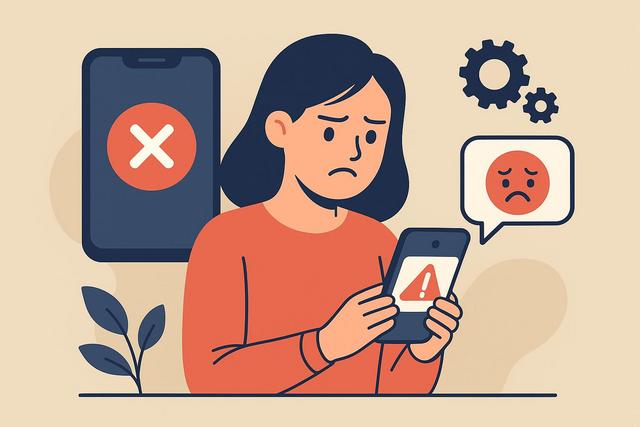
An application that crashes frequently can quickly become a real headache in daily life. You open your mobile app or favorite software, and then the screen freezes, closes abruptly, or displays an error message. This situation generates frustration as it wastes time and sometimes results in loss of important data. Fortunately, there are several simple and effective solutions to address this problem. In this article, discover why an application crashes regularly and how to permanently fix these malfunctions, whether you're using an Android smartphone, an iPhone, or a computer.
To tackle the issue, you might also consider downloading a tool like CCleaner to help optimize your device’s performance. You can find the latest version of CCleaner here.
Why does an application often crash?
An application that crashes frequently typically hides a specific technical problem. You can identify the cause by observing the context of the crash, as certain signs often recur.
Lack of memory or storage
Your device may be lacking RAM, which means the application does not have the necessary resources to function properly. This problem occurs primarily when multiple applications remain open in the background.
A nearly full storage also causes crashes. Indeed, the system needs free space to create temporary files. If your smartphone or computer approaches the limit, applications become more unstable.
Update bug
A recent update may contain a bug. Developers test their versions; however, some problems appear after release to the public. The application may then close immediately or freeze during a specific action.
Conversely, an outdated application can also crash. It sometimes becomes incompatible with the latest version of the operating system.
System incompatibility
Your device may be using an older version of Android, iOS, or Windows. In this case, the application does not function correctly because it requires more recent software components.
This problem particularly affects older smartphones. Developers optimize their applications for new models, causing performance to decline on older devices.
Corrupted files or full cache
The cache stores temporary data to speed up operations. However, corrupted files can accumulate due to improper closure or sudden interruptions. The application then encounters repeated errors.
Virus or malware
A malware can disrupt the normal functioning of the system. This situation is rarer but explains some unexplained crashes, especially on Android or computers.
Quick solutions when an application crashes
You can apply several simple solutions before considering a more complex fix. Always start with the quickest actions.
Restart the device
Restart your smartphone or computer, as this action frees up memory and closes stuck processes. This solution often resolves the problem within minutes.
Force stop the application
On Android or iPhone, go to settings and select the concerned application. Tap on "Force Stop," then relaunch it. This action halts any faulty internal processes.
Clear the application cache
Clear the cache if the application crashes regularly. This operation removes corrupted temporary files without deleting your personal data.
On Android:
- Open settings
- Select "Applications"
- Choose the concerned application
- Tap on "Storage"
- Click on "Clear Cache"
On iPhone, you may sometimes need to uninstall and then reinstall the application, as iOS does not always allow for just clearing the cache.
Update the application
Go to the Google Play Store, the App Store, or the official software website. Install the latest version available, as it often fixes known bugs.
Advanced solutions for an application that often crashes
If the quick solutions do not work, you need to deepen the diagnosis. These methods take a bit more time; however, they remain accessible.
Check available storage space
Check the free space in your device settings. Delete unnecessary files, old photos, or applications that you no longer use to lighten the system.
As a rule of thumb, keep at least 15% free space, as this ensures smooth operation.
Update the operating system
Check if an Android, iOS, Windows, or macOS update is available. Install it, as it improves application stability and compatibility.
However, back up your data before the update to avoid any loss in case of problems.
Completely reinstall the application
Uninstall the application, then restart your device before reinstalling it. This method removes corrupted internal files, resolving many persistent bugs.
Reset the device settings
As a last resort, you can reset to factory settings. This solution removes deep software conflicts, as it restores the original system.
Be careful, as this action erases all your data. Back up your important files before proceeding.
Summary table of causes and solutions
| Identified Problem | Probable Cause | Recommended Solution |
|---|---|---|
| Application closes by itself | Lack of RAM | Restart the device |
| Application very slow | Storage full | Free up space |
| Bug after update | Unstable version | Install patch |
| Repeated error on launch | Corrupted cache | Clear cache |
| Widespread crash | Obsolete system | Update the OS |
How to prevent an application from crashing in the future?
You can adopt good practices to limit the risk of crashing.
Keep your device updated
Regularly install updates as they fix security vulnerabilities and bugs. Enable automatic updates if possible.
Download reliable applications
Prefer the Play Store, the App Store, or official websites. Avoid unknown APK files, as they may contain malware.
Avoid overloading background applications
Close unused applications. Your device will run faster, making crashes rarer.
Install a reliable antivirus
An antivirus protects your system from malware. This precaution is particularly important, especially on computers or Android.
Application crashing on Android: what to do?
Android users often encounter messages like "The application has stopped." This issue generally arises due to a full cache or an unstable update.
Start by clearing the cache and restarting the phone. Then check for system updates, as Android frequently offers stability patches.
If the problem persists, enable safe mode. This mode disables third-party applications, helping to identify a potential software conflict.
Application crashing on iPhone: specific solutions
On iPhone, crashes often stem from an outdated iOS version or an incompatible application. Access the settings and install the latest iOS version.
If a single application crashes, delete it and then reinstall it from the App Store. This action fixes most persistent bugs.
When to contact technical support?
Contact technical support if no solution works. Describe the problem precisely, as the more details you provide, the quicker the diagnosis will be.
Indicate your device version, the application version, and the steps that trigger the crash. Customer service will be able to propose an appropriate solution.
Conclusion
An application that crashes often is never a fatality. You can identify the cause of the problem by analyzing the context and symptoms. In most cases, a simple restart, an update, or a cache clear is enough to restore normal functioning.
If the problem persists, apply the advanced solutions, as they correct deeper conflicts. Finally, adopt good practices to avoid future crashes. Thanks to these tips, you will enjoy stable and efficient applications every day.


