Slow Computer: Common Causes and Effective Solutions
- Aug 03, 2026 01:11 am
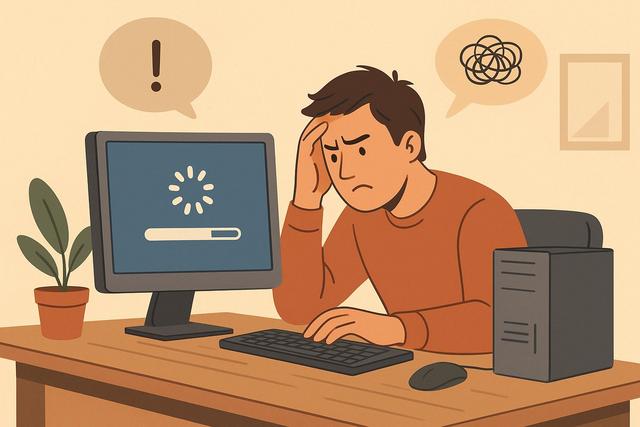
Is your computer slow to start or during use? This issue affects many users, whether on PC or Mac. A slow computer can have several causes: resource-intensive software, lack of disk space, viruses, or aging hardware. In this article, discover the common reasons for a slow computer and, most importantly, concrete solutions to regain good performance.
For a reliable solution, you can download CCleaner here.
Why is Your Computer Slow?
The main intention when searching for "slow computer: common reasons" is simple: understand why the computer is slowing down and learn how to make it faster.
A slow computer does not necessarily mean it has reached the end of its life. In most cases, the problem comes from poor configuration, lack of maintenance, or a saturated component. Therefore, it is essential to identify the cause before taking action.
Too Many Startup Programs
When you turn on your computer, several programs launch automatically. Some are useful, others are not. The more there are, the longer the startup time.
These programs consume memory and processing power from the start. As a result, your system becomes slow even before you start working.
What to Do?
- Open startup settings.
- Disable non-essential applications.
- Keep only antivirus and essential tools.
You will often notice an immediate improvement in startup time.
Lack of Hard Drive Space
A nearly full hard drive can make a computer very slow. The system needs free space to function correctly. Below a certain threshold, performance drops.
Indeed, the system uses the disk to store temporary files. If there is not enough space left, everything slows down.
How to Free Up Space?
- Delete unnecessary files.
- Empty the recycle bin.
- Uninstall programs you no longer use.
- Transfer your photos and videos to an external drive or the cloud.
Try to keep at least 15 to 20% of free space on your main drive.
Too Many Installed Programs
Over time, many programs are installed. Some remain active in the background even when you are not using them.
Each additional software increases the risk of conflicts and slows down the system. This is particularly true for older computers.
Regularly sort through your applications. Keep only those that are genuinely useful.
Insufficient RAM
Random Access Memory (RAM) plays a key role in a computer's speed. If it is insufficient, the computer becomes slow, especially when you open multiple applications at once.
For example, a browser with several tabs can consume a lot of memory. If the RAM is saturated, the system uses the hard drive instead, which is much slower.
How to Know if RAM is a Problem?
Open the task manager and check memory usage. If it often exceeds 80%, it may be useful to:
- Close some programs,
- Limit the number of open tabs,
- Or add more RAM if your computer allows it.
Aging or Slow Hard Drive
Not all disks are equal. An old mechanical hard drive (HDD) is much slower than an SSD.
If your computer takes a long time to boot, open files, or launch a program, the disk may be to blame.
Upgrading from an HDD to an SSD often provides a significant performance boost. The computer starts up faster, and applications launch almost instantly.
This change remains one of the most effective upgrades if your machine is compatible.
Viruses and Malware
A slow computer can also indicate the presence of a virus or malware. Some programs install themselves without your consent and consume resources in the background.
You may notice:
- Unexpected pop-up ads,
- A modified browser,
- Constant disk activity.
In this case, run a complete scan with an up-to-date antivirus. Avoid running multiple antivirus programs simultaneously, as this can also slow down your system.
Pending System Updates
An outdated operating system can become less efficient. Updates fix bugs and improve stability.
However, during installation, the computer may slow down. If an update is downloading in the background, you may experience temporary slowdowns.
Regularly check for updates and restart the computer after installation.
Overheating and Dust
A computer that overheats can become slow. When the temperature rises, the processor reduces its speed to prevent damage, a process known as thermal throttling.
Dust blocks airflow, especially in laptops.
Good Practices
- Carefully clean the vents.
- Use the computer on a flat surface.
- Avoid covers or soft surfaces.
If overheating persists, have the cooling system checked by a professional.
Saturated Internet Browser
Many users think that the computer is slow when the issue lies only with the browser.
Extensions, multiple tabs, and unchecked cache slow down browsing. A loaded browser consumes a huge amount of memory.
To improve the situation:
- Remove unnecessary extensions.
- Close unused tabs.
- Clear the cache and cookies.
You can also test another browser to compare performance.
Outdated Drivers
Drivers allow the system to communicate with hardware. If they are outdated, you may experience slowdowns or bugs.
Update drivers via the manufacturer's website or through system settings. This action can improve stability and smoothness.
Summary of Causes and Solutions
| Common Cause | Effect on Computer | Main Solution |
|---|---|---|
| Too many startup programs | Very long startup | Disable unnecessary applications |
| Nearly full hard drive | General slowness | Free up space |
| Insufficient RAM | Slowdowns during multitasking | Add memory or close apps |
| Virus or malware | Unusual activity | Full antivirus scan |
| Old hard drive (HDD) | Slow file opening | Install an SSD |
When to Consider Replacing Your Computer?
Sometimes, despite all optimizations, the computer remains slow. This is especially true for very old models.
If the processor is outdated or if the memory cannot be upgraded, improvements will remain limited. In this case, investing in a new device may be more cost-effective in the long run.
However, check the upgrade options before making a decision.
Practical Tips to Avoid a Slow Computer
Regular maintenance minimizes performance problems.
Adopt these simple habits:
- Restart the computer at least once a week.
- Remove unnecessary software.
- Keep the system and antivirus updated.
- Back up your data regularly.
- Physically clean your device once or twice a year.
These actions take little time but significantly improve the lifespan of your hardware.
Conclusion
A slow computer often has simple causes: too many startup programs, lack of disk space, insufficient memory, or viruses. Fortunately, you can fix most of these problems without being an expert.
Start by identifying the main cause. Then, apply the appropriate solutions. In many cases, a few adjustments are all it takes to restore a fast and pleasant-to-use computer.
FAQ
Why is My Computer Slow on Startup?
It may be that too many programs launch automatically. Disable those that are not essential in startup settings.
Can an Antivirus Slow Down a Computer?
Yes, especially if you install multiple ones. A single well-configured antivirus is usually sufficient.
Does Adding RAM Really Make the Computer Faster?
Yes, if the current memory is saturated. This mainly improves smoothness during multitasking.
Is Upgrading to an SSD Useful?
Yes, it is often the most effective upgrade to speed up a computer equipped with an old hard drive.


