
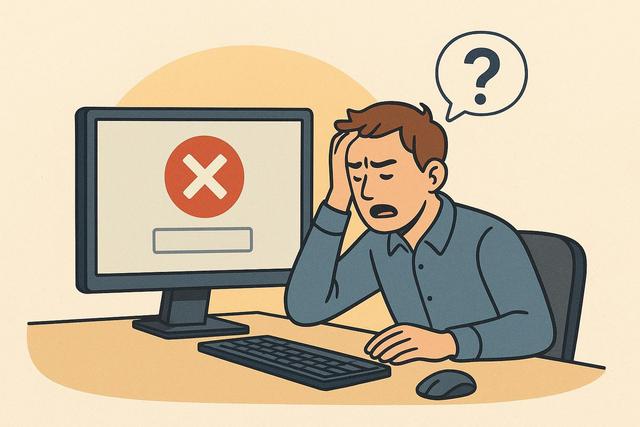
A software that stops responding can interrupt your work in seconds. The screen freezes, the window becomes grayed out, and nothing functions properly. This issue affects both Windows and macOS. Fortunately, there are simple and effective solutions to unfreeze a non-responsive software and prevent the situation from recurring.
For a reliable solution, you can download CCleaner, which can help optimize your system performance and resolve software issues.
Why Does Software Stop Responding?
Before taking action, it is important to understand the possible cause of the freeze. Software that does not respond does not always mean it is permanently broken.
In most cases, the problem comes from:
- a lack of RAM;
- a overloaded processor;
- a conflict with another program;
- a bug after an update;
- a corrupted file;
- an outdated driver or operating system.
For example, if you open too many tabs in a browser, your computer may run out of resources. The software then freezes in an attempt to keep up.
However, frequent freezing may also reveal a deeper issue, such as a failing hard drive or malware.
Step One: Wait a Few Seconds
When software stops responding, avoid clicking frantically. This can sometimes worsen the situation.
Wait 10 to 30 seconds. The program may simply be processing a heavy task.
Check your system's task manager. If the CPU or disk usage is high, the software is still working. In this case, waiting may be sufficient.
On the other hand, if nothing changes after a minute, move on to the next step.
Force Close Unresponsive Software
If the program remains stuck, you need to force it to close.
On Windows
- Press Ctrl + Shift + Esc to open the Task Manager.
- Locate the software displayed as "Not Responding."
- Select it.
- Click on End Task.
This action immediately stops the program.
On macOS
- Press Cmd + Option + Esc.
- Select the frozen software.
- Click on Force Quit.
If that doesn’t work, you may need to restart your computer.
Be cautious: you risk losing unsaved data.
Restart the Computer: A Simple but Effective Solution
A restart frees up RAM and closes all active processes.
This method often resolves temporary freezes. It acts as a reset of the system.
If your computer itself is unresponsive, hold down the power button for several seconds. Use this method only as a last resort, as it abruptly cuts the power.
Check Software Updates
Software that is not responding may suffer from a known bug. Developers fix these issues through updates.
If possible, open the software and look for the "Update" or "About" section. Otherwise, visit the official website.
Always install the latest versions. They often fix stability issues.
Additionally, update your operating system. A recent program may not function well on an older system.
Check Your Computer's Performance
If the problem occurs frequently, analyze your machine's performance.
On Windows, open the Task Manager. On macOS, use Activity Monitor.
Look at:
- CPU usage;
- available memory;
- disk activity;
- programs launched on startup.
If RAM is consistently maxed out, consider upgrading your computer's memory.
If the hard drive remains at 100%, it may be too slow or nearing the end of its life. An SSD significantly improves fluidity.
Uninstall and Reinstall the Software
A corrupted file can completely block a program.
In this case, uninstall it properly:
- via Control Panel on Windows;
- via the Applications folder on macOS.
Then restart your computer.
Next, download the official version from the publisher’s website here.
This method eliminates damaged files and restores normal functionality.
Check for Viruses or Malware
Some malware causes slowdowns and freezes.
Install a reliable antivirus if you don't have one. Run a full system scan.
Delete any detected suspicious files.
Avoid downloading software from unknown sites. Always prioritize official sources.
Check Available Storage Space
A nearly full disk can prevent software from functioning properly.
Make sure you have enough free space. Delete unnecessary files:
- temporary files;
- old downloads;
- unused programs;
- unemptied recycle bin.
Regular cleaning improves overall stability.
Disable Startup Programs
Some software automatically launches at startup. They consume resources in the background.
Disable non-essential applications.
On Windows, open the Task Manager and go to the "Startup" tab.
On macOS, go to System Preferences and then "Login Items."
Fewer active programs mean more resources for your main applications.
When to Consult a Professional?
If a software remains unresponsive despite all these steps, the issue may be hardware-related.
A failing hard drive, a damaged RAM stick, or overheating can cause repeated freezes.
In this case, quickly back up your data.
Consult a computer technician for an accurate diagnosis.
If your device is still under warranty, contact official support.
How to Prevent Software from Freezing?
Prevention remains the best solution.
Adopt these good practices:
- regularly update your software;
- avoid installing too many unnecessary programs;
- restart your computer at least once a week;
- use up-to-date antivirus;
- monitor available disk space.
Additionally, avoid opening too many heavy applications at once. For example, video editing software consumes a lot of resources.
Summary of Actions to Take
Here is a summary table for quick action:
| Situation | Recommended Action |
|---|---|
| Software frozen temporarily | Wait a few seconds |
| "Not Responding" message | Force close it |
| Frequent freezes | Check RAM and CPU |
| After recent update | Install stable version |
| Persistent issues | Reinstall the software |
| General slowdowns | Run antivirus scan |
This table allows you to quickly identify the suitable solution.
FAQ
Why Does Software Display "Not Responding"?
The system displays this message when the program no longer responds to commands. This often happens during a lack of resources or a bug.
Is It Dangerous to Force Close Software?
No, but you will lose unsaved data. However, avoid doing this systematically.
Should I Restart My Computer After a Freeze?
It is not always necessary. However, a restart often improves stability.
Can an Antivirus Solve the Issue?
Yes, if malware is causing the freezes. However, it will not fix a hardware issue.
Conclusion
A software that stops responding may seem worrying, but the solution is often simple. Start by waiting, then force close it if necessary. Next, check for updates and your computer's performance. If the problem persists, reinstall the software or check the hardware condition. By following these tips, you significantly reduce the risk of freezing and improve your system's stability.


