WhatsApp: How to Backup Your Chats to Google Drive
- Nov 20, 2025 04:51 am
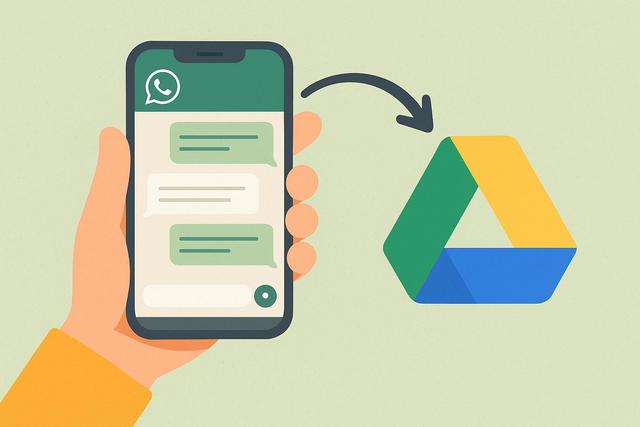
Importance of Backing Up WhatsApp Chats
Backing up your WhatsApp chats on Google Drive is essential to ensure you never lose your important conversations. Learn how to easily set up this feature.
How to Back Up WhatsApp Chats
Follow our guide to back up your chats seamlessly and keep your memories safe.
For the latest version of WhatsApp, you can download it here.
Why Backup Your WhatsApp Chats?
With the numerous conversations we have daily on WhatsApp, backing up these chats becomes essential. Whether it's professional exchanges or precious memories shared with loved ones, having a copy of these discussions ensures peace of mind and security. In case of loss or a change of phone, having a backup available becomes indispensable.
Prepare Your Google Drive Account for Backup
Before backing up your chats, make sure you have an active Google account and enough space on your Google Drive. You can check your available space by logging into your Google Drive account. Sufficient space ensures that all your chats, including media, are stored without issue.
Procedure to Backup Your WhatsApp Chats
Here are the steps to backup your chats on Google Drive:
- Open WhatsApp: Launch the app on your smartphone.
- Access Settings: Click on the three dots located at the top right to access the menu, then select "Settings".
- Select Chats: In the settings menu, select "Chats".
- Chat Backup: Click on "Chat backup" to open the backup options.
- Configure Google Drive: Here, you can set the backup frequency on Google Drive. Choose between daily, weekly, or monthly based on your preferences.
- Select a Google Account: Ensure that the displayed Google account is the one where you want to perform the backup. If not, change it by selecting "Account".
- Start the Backup: To start an immediate backup, tap "Back Up Now".
Settings to Check for Optimal Backup
- Wi-Fi Connection: To avoid excessive mobile data usage, it is recommended to set the backup to Wi-Fi only.
- Include Videos and Photos: You also have the option to include or exclude your multimedia files. Consider the impact on your Google Drive space.
Restore Your WhatsApp Chats from Google Drive
If you need to restore your chats after changing devices:
- Install WhatsApp on the new device.
- Verify your phone number.
- WhatsApp will prompt you to restore your chats via the backup recognized on Google Drive.
Confirm and let the app restore the chats and media.
Conclusion
Using Google Drive to backup your WhatsApp chats is a safe and effective method to protect your data. By following this guide, you will not only ensure the safety of your information but also have peace of mind knowing that your precious chats will never be lost.


