Welcome to Best Free Software Downloads 07/15/2026 03:29am

Download CCleaner Free – Latest Version

Download CCleaner Free

Download CCleaner for free to clean and optimize your computer's performance. Discover the new features included in the latest version.

Introduction

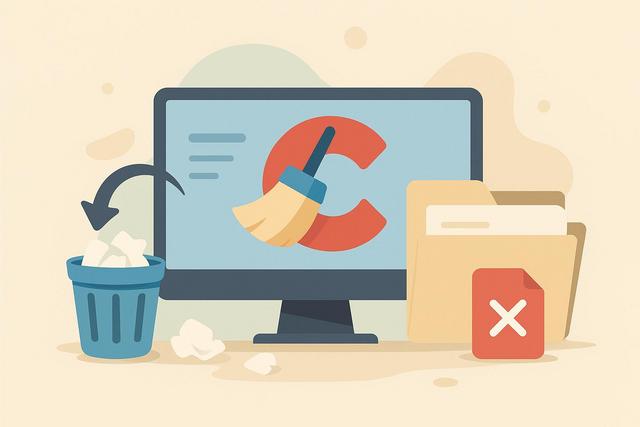
CCleaner is a free utility designed to remove unnecessary files and optimize system performance for Windows computers.

Main Features

  • File Cleaning: Deletes temporary and junk files to free up disk space.
  • Registry Optimization: Fixes registry errors to improve stability.
  • Startup Management: Speeds up boot time by disabling unnecessary programs.
  • Automatic Updates: Keeps the software up to date effortlessly.
  • Custom Cleaning: Choose specific areas of your system to clean.

Installation Instructions

  1. Visit the official CCleaner website.
  2. Click “Download CCleaner Free.”
  3. Run the installer and follow the steps to complete installation.

Pros and Cons

  • Pros: Free, efficient cleaning, improves system performance.
  • Cons: Some advanced features are limited to the premium version.

FAQ

  1. Is CCleaner free? Yes, the base version is free, but a premium version with more features is available.
  2. How can I schedule automatic cleaning with CCleaner? Enable scheduling in the settings menu.
  3. Can I safely fix the registry with CCleaner? Yes, but it’s recommended to back up changes before applying them.
  4. Is CCleaner compatible with macOS? Yes, there’s also a Mac version available.
  5. Does CCleaner affect computer security? No, CCleaner helps improve security by deleting unwanted files and traces.

Download

Download CCleaner Free – Clean and optimize your computer easily with the latest version of CCleaner.

Latest updates about CCleaner

Incomplete Uninstallation: How to Completely Remove Everything

Incomplete uninstallation: what to do to remove everything

An application you thought you deleted still appears on your computer? Icon still visible, folder impossible to delete, or persistent error messages: an incomplete uninstallation can quickly become frustrating. Here’s what to do to completely remove software and clean up leftover files on Windows or macOS.

For an effective cleaning process, consider using tools like CCleaner to assist with removing unnecessary files and optimizing your system.

How to Prevent Software Crashes and Common Bugs

How to Avoid Software Crashes and Frequent Bugs

Introduction

Software crashes disrupt work, slow down businesses, and frustrate users. A program that abruptly closes can lead to data loss, wasted time, and sometimes high costs. However, it is possible to significantly reduce these incidents. By adopting good practices, keeping your systems up to date, and monitoring your IT environment, you can limit the risks of crashes. In this article, you will discover how to avoid software crashes with simple, concrete, and accessible tips for everyone.

For more tools to enhance your computer's performance, you can download CCleaner from here.

How to Properly Uninstall Software Without Errors

How to Properly Uninstall Software Without Errors

Uninstalling software may seem straightforward. However, many users leave behind unnecessary files, registry traces, or programs that slow down their computers. Poor uninstallation can clutter the system, create conflicts, or pose security risks. Therefore, it’s essential to follow a clear and effective method. In this comprehensive guide, you will learn how to properly uninstall software, whether you are using Windows or macOS, and how to remove residual files to keep your computer fast and clean. For the latest version of CCleaner, you can download it here.

Apps That Keep Crashing: Causes and Solutions

Application that closes on its own: causes and solutions

An application that closes on its own can quickly become frustrating. You open your favorite app, and suddenly, it disappears without warning. This issue affects both Android smartphones and iPhones, as well as tablets and computers. There are several reasons that can explain these unexpected closures. Fortunately, simple solutions often allow you to resolve the problem quickly. In this article, discover the main causes of crashing applications and concrete actions you can take to effectively remedy the situation. For an effective cleanup of your system, consider downloading CCleaner from the official page.

Frequent App Crashes: Causes and Effective Solutions

Application crashing frequently: causes and effective solutions

An application that crashes frequently can quickly become a real headache in daily life. You open your mobile app or favorite software, and then the screen freezes, closes abruptly, or displays an error message. This situation generates frustration as it wastes time and sometimes results in loss of important data. Fortunately, there are several simple and effective solutions to address this problem. In this article, discover why an application crashes regularly and how to permanently fix these malfunctions, whether you're using an Android smartphone, an iPhone, or a computer.

To tackle the issue, you might also consider downloading a tool like CCleaner to help optimize your device’s performance. You can find the latest version of CCleaner here.
First|Previous|123456|Next|Last