
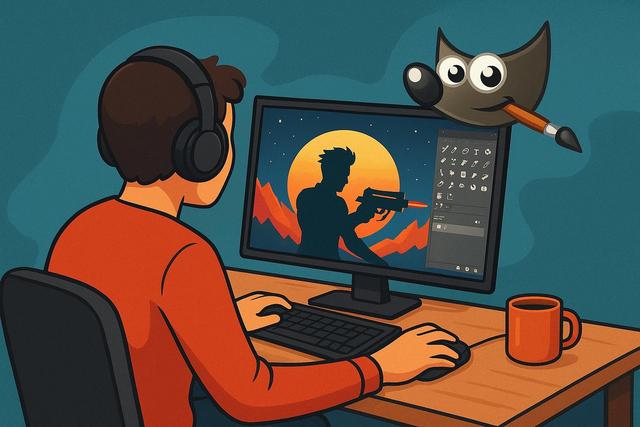
Gaming wallpapers play a central role in the world of gamers, as they reflect identity, passion, and ambiance. A well-designed wallpaper enhances immersion, significantly improving the visual experience on a daily basis. With GIMP, a powerful and free software, anyone can create custom gaming wallpapers without investing in expensive tools. Due to its rich functionality and large community, GIMP appeals to both beginners and advanced users alike. In this article, you will discover how to easily create unique gaming backgrounds with GIMP while adhering to best design and optimization practices for different screens.
To start creating your custom gaming wallpapers, you can download GIMP from here.
Why Create Custom Gaming Wallpapers with GIMP
Creating a custom gaming wallpaper allows players to express their unique style, as each gamer has different tastes. A generic wallpaper may seem bland, but a custom design immediately captures attention. GIMP offers a free alternative to Photoshop, making graphic creation accessible to the general public. Due to its compatibility with Windows, macOS, and Linux, this software adapts to almost all environments.
GIMP features advanced tools for image retouching, layer management, and the addition of visual effects. This allows you to control every detail of your gaming wallpaper. Additionally, the community provides numerous plugins and resources, which facilitate learning and continuous improvement.
Preparing Your Gaming Wallpaper Project
Good preparation ensures a professional result by avoiding technical and aesthetic errors. Before opening GIMP, you should consider the overall atmosphere of your wallpaper. Do you want a futuristic, retro, minimalist style, or one inspired by a specific game? This reflection guides your visual choices.
Next, you need to define the resolution suitable for your screen. Due to the diversity of gaming screens, this point is essential. A poorly sized wallpaper loses quality, which can disappoint in the final rendering.
Here are the most common resolutions for gaming wallpapers:
- Full HD: 1920 x 1080 pixels
- QHD: 2560 x 1440 pixels
- 4K: 3840 x 2160 pixels
Finally, you should gather your graphic resources. Use royalty-free images or your own game screenshots. This way, you avoid copyright issues while maintaining complete creative freedom.
Setting Up GIMP for a Gaming Wallpaper
When you launch GIMP, start by creating a new document with the right dimensions. This step is crucial, as it determines the final quality of your gaming wallpaper. In the “File” menu, click on “New,” and then enter the chosen resolution.
Next, set the resolution to either 72 or 144 DPI, as this value is perfect for screen display. A higher DPI does not provide any visible benefits for a wallpaper. By making this simple adjustment, you optimize the software's performance.
Also, remember to enable guides and grids. These tools help align elements, making the composition appear more balanced and professional.
Creating an Impactful Visual Composition
A successful composition immediately attracts attention by prioritizing visual information. Start by adding a solid or gradient background. GIMP offers many gradients; however, you can also create a custom one.
Next, add the main elements, such as a game character, logo, or symbol. Place them on separate layers, as this method simplifies future adjustments. With layers, you can modify each element without affecting the others.
To enhance the gaming effect, use transformation tools. You can resize, rotate, or distort an image to create dynamism. For these possibilities, GIMP proves particularly suitable for creating modern gaming wallpapers.
Using Effects and Filters for a Gaming Style
Visual effects give character to a gaming wallpaper, as they enhance the atmosphere. GIMP offers a wide range of filters accessible via the “Filters” menu. You can add blur, light, or noise effects depending on the desired style.
For example, a directional blur accentuates speed, making it perfect for a racing game. An outer glow effect highlights a character, but it should be used sparingly. Moderation is key to a successful design.
Here are some popular effects for gaming wallpapers:
- Glow for a futuristic style
- Drop shadows to create depth
- Light noise for a more aggressive look
By combining these filters sparingly, you achieve an aesthetic and cohesive result.
Adding Text and Gaming Typography
Text adds a personal dimension, as it can include a username, quote, or game name. Choose typography that fits the gaming universe. Angular or futuristic fonts work well, but readability should remain a priority.
In GIMP, use the Text tool to write directly on your composition. Place the text on a dedicated layer, as this organization facilitates modifications. Adjust the size, spacing, and color accordingly.
To enhance impact, add simple effects like a light shadow or outline. These adjustments make the text stand out more against the background without compromising visual balance.
Harmonizing the Colors of Your Gaming Wallpaper
A cohesive color palette enhances the perceived quality of the gaming wallpaper, as it creates visual unity. Before adding multiple colors, define two or three main shades. This limitation avoids a confusing result.
GIMP offers tools like color balance and hue-saturation. These adjustments help unify the various visual elements. Thus, even images from different sources can seem to belong to the same universe.
Considering the importance of contrasts, ensure key elements are clearly distinguishable from the background. A good contrast enhances readability, making the wallpaper more pleasant to use daily.
Optimizing the Gaming Wallpaper for Different Screens
An effective gaming wallpaper adapts to various setups, as players use different screens. Consider ultrawide screens, dual monitors, and high resolutions. To do this, center important elements.
Avoid placing essential details at the edges, as some screens may cut them off. This precaution ensures a good visual experience regardless of the hardware.
Before exporting, check the preview at different sizes. GIMP allows you to zoom in and simulate multiple renderings, allowing you to quickly detect potential issues.
Exporting and Saving Your Gaming Wallpaper
The final export is a decisive step, as it determines the quality of the file. For a gaming wallpaper, prefer high-quality PNG or JPEG formats. PNG better preserves details, while JPEG offers a lighter weight.
In the “File” menu, click on “Export As,” then choose the format and filename. Adjust the quality if necessary, seeking the best compromise between weight and clarity.
Once exported, test the wallpaper directly on your desktop. This way, you validate the actual rendering and make final adjustments if needed.
Getting Inspired and Improving with GIMP
Regular practice quickly improves your skills, as each project brings new knowledge. Check online tutorials, observe other designers' creations, and analyze popular gaming wallpapers.
The GIMP community shares numerous free resources, such as brushes, textures, and scripts. With this wealth, you can enhance your creations effortlessly.
Finally, dare to experiment. Even if a trial fails, it teaches you something. This creative attitude will help you produce increasingly personalized and impressive gaming wallpapers.
Conclusion: Create Unique Gaming Wallpapers with GIMP
Creating custom gaming wallpapers with GIMP is accessible to everyone, as the software combines simplicity and power. By following a clear method and adhering to best practices, you can design aesthetically pleasing wallpapers that fit your gaming universe.
With careful preparation, balanced composition, and controlled effects, you transform a simple image into a true element of visual identity. Thus, every time you power on your screen, it becomes an immersive and personal experience.


