Create Stunning Vector Illustrations for Free with Inkscape
- Jun 12, 2026 01:11 am
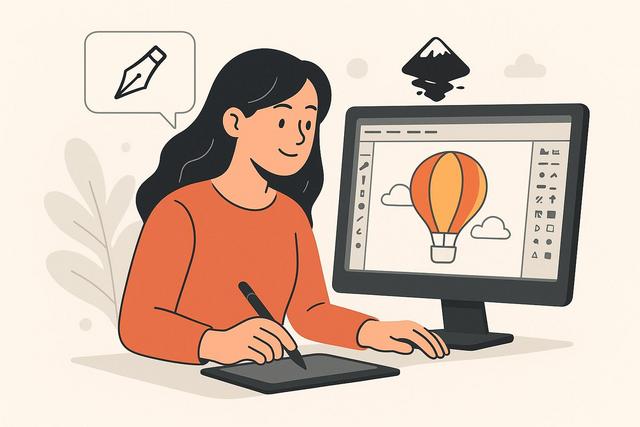
Are you looking to create a vector illustration without paying for an expensive license? Inkscape is a free and powerful software that allows you to draw, create logos, icons, or professional illustrations. Discover how to draw a vector illustration with Inkscape, step by step, even if you are a beginner.
For the latest version of Inkscape, you can download it here.
Why Choose Inkscape for Vector Drawing?
Inkscape is a free and open-source vector drawing software. You can install it on Windows, macOS, or Linux. It allows you to create sharp, resizable illustrations without quality loss.
Vector drawing relies on mathematical shapes. Unlike bitmap images, it does not pixelate when enlarged, making it ideal for:
- logos
- posters
- web illustrations
- stickers
- printed materials
Inkscape offers tools comparable to paid software. However, it remains accessible to beginners because its interface is clear and customizable.
Download and Install Inkscape for Free
Before you start drawing your vector illustration, download Inkscape from its official site. Make sure to install the version suitable for your operating system.
The installation is straightforward:
- Download the file.
- Run the installer.
- Follow the on-screen instructions.
- Open the software.
If a new version is available, check out the new features as functionalities may evolve over time.
Understanding the Basics of Vector Drawing
Before creating your first vector illustration, understand two essential elements: shapes and nodes.
Basic Shapes
Inkscape provides simple shapes: rectangle, ellipse, polygon, star. You can modify them at any time.
Each shape has:
- a stroke (called a path)
- a fill (called a background)
- line thickness
You modify these parameters in the "Fill and Stroke" panel.
The Pen Tool and Nodes
The pen tool (Bezier tool) allows you to draw custom shapes. You place points called nodes, and then adjust the handles to create curves.
The more you practice, the more precise you become. Start by outlining simple shapes before creating complex illustrations.
How to Draw a Vector Illustration with Inkscape
Let's get practical. Here’s a simple method to create your first illustration.
1. Define Your Idea
Before opening Inkscape, define your concept. Sketch it on paper if needed. This will save you time.
Ask yourself:
- What is the subject?
- What style do you want to adopt?
- What color palette will you use?
A clear vision simplifies the work.
2. Create the Main Shapes
Open a new document. Use the basic shapes to build the structure of your illustration.
For example, to draw a simple character:
- a circle for the head
- a rectangle for the body
- ellipses for the eyes
Align the elements using alignment tools, achieving a clean and balanced result.
3. Convert Shapes to Paths
To modify a shape in detail, convert it to a path. Select the shape, then click on "Path > Object to Path."
Then use the node tool to adjust the curves. You can move, add, or delete nodes.
This step adds personality to your vector illustration.
4. Add Colors and Gradients
Colors play a key role. Open the "Fill and Stroke" panel. Choose a solid color or a gradient.
A gradient adds depth; however, use it sparingly to maintain a consistent style.
Remember to save your palette to maintain visual harmony.
5. Work on the Details
Add simple shadows, highlights, or decorative lines. Use layers to organize your work.
Layers allow you to:
- separate elements
- lock certain parts
- modify a detail without affecting the rest
This enhances your efficiency.
Using Layers in Inkscape
Layers work like stacked sheets. Each element can be placed on a separate layer.
For example:
- Layer 1: background
- Layer 2: main shapes
- Layer 3: details and shadows
This organization simplifies corrections. Conversely, if you work on a single layer, modifications become more complex.
Vectorizing an Image with Inkscape
Inkscape also allows you to transform an image into a vector illustration.
Import your image, then use the "Trace Bitmap" feature. Adjust the settings according to the desired level of detail.
This method is suitable for:
- scanning a paper drawing
- converting a low-quality logo
- simplifying a photo
However, the result depends on the quality of the original image. A blurry image will yield a less precise result.
Exporting Your Vector Illustration
Once your drawing is complete, export it in the appropriate format.
Here’s a simple table to choose the right format:
| Format | Main Use |
|---|---|
| SVG | Web, retains vector qualities |
| PNG | Web image with transparent background |
| Printing |
The SVG format retains all vector properties, making it ideal for modifying your illustration later.
Tips to Progress Quickly with Inkscape
Drawing a vector illustration with Inkscape requires practice. Here are some practical tips:
- Start with simple shapes.
- Reproduce basic icons.
- Analyze existing illustrations.
- Use keyboard shortcuts to save time.
- Work with a limited palette.
Practice regularly, even 20 minutes a day. Consistency yields better results than sporadic long sessions.
Common Mistakes to Avoid
Some mistakes slow down beginners.
First, too many nodes complicate shapes. Keep paths simple. Also, avoid using too many different colors, as this harms readability.
Moreover, always remember to save in SVG. If you only export in PNG, you lose the ability to modify vectors.
Finally, always organize your layers to save time.
Inkscape vs Other Free Vector Software
There are other free online tools. However, Inkscape offers more control.
It works offline, manages advanced paths, and has a large community and numerous tutorials.
If you are seriously starting in vector illustration, Inkscape remains an excellent free choice.
Creating Illustrations for Web and Print
With Inkscape, you can adapt your creations for various uses.
For the web:
- favor SVG or PNG format
- optimize file size
- use colors suitable for screens
For print:
- check dimensions
- use an appropriate resolution if exporting as PNG
- test a PDF before final printing
Requirements can vary depending on the printer. Always check technical requirements.
Conclusion
Drawing a vector illustration with the free Inkscape software is accessible to everyone. This software provides powerful tools at no cost. By mastering shapes, nodes, and layers, you can create professional visuals.
Start simple, practice regularly, and structure your work. Over time, your illustrations will improve in quality and precision.
FAQ
Is Inkscape really free?
Yes, Inkscape is a completely free open-source software. You can use it without any subscription.
Can you create a professional logo with Inkscape?
Yes. Inkscape allows you to create vector logos suitable for web and print.
What is the difference between SVG and PNG?
SVG is a vector format that can be modified without quality loss. PNG is a bitmap image suited for the web.
Is Inkscape suitable for beginners?
Yes. Its interface is user-friendly. With practice, a beginner can quickly create their first vector illustrations.


