
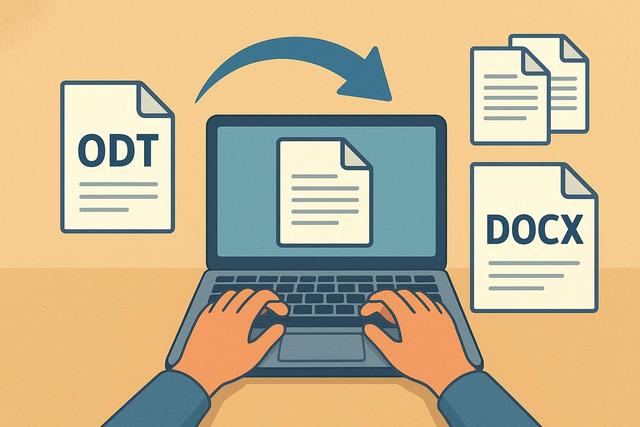
Do you want to quickly convert an ODT file to DOCX without losing formatting? You're not alone. The ODT format, used by LibreOffice and OpenOffice, does not always open correctly in Microsoft Word. Conversely, the DOCX format has become the standard in the professional world. In this article, discover how to easily convert ODT to DOCX, with or without software, on Windows, Mac, or online.
For a hassle-free experience, you can download Microsoft Office for seamless compatibility with DOCX files.
Understanding the Difference Between ODT and DOCX
The ODT format stands for "OpenDocument Text." Free office suites like LibreOffice and Apache OpenOffice use this format by default. This standard is open, meaning any editor can use it freely.
The DOCX format, on the other hand, is Microsoft Word's proprietary format since 2007. It is based on the Office Open XML standard. Businesses and government agencies widely use this format as it guarantees perfect compatibility with Microsoft Office.
You need to convert an ODT to DOCX if you are sharing a document with a Word user. This conversion avoids display issues, formatting errors, or loss of fonts.
Why Convert ODT to DOCX?
Several reasons explain this need. First, Microsoft Word remains the most widely used word processing software in the world. Second, some recipients may not have LibreOffice.
You may also need the DOCX format for:
- Sending a resume or cover letter
- Submitting a professional document
- Handing in a school assignment
- Collaborating on a shared file
Converting ODT to DOCX thus facilitates communication and ensures better compatibility.
Converting ODT to DOCX with LibreOffice
LibreOffice allows you to convert an ODT file to DOCX quickly, as it supports both formats.
Steps to Follow
- Open your ODT file with LibreOffice Writer.
- Click on "File."
- Select "Save As."
- Choose the format "Microsoft Word 2007-365 (.docx)."
- Click on "Save."
The conversion takes place immediately. However, check the formatting after saving. Some fonts or images may change slightly due to differences between formats.
This method remains the most reliable if you are already working with LibreOffice.
Converting ODT to DOCX with Microsoft Word
Good news: Microsoft Word can open an ODT file. You can then save it in DOCX format.
Simple Procedure
- Open Microsoft Word.
- Click on "File," then "Open."
- Select your ODT file.
- Click on "File," then "Save As."
- Choose the DOCX format.
Word automatically converts the document. However, if the formatting is complex, some elements may adjust slightly.
This solution works well if you already have a Microsoft Office license.
Using an Online ODT to DOCX Converter
Online tools appeal due to their simplicity. You don't need to install anything. You upload the file, start the conversion, then retrieve the document in DOCX format.
Some popular solutions include:
- CloudConvert
- Convertio
- Zamzar
- Online-Convert
Advantages of Online Converters
Converters offer several benefits:
- Quick access from any device
- No software installation required
- Conversion in just a few clicks
- Compatibility with Windows, Mac, and mobile
However, you should remain cautious if your document contains sensitive data. Indeed, you upload your file to an external server, which could pose a confidentiality issue.
Converting ODT to DOCX on Mac
On Mac, several options are available. You can use LibreOffice, Word for Mac, or an online converter.
If you have no software installed, you can also use Google Docs.
Method with Google Docs
- Log in to Google Drive.
- Import your ODT file.
- Open it with Google Docs.
- Click on "File."
- Select "Download," then "Microsoft Word (.docx)."
Google automatically converts the file. This solution works very well for simple documents.
Converting ODT to DOCX on Windows
On Windows, you can use:
- Microsoft Word
- LibreOffice
- An online converter
The quickest method is opening it with Word and then saving it as DOCX. However, if you do not have Word, LibreOffice is an excellent free alternative.
Comparison of Conversion Methods
Here’s a table to help you choose the best solution based on your situation:
| Method | Installation Required | Security | Ease of Use | Ideal For |
|---|---|---|---|---|
| LibreOffice | Yes | Very Good | Simple | Regular Use |
| Microsoft Word | Yes | Very Good | Very Simple | Professionals |
| Online Converter | No | Variable | Very Simple | Occasional Use |
| Google Docs | No | Good | Simple | Collaborative Work |
This table shows that each solution meets a specific need. Thus, you can tailor your choice according to your constraints.
Common Problems When Converting ODT to DOCX
Even though the conversion is straightforward, some problems may sometimes arise.
Modified Formatting
The margins may change because the two formats do not use exactly the same rendering engine. Always check the text alignment after conversion.
Missing Fonts
If your document uses a rare font, Word may replace it automatically. Install the same font on your computer to avoid this issue.
Moved Images
Images anchored to text may shift slightly. Adjust their position if necessary.
These checks take little time but ensure a professional result.
Tips for Converting ODT to DOCX Without Loss
To avoid unpleasant surprises, apply these simple tips:
- Use standard fonts like Arial or Times New Roman
- Avoid overly complex layouts
- Limit nested tables
- Check page breaks
- Always proofread the converted file
These best practices significantly reduce compatibility errors.
Can You Convert ODT to DOCX for Free?
Yes, you can convert ODT to DOCX for free. LibreOffice costs nothing. Google Docs remains free with a Google account. Several online converters also offer a free service for reasonably sized files.
You do not need to purchase Microsoft Office to perform a simple conversion.
Should You Prioritize the DOCX Format?
The DOCX format is dominant in the professional world as it ensures maximum compatibility. However, the ODT format remains interesting if you prefer open-source software.
If you collaborate with different users, DOCX is the safest choice. However, you may continue to work in ODT internally and then export to DOCX when sharing.
Converting ODT to DOCX on Mobile
You can also convert an ODT file to DOCX from a smartphone.
On Android, install Microsoft Word or use Google Docs. On iPhone, use the Word app or an online converter through Safari.
The process remains the same: open the file, then export it in DOCX format.
Conclusion: Which Method to Choose to Convert ODT to DOCX?
You now have many reliable solutions to convert ODT to DOCX. LibreOffice offers the most comprehensive free solution. Microsoft Word guarantees perfect compatibility in a professional environment. Online converters quickly help you out if you are working on a public or temporary device.
Choose the method suited to your situation, as each tool meets a specific need. In any case, always check the formatting after conversion. This way, you will obtain a clean, readable DOCX file that is perfectly compatible with Microsoft Word.
With these simple and practical tips, you can now easily, quickly, and stress-free convert your ODT files to DOCX.


