
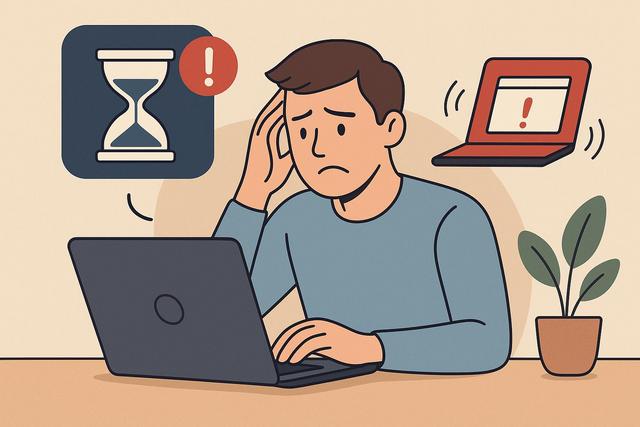
Why is Your Computer Slow?
Is your computer becoming slow for no apparent reason? A software application that slows down your PC may be to blame. Over time, certain programs consume too many resources and degrade performance. In this article, you will learn how to identify the software responsible and restore your PC's speed, step by step.
Learn More
For those looking for a solution to clean up their PC, consider downloading CCleaner for the latest version.
Why Software Can Slow Down Your PC
A PC never slows down by chance. In most cases, one or more software applications are consuming too many system resources. This can affect the CPU (Central Processing Unit), RAM (Random Access Memory), hard drive, or network connection.
Some programs remain active in the background, while others launch at startup without your knowledge. Thus, they unnecessarily occupy memory and processor resources.
The older your computer or the less RAM it has, the more noticeable the impact will be. However, even a recent PC can slow down if a particular software is poorly optimized.
The most common causes include:
- A CPU-hungry software
- An application that starts automatically at boot
- A misconfigured antivirus
- An outdated or poorly uninstalled program
- Malware
Identifying the correct culprit requires a clear method.
Signs That Software is Slowing Down Your Computer
Some signs are unmistakable. You might observe:
- Very long startup times
- Windows taking time to open
- Frequent freezes
- A fan that runs constantly
- Disk usage at 100%
If these symptoms appear right after installing a program, the connection is often direct.
However, if the slowdown develops gradually, a more detailed analysis is required.
Using Task Manager to Identify the Software
On Windows, Task Manager remains the simplest tool. To open it, right-click on the taskbar and select "Task Manager." You can also use the keyboard shortcut Ctrl + Shift + Esc.
Observing Resource Usage
In the "Processes" tab, observe the following columns:
- CPU
- Memory
- Disk
- Network
Click on the column name to sort in descending order. Thus, the most resource-intensive software will appear at the top.
If a program consistently consumes a significant amount of CPU, it can slow down the entire system. Similarly, if memory usage reaches 80% or more, your PC will lack resources.
Identifying Suspicious Software
A problematic software often exhibits the following characteristics:
- High resource usage even when not actively in use
- An unknown or strange name
- Automatic launch at startup
Before closing it, ensure it is not a system process. If in doubt, search for its name online.
Checking Startup Programs
Many software applications slow down the PC upon startup. They load automatically and consume resources unnecessarily.
In Task Manager, open the "Startup" tab. You will see the list of programs that launch at startup.
Focus on the "Startup Impact" column.
If the impact is high, you may disable the program. To do so, right-click and select "Disable."
However, be cautious. Do not disable a system or security-related program.
Analyzing Disk Usage
A saturated or 100% utilized hard drive can significantly slow down your PC.
In Task Manager, check the "Disk" column.
If a software continually uses the disk, it can cause slowdowns. This often occurs with:
- A poorly configured backup software
- An antivirus running constant scans
- A cloud synchronization service
If the issue persists, also check your disk's health. A mechanical hard drive is slower than an SSD.
Identifying a Virus or Malware
Malicious software can greatly slow down a computer. It may use the CPU for cryptocurrency mining or data transmission.
Some worrying signs include:
- Excessive CPU usage without programs open
- Unexpected windows or pop-up ads
- Unknown software installed without your consent
In this case, run a full scan with your antivirus.
If you do not have antivirus software, install a reputable one. Also, make sure to update Windows before the scan.
Threats evolve rapidly, so regularly check that your protection remains up-to-date.
Uninstalling the Software That Slows the PC
Once you identify the software, you can take action.
To uninstall it:
- Open Windows Settings
- Click on "Apps"
- Select the software
- Click on "Uninstall"
Then restart your computer.
If the problem disappears, you have found the cause.
However, if the slowdown continues, other factors may be at play.
Updating Software and the System
Outdated software can cause bugs and slow down your PC.
Updates often fix performance issues. Therefore, check:
- Windows updates
- Your drivers' updates
- New versions of your software
A faulty graphics driver can also slow down display performance. Remember to update it from the manufacturer's website.
Checking RAM (Random Access Memory)
If your PC has little memory, multiple open software applications can slow it down.
Here is a simple guideline:
| RAM Usage | Situation |
|---|---|
| Less than 60% | Normal |
| 60% to 80% | Monitor |
| More than 80% | Risk of slowdown |
If memory remains nearly full constantly, you can:
- Close unnecessary programs
- Disable background applications
- Add more RAM if your PC allows it
Adding memory is an effective solution for an older computer.
Cleaning Up Unnecessary Software
Over time, we install many programs, some of which are no longer needed.
Regularly declutter. Remove:
- Expired trial versions
- Unnecessary toolbars
- Software installed by mistake
The fewer active programs your PC has, the more responsive it will be.
Monitoring Long-term Performance
Identifying software that slows down the PC is not enough. You need to adopt good habits.
For instance:
- Restart your computer at least once a week
- Avoid installing unnecessary software
- Check startup programs every three months
- Keep your system updated
This way, you limit the risks of future slowdowns.
What to Do If You Cannot Find the Responsible Software?
Sometimes, no program seems abnormal. Yet, the PC remains slow.
In this case, consider these solutions:
- Lack of disk space
- Aging hard drive
- Overheating
- Hardware issues
Check the available space on the main disk. Try to keep at least 15% free space.
If the drive is old, replacing it with an SSD can transform performance.
Finally, clean the fans. Overheating reduces CPU speed to protect the hardware.
Conclusion
Software that slows down the PC often consumes excessive resources without you noticing. Thanks to Task Manager, you can quickly identify the responsible program. Afterward, you can disable, update, or uninstall it.
Adopt good practices and regularly monitor performance. This way, you will keep your computer fast and stable for longer.
FAQ
How to Know Which Program is Using the Most Resources?
Open Task Manager and sort processes by CPU, memory, or disk usage. The program at the top consumes the most.
Is It Dangerous to Disable a Program at Startup?
No, if you are sure it is not a system or security program. If in doubt, search for its name before disabling it.
Can an Antivirus Slow Down a PC?
Yes, especially during a full scan. However, a permanent slowdown may indicate a configuration problem.
Should I Reset Windows If the PC Remains Slow?
Resetting may resolve certain issues. However, use it as a last resort after identifying the responsible software.


