Inkscape for Printing: Preparing Your Professional Creations
- Nov 03, 2024 09:51 am
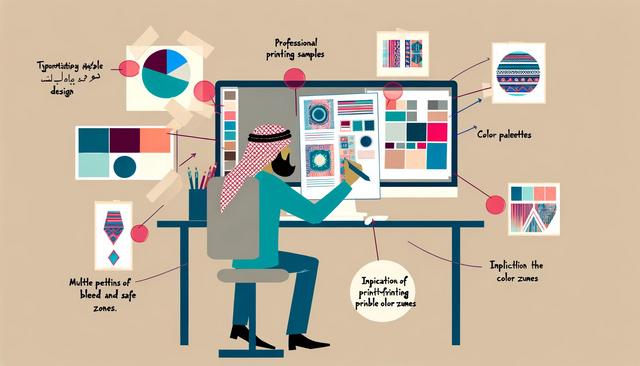
Inkscape is a powerful vector graphics software that allows you to create complex and precise illustrations. However, before printing your creations, it is crucial to prepare them properly to ensure optimal print quality. This article will guide you through the essential steps to prepare your Inkscape illustrations for professional printing.
To download the latest version of Inkscape, visit this page.
Understanding the Vector Format of Inkscape
Inkscape uses vector graphics, meaning your creations consist of paths defined by mathematical formulas. This allows for infinite scaling without loss of quality, a major advantage for professional printing. However, it's essential to convert certain elements into suitable formats before printing.
Using the Right File Settings
When preparing your files for printing, ensure to save them in formats supported by printers, such as PDF or SVG. These formats retain vector characteristics while being widely compatible.
Color Management
One of the most important aspects of printing is color management. Inkscape primarily uses the RGB color mode, but printing typically requires CMYK. Use CMYK color palettes to ensure that the colors in your print will match those on screen.
Converting Texts to Paths
To ensure that fonts display correctly during printing, convert all your texts to paths. This step prevents any font substitution issues and ensures perfect fidelity of the texts.
Adding Bleeds
Bleeds are essential to prevent unwanted white margins when cutting the final print. Be sure to add a bleed of 3 to 5 mm around your design.
Checking Resolution
While vector graphics are not affected by resolution, any bitmap elements imported into Inkscape must have a resolution of at least 300 DPI for professional printing. This prevents images from appearing pixelated.
Final Check and Export
Before exporting your file for printing, review every element of your design to ensure it is correctly formed and all printing settings are adjusted. Then export your file as a PDF to ensure compatibility with professional printers.
Inkscape is a great tool for creating print-ready designs, but following these steps will ensure professional print quality. By adhering to these tips, your creation will be not only beautiful on-screen but also on paper.


