
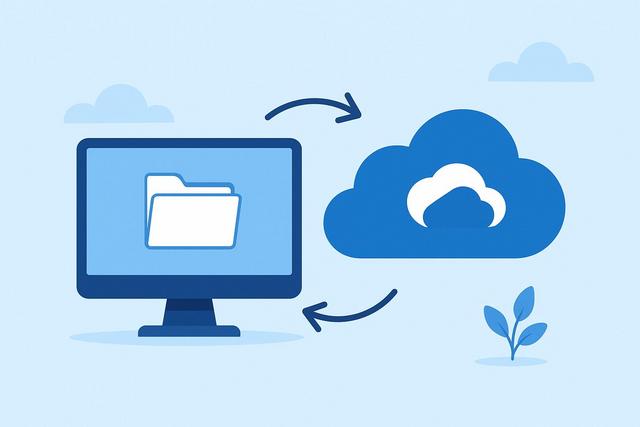
OneDrive allows you to keep your PC files accessible across multiple devices without the need to manually copy each document. With a free Microsoft account, you can synchronize a OneDrive folder, protect important folders, and retrieve your files online. Here’s how to easily set up OneDrive, manage your free space, and troubleshoot common issues.
For further details, you can download OneDrive here.
Why Sync Your PC with OneDrive?
Syncing a PC with OneDrive involves linking a folder on your computer to your online storage space. When you add, modify, or delete a file in this folder, OneDrive typically reflects this change on your other devices connected to the same account.
This feature addresses a simple need: to access your documents everywhere. You can start a Word file on your computer and then view it on another PC or from the OneDrive mobile app. It also eliminates the need for USB drives or email attachments.
Synchronization offers several useful advantages:
- your documents remain available online if your PC fails;
- the synchronized files appear on your other devices;
- you can share a folder or file via a link;
- OneDrive can back up certain known folders, such as Desktop, Documents, and Pictures;
- you can choose which files to keep locally or only in the cloud.
However, OneDrive is not a completely independent backup solution in all cases. If you delete a synchronized file on your PC, that deletion also propagates online. The OneDrive recycle bin can help recover it for a limited time, but it does not replace a true backup copy on an external drive.
What to Prepare Before OneDrive Sync
Setting it up is straightforward, especially on Windows 10 and Windows 11. OneDrive is often already installed and linked to the system. Before you start, check a few items to avoid any roadblocks.
You will need:
- a personal Microsoft account;
- a stable internet connection;
- enough free space on your PC’s disk;
- enough space in your free OneDrive storage;
- a current version of Windows and the OneDrive app.
A Microsoft account can use an Outlook, Hotmail, or Live address. You can also create a Microsoft account with an existing email address. If you are using a work or school PC, your organization may impose its own rules. In that case, use the account provided by your company or institution, if allowed.
The free OneDrive offer has limited storage space. The available capacity, access conditions, and any promotional offers may change. Therefore, check the storage indicator in your OneDrive account before moving a large number of photos or videos.
How to Set Up OneDrive on a Windows PC
Open OneDrive and Sign In
On Windows, click the Start menu and search for “OneDrive.” You can also spot the cloud-shaped icon in the notification area near the clock. If the cloud doesn’t appear, launch the app from the Start menu.
Upon first startup, OneDrive will ask you to sign in. Enter your Microsoft account email and password. Ensure you are using the right account, especially if you have both a personal and a business account.
OneDrive will then suggest a location for its local folder. By default, it is usually found in your user folder. You can keep this location. Choose another drive only if your main drive is low on space and this alternative drive is consistently available.
Avoid using a removable disk for the OneDrive folder. A USB drive or external disk can disconnect, which may disrupt synchronization.
Choose Folders to Sync on the PC
OneDrive may display a step called “Choose folders.” This allows you to decide which folders stored in OneDrive should also appear on the current PC.
This option is particularly useful if your cloud storage contains many files. You don’t need to download all your folders on every computer. For example, you can sync your work documents on your main PC and keep your archives only accessible online.
If you're unsure, start with essential folders. You can modify this choice later in the OneDrive settings. This method limits disk usage and makes the initial synchronization faster.
Check That Sync is Active
Open File Explorer, then click on OneDrive in the left column. Place a small test file in this folder, such as a text document. Wait a moment, then check the icon next to the file.
Depending on the setup, you will often see:
| Icon or Status | Common Meaning |
|---|---|
| Blue cloud | The file is online and does not take up permanent local space. |
| Green check mark surrounded | The file is downloaded and available on the PC. |
| Solid green check mark | The file is marked to always be available on this device. |
| Circling arrows | OneDrive is syncing. |
| Red cross | An error or conflict requires your attention. |
The icons may vary slightly depending on the version of OneDrive. Hover over the cloud icon near the clock to see the overall status: up to date, syncing, connection required, or error.
Sync Desktop, Documents, and Pictures with OneDrive
The OneDrive folder does not automatically sync all files on your PC. To protect the most frequently used folders, you can enable backup for known folders. This feature typically concerns Desktop, Documents, and Pictures.
Click on the OneDrive icon in the notification area. Then open the settings and look for the section dedicated to sync and backup. Choose to manage the backup of folders and activate the desired folders.
OneDrive then moves the contents of these locations to its synchronized space. Your files remain visible in their usual Windows locations. However, they are now linked to OneDrive.
This option works well for people who save everything on Desktop or in Documents. It prevents you from forgetting to move important files to the OneDrive folder. However, take the time to check your available space before enabling Pictures, as photos can quickly fill up free storage.
Do not enable this backup thoughtlessly on a shared PC. Documents placed in these folders may then end up in your personal OneDrive account. Clearly separate accounts and files when multiple people use the same computer.
Use Files On-Demand to Save Space
Files On-Demand is one of the most convenient options of OneDrive. They show your files in File Explorer without downloading all of them to the disk. Thus, you can see your entire OneDrive space, even if your PC has little free space.
When you open a file marked with a cloud icon, OneDrive downloads it. It then becomes available locally. If you want a file to always stay on the PC, right-click on it and choose the option “Always keep on this device.”
Conversely, you can free up space on a file that has already been downloaded. Right-click and select the option “Free up space.” The file remains in OneDrive, but Windows removes its local copy. You will need the internet to open it again.
This feature helps to reconcile free storage and user comfort. Keep indispensable documents offline, such as your recent administrative files, while maintaining online archives, old photos, or large files that you rarely consult.
Add and Organize Your Files in OneDrive
To sync a file, move it or save it directly into the OneDrive folder. You can create a clear organization from the start. A simple structure avoids duplicates and makes searching on all your devices easier.
For example, you might create:
- Administrative;
- Work or Studies;
- Photos;
- Personal Projects;
- Archives.
Give your files precise names. Prefer “Electricity_Bill_2026-09.pdf” over “final_document.pdf.” This habit simplifies searching, including from the OneDrive website or mobile app.
Do not move system folders, program files, or application libraries into OneDrive without knowing what you're doing. These items may rely on a specific local path. Primarily sync personal documents, images, videos, and project files.
To save directly in OneDrive from Word, Excel, or PowerPoint, choose OneDrive in the save window. Sign in with the same Microsoft account as in the OneDrive app, thereby avoiding creating a different local version from the cloud version.
Access OneDrive Files from Another Device
Once the synchronization is complete, open OneDrive on another PC and log in with the same account. You can install the OneDrive app or access your files from the OneDrive website in a browser.
On a phone or tablet, install the official OneDrive app. It allows you to view, share, upload, and sometimes scan documents. It can also automatically upload new photos from your phone to your OneDrive space if you enable this option.
Be cautious about the automatic photo upload. This feature can use a lot of space, especially if you are filming in high quality. Regularly check the remaining capacity and choose a Wi-Fi connection if your mobile plan is limited.
To share a file, select it and then use the Share option. You can usually set whether the recipient can edit the document or just view it. Always check permissions before sending the link, especially for personal or professional documents.
Troubleshoot OneDrive Sync Issues
Most difficulties arise from lack of space, unstable connection, or a file that does not comply with naming rules. If OneDrive shows an error, click on the cloud icon: the app often indicates the file in question and the action to take.
OneDrive Is Not Syncing Anymore
Start by checking your internet connection. Next, look at the OneDrive icon: it may indicate a sync pause. Resume it if necessary.
Also check the free space on your PC's disk and in OneDrive. If the cloud storage is full, delete unnecessary items or move large files to another medium. Remember to empty the OneDrive recycle bin if you genuinely wish to regain space after checking its contents.
Close and then relaunch OneDrive if the blockage persists. You may also restart your PC. These simple actions often resolve temporary issues.
A File Displays a Red Cross
A red cross may indicate a problematic file name, a path that is too long, a version conflict, or denied access. Rename the file with a short and simple name. Avoid forbidden special characters as indicated by the system or OneDrive.
Also close the file if it is open in a software application. OneDrive may struggle to sync a document that is constantly locked by an application. Wait a moment after closing it.
In case of conflict, OneDrive may create a second copy with the name of the device or user. Open both versions, compare their content, keep the correct one, and then carefully delete the duplicate.
Files Have Disappeared from the PC
Before you worry, check the OneDrive website. The file may still be online but not downloaded to the PC. Also check the folder selection settings and Files On-Demand.
Then check the OneDrive recycle bin and the Windows recycle bin. If you deleted the file from a synced device, the deletion may have propagated. Restore it only after ensuring it is the correct version.
Best Practices for Syncing OneDrive for Free
Adopt a few simple habits to enjoy OneDrive without saturating your free account. Regularly sift through heavy files. Videos, high-definition images, and compressed archives can quickly consume available space.
Avoid multiplying copies of the same document. Instead, create a shared folder when multiple people need to work on the same files. This limits contradictory versions.
Keep a separate copy of really important data. For example, back up essential documents on an encrypted external drive or another backup solution. OneDrive protects against several incidents, but a complete backup strategy relies on having multiple copies.
Lastly, check the security of your Microsoft account. Use a unique and strong password. Enable two-step verification if offered in the security settings. This reduces the risk of someone accessing your synced files.
Conclusion
Syncing a PC with free OneDrive primarily requires connecting the right account, selecting useful folders, and monitoring available space. The OneDrive folder, the backup of Desktop, Documents, and Pictures, as well as Files On-Demand simplify everyday management. Organize your files, check sync icons, and maintain a separate backup for your most important data.
FAQ about OneDrive Sync
Is OneDrive Free on PC?
You can use OneDrive with a free Microsoft account, within the limits of the storage space allocated to your account. Check the capacity displayed in OneDrive, as offers and conditions may change.
Can I Use OneDrive Without Internet?
Yes, if the files are downloaded to your PC or marked as always available on this device. Changes will sync as soon as you regain an internet connection.
Does Deleting a File on the PC Remove It from OneDrive?
Yes, generally, synchronization reflects deletions. Check the OneDrive recycle bin if you need to restore a recently deleted file.
How to Stop Syncing a OneDrive Folder?
Open the OneDrive settings from the cloud icon, then change the folder selection or disable the backup for the concerned folder. Read any displayed messages carefully to avoid unintentionally deleting local or online files.


