Creating Vector Illustrations with GIMP: The Ultimate 2025 Guide
- Feb 23, 2025 09:22 pm
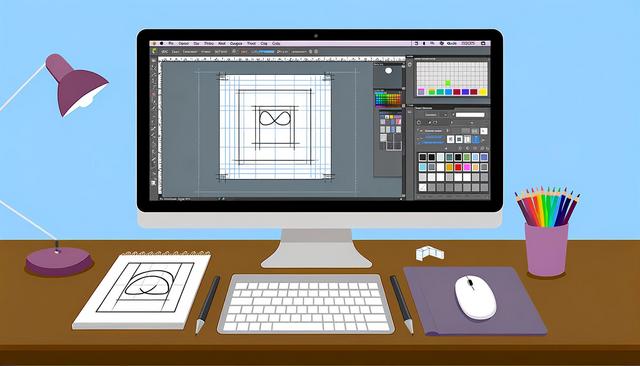
In the realm of digital graphic design, vector illustrations remain a popular choice due to their precision and versatility. In 2025, GIMP stands out as an essential tool for creating such illustrations. Discover how GIMP can assist you in crafting professional vector images with this comprehensive guide. Download GIMP here.
Why Use GIMP for Vector Illustrations?
GIMP is often seen as software primarily dedicated to raster photo editing. However, with the right approach and some extensions, GIMP can compete with leading vectorization software. The main advantages of GIMP include its free access, flexibility, and customizable interface.
Installing the Right Extensions
To create vector illustrations with GIMP, it is crucial to install specific plugins that enhance the software's basic functionalities. One of the most recommended plugins for vectorization is 'Gfig', which allows the creation of complex geometric shapes. Another essential tool is 'Inkscape', which can be used alongside GIMP to export your creations in standard vector formats such as SVG.
Understanding the Basics of Vector Creation
Before diving into creation, it is essential to understand what differentiates a vector image from a raster image. Vector images are defined by mathematical formulas, meaning they can be resized without losing quality. This contrasts with raster images, which can become pixelated at certain zoom levels.
Steps to Create a Vector Illustration with GIMP
1. Project Preparation
Start by opening GIMP and setting up a new image with a transparent background. Choosing a high resolution will give you more detail in your final creations.
2. Using Drawing Tools
Explore the basic drawing tools, such as the pencil and brush, combining them with paths to sketch your design. The shapes should be accurately defined from the start to ensure a smooth transition to the vector format.
3. Working with Paths
The 'Paths' tool is crucial for drawing and manipulating vector shapes in GIMP. Using points and Bézier curves, you can create sharp and smooth lines that will form the foundation of your illustration.
4. Exporting to a Vector Format
Once your illustration is complete, it’s time to export it. A plugin like 'Export Layers' can be useful for saving each layer as an individual PNG file, which can then be imported and vectorized in software like Inkscape.
Best Practices for Vector Illustrations
To optimize your workflow, it is recommended to always work with separate layers for each element of your illustration. This allows for easier modifications and manipulation. Additionally, regularly save your project in a GIMP format to avoid losing your progress.
Conclusion
As of 2025, GIMP stands out as a smart choice for artists looking to create vector illustrations. Although there is a learning curve associated with it, the tools and resources available today greatly simplify the transition to vector creation. With patience and practice, GIMP can become a powerful asset in your digital creation toolkit.


