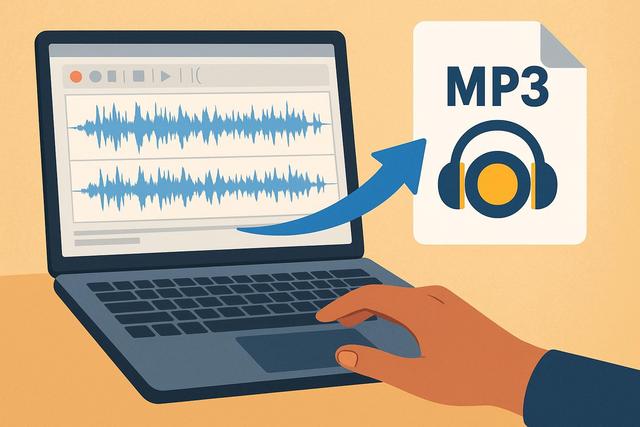
Converting an MP3 file with Audacity for free is a simple and effective solution for changing the format of your audio files. Whether you want to transform an MP3 into WAV, OGG, or another compatible format, Audacity provides powerful and accessible tools. In this comprehensive guide, you will learn step by step how to convert an audio file with Audacity, optimize sound quality, and export your tracks effortlessly.
To get started, you can download Audacity here.
Why Convert an MP3 File with Audacity?
Many users seek to convert an MP3 file for various reasons. Some wish to improve compatibility with editing software. Others want to reduce the audio file size to save storage space. Free Audacity perfectly addresses these needs as it offers a flexible and intuitive solution.
You can convert an MP3 to WAV to maintain optimal quality. However, you can also export to a compressed format like OGG to lighten the file size. This way, you can adapt the format to your usage, whether for a podcast, a YouTube video, or personal listening.
Audacity has several advantages:
- Free and open-source software
- Compatible with Windows, Mac, and Linux
- Supports various audio formats
- Clear interface suitable for beginners
With these strengths, Audacity establishes itself as an essential tool for audio conversion.
Download and Install Audacity for Free
Before converting an MP3 file with Audacity, you need to install the software. Visit Audacity's official website to download the version suitable for your system. This step is essential, as it ensures the safety of your installation.
Once the file is downloaded, launch the installation and follow the instructions. The process is quick and intuitive. Within minutes, you'll access the main interface of the software.
Audacity now includes MP3 support by default. However, make sure your version is up to date. A recent version ensures optimal compatibility with popular audio formats.
How to Open an MP3 File in Audacity
To convert an MP3, start by importing your audio file. Click on "File," then "Open." Next, select your MP3 file from your computer.
You can also drag and drop the file directly into the Audacity window. This method is faster, especially if you're handling multiple audio tracks.
Once imported, the waveform appears on the screen. You can see the volume and sound variations. This view allows you to check that the audio file has no major issues before conversion.
Convert an MP3 File to WAV with Audacity
The WAV format maintains high audio quality because it uses no destructive compression. Therefore, it is ideal for audio editing and music production.
Follow these steps to convert an MP3 to WAV:
- Click on "File"
- Select "Export"
- Choose "Export as WAV"
- Define the save location
- Click "Save"
Audacity allows you to modify metadata before exporting. You can add the artist's name, title, or album. This option is useful if you are organizing an audio library.
Once confirmed, the software processes the conversion in a few seconds. The duration depends on the file size, as a longer file requires more resources.
Convert an MP3 to Other Audio Formats
Audacity is not limited to the WAV format. You can also convert an MP3 file to other popular formats.
Here are the main available formats:
| Format | Main Advantage | Recommended Use |
|---|---|---|
| WAV | High quality without compression | Professional editing |
| OGG | Good quality and reduced size | Streaming and web |
| FLAC | Lossless compression | Audio archiving |
| MP3 | Universal compressed format | Standard playback |
To convert to another format, click on "File," then "Export." Next, select the desired format. Adjust the quality settings if needed. For example, you can choose a higher bitrate to improve sound reproduction.
Adjust Audio Quality Before Conversion
Before converting your MP3 file with free Audacity, take advantage of the editing tools. You can enhance sound quality, as Audacity offers several built-in effects.
For example, you can:
- Remove background noise
- Adjust the volume
- Normalize the audio track
- Cut unnecessary silences
Click on "Effects" in the main menu to access the tools. Then select the desired effect and apply the settings.
If you enhance the quality before exporting, you get a cleaner final file. However, avoid applying too many effects, as excessive processing can compromise sound quality.
Modify Bitrate When Exporting MP3
When exporting to MP3, Audacity allows you to choose the bitrate. This setting directly influences the quality and file size.
A bitrate of 128 kbps provides adequate quality for standard listening. However, a bitrate of 192 kbps or 320 kbps significantly improves sound precision. Keep in mind that the file size will increase accordingly.
If you are sharing your audio online, choose a compromise between quality and file size. This way, you facilitate downloading while maintaining pleasant sound.
Resolve Common Problems When Converting
Sometimes, you may encounter difficulties when converting an MP3 file. Fortunately, most issues can be resolved quickly.
If the export fails, check the available space on your hard drive. Lack of space often blocks recording. Additionally, ensure the source file is not corrupted.
If the sound seems distorted after conversion, check the chosen bitrate. A too-low setting reduces quality. In this case, re-export the file with a higher setting.
Lastly, update Audacity if you notice any bugs. New versions often fix incompatibilities and improve stability.
Why Choose Audacity to Convert an MP3 for Free
Many software applications allow audio file conversion. However, free Audacity offers excellent value because it requires no subscription.
Its interface remains straightforward, even for beginners. Yet, the software includes advanced features suitable for experienced users. This versatility appeals to a broad audience.
Furthermore, Audacity preserves the original quality of the file when converting to lossless formats. Thus, you maintain full control over your audio settings.
Thanks to its active community, you can easily find tutorials and solutions online. This way, you can quickly progress, even without in-depth technical knowledge.
Tips to Optimize Your Audio Conversions
To achieve the best possible outcome, adopt some best practices.
Start by keeping a copy of the original MP3 file. This way, you can revert in case of an error. Next, choose the format suitable for your final objective.
If you plan audio editing, prefer WAV or FLAC. On the other hand, if you are streaming your file online, an MP3 at 192 kbps is usually sufficient.
Also, organize your files in clear folders. This organization simplifies your work since you can easily find your exported versions.
Finally, take the time to test your converted files on different devices. This verification ensures smooth playback on smartphones, computers, or car radios.
Conclusion: Convert an MP3 file with Audacity Simply
Converting an MP3 file with free Audacity is accessible to everyone. The software offers an intuitive interface, various export options, and powerful audio enhancement tools. Thanks to the detailed steps in this guide, you can transform your audio files in just a few clicks.
This way, you adapt the format to your needs, whether for editing, archiving, or online sharing. Audacity combines simplicity and efficiency, allowing you to control every essential parameter.
By mastering MP3 conversion with Audacity, you gain autonomy and sound quality. All that’s left is for you to test these tips to fully enjoy your converted audio files.
