
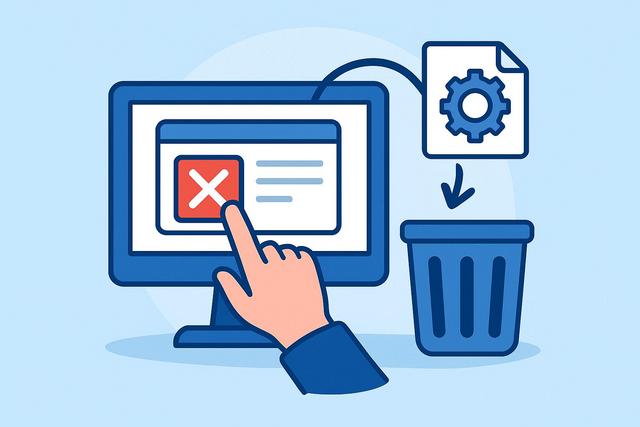
Uninstalling software may seem straightforward. However, many users leave behind unnecessary files, registry traces, or programs that slow down their computers. Poor uninstallation can clutter the system, create conflicts, or pose security risks. Therefore, it’s essential to follow a clear and effective method. In this comprehensive guide, you will learn how to properly uninstall software, whether you are using Windows or macOS, and how to remove residual files to keep your computer fast and clean. For the latest version of CCleaner, you can download it here.
Why Properly Uninstalling Software is Essential
You often install new programs to test a feature or meet a temporary need. However, when you no longer use them, they still take up disk space. They can also start automatically in the background, causing your computer to slow down.
A clean uninstallation allows you to:
- Free up storage space
- Improve system performance
- Avoid conflicts between software
- Remove unnecessary or corrupted files
- Reduce security vulnerability risks
This way, you enhance the overall stability of your device. In contrast, simply deleting the program folder leaves traces in the system.
How to Uninstall Software on Windows
Windows offers a built-in tool for removing a program. You should always start with this method as it remains the safest.
Using Windows Settings
Here’s the procedure to follow:
- Click on the Start menu.
- Open Settings.
- Select Apps.
- Click on Apps & features.
- Choose the software to remove.
- Click Uninstall.
Windows will then launch the official uninstallation program. Follow the on-screen instructions, as each software displays specific steps.
Using Control Panel
This method works on all versions of Windows.
- Open Control Panel.
- Click on Programs.
- Select Programs and Features.
- Choose the software.
- Click Uninstall.
This solution remains reliable, especially for older programs. However, some files may remain on your hard drive after deletion.
How to Uninstall Software on Mac
macOS simplifies application removal. However, you need to check certain elements to avoid leftover files.
Removing an Application via Finder
- Open Finder.
- Click on Applications.
- Select the software.
- Drag it to the Trash.
- Empty the Trash.
This method works for the majority of applications. However, some install configuration files elsewhere in the system.
Using Launchpad
For applications downloaded from the App Store:
- Open Launchpad.
- Hold down the click on the icon.
- Click the cross.
- Confirm deletion.
This method quickly removes the application. However, it does not always remove related files.
Removing Leftover Files After Uninstallation
Even after a proper removal, some files may remain. These elements take up unnecessary space.
Searching for Remaining Folders
On Windows, check the following locations:
- C:\Program Files
- C:\Program Files (x86)
- C:\Users\YourName\AppData
On Mac, inspect:
- Library > Application Support
- Library > Preferences
Only delete folders related to the removed software. Proceed with caution, as improper handling can affect the system.
Cleaning the Windows Registry
The registry stores information about installed software. When you uninstall a program, some entries may remain.
You can use a reliable registry cleaning tool. However, avoid unknown software. Choose recognized solutions, as some malicious programs pose as optimizers.
Using Specialized Uninstallation Software
Uninstallation software can simplify the process. These tools search for hidden files and associated registry keys.
Here are the main benefits:
- Thorough analysis after uninstallation
- Removal of temporary files
- Automatic registry cleaning
- Management of stubborn programs
However, download these tools from the official site, as unofficial versions may contain viruses.
Uninstalling Stubborn Software
Some programs refuse to uninstall correctly. This often happens with antivirus software, drivers, or system applications.
Using Safe Mode
Restart your computer in safe mode. This mode loads only essential services, minimizing conflicts.
Then, restart the uninstallation from the Control Panel. This method works in many cases.
Using the Publisher's Official Tool
Some publishers provide a specific tool to completely remove their software. This solution remains the most effective, as it specifically targets all installed components.
Check the official software website to see if a dedicated utility exists.
Comparing Uninstallation Methods
| Method | Ease | Complete Removal | Error Risk |
|---|---|---|---|
| Built-in Windows/macOS Tool | High | Medium | Low |
| Manual Removal | Medium | Low | High |
| Specialized Software | High | High | Low to Medium |
| Official Publisher Tool | Medium | Very High | Low |
This table shows that the official tool or specialized software often provides better results. However, the built-in tool remains sufficient for most users.
Mistakes to Avoid When Uninstalling
You should avoid certain common practices, as they can damage your system.
Never delete a program folder without going through the official procedure. This action leaves active keys in the registry.
Do not interrupt an ongoing uninstallation. An interruption can corrupt system files.
Do not download unknown tools. Some fake cleaning software installs unwanted programs.
Finally, do not delete a system software without checking its utility. You could impair the functioning of Windows or macOS.
Best Practices to Keep a Computer Performing Well
You can adopt simple habits to avoid accumulating unnecessary software.
First, install only the programs you actually need. Then, regularly check the list of installed applications. Remove the ones you no longer use, as they consume resources.
Also, remember to empty the Trash after each uninstallation. Additionally, perform periodic disk cleaning.
If you use Windows, enable the Disk Cleanup tool. On Mac, use the built-in storage management tool.
These simple actions improve your computer's speed and reduce the risk of software conflicts.
Should You Reinstall After a Bad Uninstallation?
Sometimes, an incomplete uninstallation prevents a new installation. In this case, you must first remove all remaining traces.
Reinstall the software properly. Then, launch the official uninstallation procedure. This method often corrects previous errors.
However, if the problem persists, use the publisher's specific tool. This solution removes blocked or corrupted files.
Conclusion: Uninstalling Software Correctly Step by Step
You should always use the official method before any manual deletion. This approach ensures a cleaner and safer uninstallation.
Then, check for leftover files if necessary. Use specialized tools with caution, as not all are created equal.
Proper uninstallation improves your computer’s performance. It frees up space and enhances security. As a result, you enjoy a faster and more stable system.
By applying these tips, you avoid common mistakes and maintain a healthy digital environment. Uninstalling software correctly becomes a simple, quick, and risk-free task.


