Create Your Own Game Skins with Blender
- Mar 11, 2026 02:11 pm
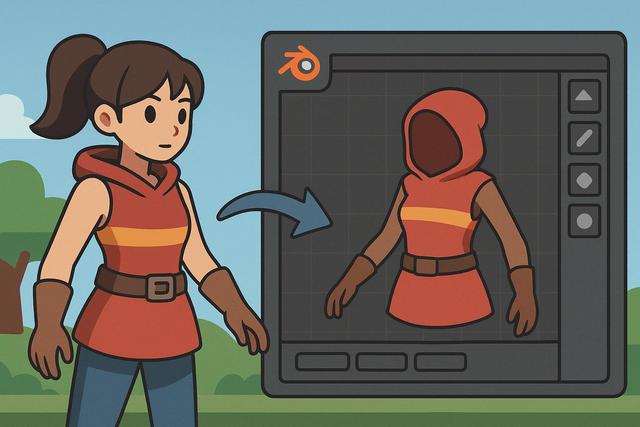
Creating your own game skins with Blender is attracting more and more gaming and 3D creation enthusiasts. Indeed, customizing the appearance of a character, weapon, or object allows you to stand out while developing highly sought-after skills. With Blender, a free and powerful software, you can easily design, texture, and export your own skins. In this article, you will discover how to create a game skin with Blender step by step, even if you are a beginner.
For those looking to get started, you can download Blender from this link: Blender Free Download.
Why Create Your Own Game Skins?
Game skins modify the appearance of a character, equipment, or environment without changing the game's mechanics. However, they significantly influence visual experience and player identity.
Creating your own skins offers several advantages. First, you fully customize your gaming universe. Next, you develop skills in 3D modeling and texturing, as Blender provides professional tools accessible for free. Finally, you can sell your creations on certain platforms if the game allows it.
Many popular games accept community-created content. For example, some FPS, MMORPGs, or sandbox games allow importing custom textures. Thus, learning to create a skin with Blender opens up numerous creative opportunities.
Why Use Blender to Create a Skin?
Blender stands out as a reference software for 3D creation. Due to its free nature and powerful features, it is suitable for both beginners and experienced artists.
Blender offers:
- A complete 3D modeling module
- An advanced material creation system
- A precise texture painting tool
- An efficient UV unwrapping feature
- Export options compatible with many formats
With these features, you can create a game skin from scratch without any additional software. Moreover, the community provides numerous tutorials, making it easy to find online help.
Understanding the Structure of a Game Skin
Before you begin, you need to understand what a skin is. A skin is generally based on a texture applied to an existing 3D model. This texture corresponds to a 2D image that "dresses" the surface of the object through UV coordinates.
The process usually follows these steps:
- Import or create the 3D model
- Unwrap the model using UV Mapping
- Create or modify the texture
- Apply the texture to the model
- Export the file in the game's format
Each game has its own technical constraints. Therefore, you need to check the maximum allowed resolution, export format, and creation rules. Some games, for instance, limit file sizes or prohibit certain effects.
Step 1: Prepare the 3D Model in Blender
You can either import a model provided by the game or create your own model if the project requires it. To import a model, use the File menu > Import, and then select the appropriate format (.fbx, .obj, etc.).
If you are creating a model, start with simple shapes. Use the transformation tools to adjust size, rotation, and position. However, keep an eye on the polygon count, as an overly heavy model can slow down the game.
Maintain a clean and regular topology. This way, the texture will apply more easily and the rendering will appear more professional.
Step 2: Perform UV Unwrapping
UV unwrapping involves "flattening" the 3D model to create a usable 2D base. This step is essential because a poor UV map leads to distorted textures.
Switch to Edit mode, then select the faces of the model. Next, mark seams in strategic locations. Finally, click "Unwrap" to generate the UV map.
You can adjust the UV islands in the UV editor. Minimize empty spaces, as good optimization improves visual quality. Additionally, ensure that important elements have enough space on the texture.
Step 3: Create and Paint the Skin Texture
Texture painting in Blender allows you to paint directly on the 3D model. This method makes it easier to create precise details, as you visualize the result in real-time.
Start by creating a new image in the UV editor. Set the resolution according to the game, for example, 1024x1024 or 2048x2048 pixels. However, adhere to the imposed limits.
Then, switch to Texture Paint mode. Use various brushes to add colors, patterns, and wear effects. For example, you can:
- Add stripes for a realistic effect
- Draw custom logos
- Create dynamic gradients
- Simulate metallic or glossy effects
Vary the layers and combine them wisely, as this enriches the visual depth of the skin. Consequently, your creation will appear more refined.
Adding Materials and Advanced Effects
Blender offers a comprehensive shader editor. Thanks to the Principled BSDF, you can adjust shininess, roughness, or metallic effects.
Even if the game does not utilize all Blender parameters, testing the effects in the viewport helps you refine the rendering. You can then export the various necessary maps.
Here’s a summary table of the main textures used in advanced skins:
| Map Type | Main Role |
|---|---|
| Diffuse / Albedo | Main color of the skin |
| Normal map | Relief details without adding polygons |
| Roughness map | Shininess management |
| Metallic map | Metallic effect |
By combining these maps, you achieve a more realistic rendering, as each texture controls a specific aspect of the surface.
Step 4: Export the Skin in the Correct Format
When you finish your creation, export the texture in PNG or TGA according to the game's requirements. Then, export the model if necessary.
Always check:
- The final resolution
- The file size
- The requested format
- The correct orientation of the UVs
Test the skin directly in the game if possible. Indeed, the rendering may differ from Blender due to the graphics engine used.
Optimizing Your Skin for SEO and Online Visibility
If you publish your skin on a community platform, optimize your description. Use relevant keywords like "custom Blender skin," "game skin creation," or "3D gaming texture." This will improve your visibility.
Add high-quality screenshots. Write a clear description explaining your process. Additionally, indicate the skin's compatibility, as players seek precise information.
Tips to Improve Your Creations with Blender
Progress regularly, as practice remains the key to success. Analyze popular skins to understand trends. However, avoid direct copying; you need to develop your own style.
Participate in online communities. This way, you receive constructive feedback. Additionally, follow tutorials focusing on 3D modeling and texturing.
Set concrete goals. For example, create one skin per week for a month. This discipline accelerates your learning, as you practice each step of the process.
Can You Make Money with Your Skins?
Yes, you can monetize your skins in certain games. However, you must adhere to the terms of use. Some platforms compensate creators when their skin is accepted and sold.
Develop a strong portfolio. Showcase your best creations. This will increase your chances of being selected.
However, prioritize quality first. A clean, cohesive, and well-optimized texture attracts more attention than a poorly executed complex design.
Conclusion: Start Creating Skins with Blender
Creating your own game skins with Blender provides a stimulating creative experience. You learn 3D modeling, UV unwrapping, and texture painting in a professional and free environment. Additionally, you can share your creations with a global community.
With a structured method and regular practice, you progress quickly. Even though the beginnings may seem technical, each step becomes easier with experience. So, open Blender, choose your project, and start creating a unique skin that reflects your style.


