Common Mistakes to Avoid When Installing Mods
- Mar 09, 2026 02:11 am
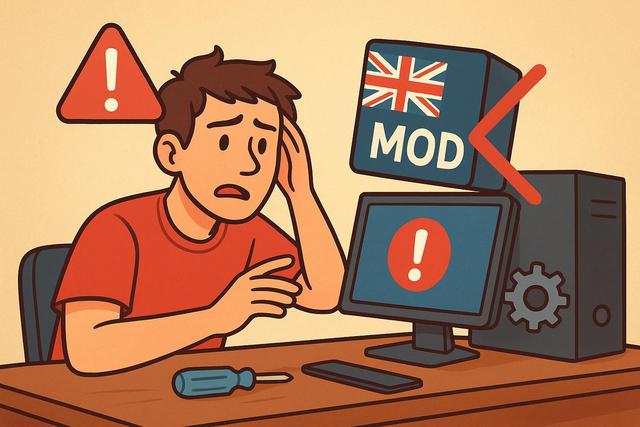
Installing mods can transform your favorite game, enhance graphics, or add new content. However, many players make mistakes that can lead to bugs, conflicts, or even save file corruption. If you want to fully enjoy your mods without risks, you need to adopt good practices from the start. In this article, explore the mistakes to avoid when installing mods and essential tips for secure and optimized installation.
For downloading your favorite mods safely, visit our download page.
Why is it important to be cautious when installing mods?
Mods directly modify a game's files. They add content, replace textures, or change internal mechanics. Therefore, improper handling can make the game unstable.
Many players think that installing mods is simple because it only requires copying files. However, each game has its own structure and requirements. Ignoring these specifics may lead to continuous crashes.
It is essential to understand that every modification affects the game's environment. By adopting a rigorous approach, you significantly reduce the risk of bugs and conflicts.
Not checking mod compatibility
The first mistake is ignoring mod compatibility. Each mod works with a specific version of the game. If you install a mod designed for an older version, it often causes conflicts.
You should always check:
- The game version
- The mod version
- The necessary dependencies
- Any recommended patches
Some mods require other files to function properly. These are known as dependencies. If you forget to install them, the mod may not appear or may generate errors.
Furthermore, some mods do not work together. Creators often specify incompatibilities in the description. You need to read this information carefully, as it helps avoid many technical issues.
Installing too many mods at once
Many players download multiple mods and install them simultaneously. However, this method complicates the identification of errors.
If an issue arises, you will not know which mod is responsible. You will then need to uninstall them one by one, which is time-consuming.
Always install your mods gradually. Launch the game after each installation. This way, you can immediately identify a conflict or bug.
This approach may seem longer at first. However, it saves you a lot of time if an issue occurs.
Forgetting to backup files
Failing to create a backup is a common mistake. However, this step protects your installation.
Before installing a mod, copy the main game folder or at least the modified files. If an issue arises, you can restore the original version.
Some platforms, like Steam, offer a file verification feature. However, this function does not always recover your personal backups.
You also need to backup your save files. Indeed, some mods alter the structure of save files. If you later delete the mod, the save may become unusable.
Downloading mods from unreliable sources
Security is a crucial aspect when you install mods. Some sites offer modified files that contain viruses or malware.
You should prioritize recognized platforms, as they often check the files published. Also, read user comments. If several players report a problem, avoid that download.
An active antivirus provides additional protection. However, don't rely solely on it. Caution remains your best defense.
Not reading installation instructions
Each mod has its own directives. Some require a specific mod manager. Others may ask you to modify a configuration file.
If you ignore the instructions, you risk a faulty installation. The mod may then not work correctly.
Take a few minutes to read the complete description. Creators often explain the precise steps, recommended settings, and solutions in case of problems.
This reading may seem unnecessary. However, it prevents long hours of troubleshooting in case of errors.
Not using a mod manager
Installing mods manually works in some cases. However, a mod manager greatly simplifies the task.
A good manager allows you to:
- Quickly enable or disable mods
- Check conflicts
- Organize the load order
- Automatically update certain files
The load order plays a crucial role. If two mods modify the same element, the last loaded one takes precedence. A wrong order can thus create visual inconsistencies or bugs.
With a manager, you have better control over these parameters, thus reducing the risks of instability.
Ignoring PC performance
Some mods significantly increase graphical quality. They add high-resolution textures or advanced lighting effects. However, these improvements put more strain on your graphics card and processor.
If your setup is limited, the game may lose fluidity. You may then experience slowdowns or drops in FPS.
Before installing a graphic mod, check its recommended configuration. Compare it with your hardware. If necessary, adjust the in-game settings to maintain a good balance between visual quality and performance.
Removing a mod during a game without caution
Many players remove an active mod without considering the consequences. However, some mods alter the internal structure of the game or add persistent objects.
If you abruptly remove these files, your save may become unstable. The game may then display errors or refuse to load.
Before removing a mod, consult the documentation. Some creators explain the correct procedure. Sometimes, you need to deactivate the content in-game before removing the files.
Poorly managing game updates
Official updates bring fixes and content. However, they can sometimes render certain mods obsolete.
When the game updates automatically, your mods may stop working. You will then need to wait for the creators to release a compatible version.
If you want to avoid this problem, you can:
- Disable automatic updates
- Wait for confirmation of mod compatibility
- Backup your current version before any update
This strategy limits unexpected interruptions.
Installing mods without checking disk space
Some mods occupy several gigabytes, especially if they enhance textures. If your hard drive is low on space, the installation may fail.
A full disk also slows down the system. Your game may then load more slowly.
Always check the available space before downloading. Delete unnecessary files if necessary. This way, you maintain good overall performance.
Summary of main errors to avoid
The table below summarizes common mistakes and their potential consequences:
| Error | Possible Consequence |
|---|---|
| Ignoring compatibility | Bugs and crashes |
| Installing too many mods at once | Difficulty identifying conflicts |
| Not backing up | Data loss |
| Downloading from a dubious site | Risk of viruses |
| Removing a mod abruptly | Corrupted save |
| Wrong load order | Inconsistencies and instability |
Best practices for successful mod installation
If you want to avoid common mistakes, adopt a structured method. Download your mods from reliable sources. Always check compatibility and dependencies. Install them one by one.
Regularly back up your files and saves. Use a mod manager suitable for your game. Finally, keep an eye on official updates.
This organization may take some time. However, it ensures a stable and personalized gaming experience.
Conclusion: installing mods safely
Installing mods significantly enriches a game. You benefit from new features, visual enhancements, and unique scenarios. However, each modification carries some risk.
By avoiding the mistakes outlined in this article, you protect your installation and saves. You also enhance the overall stability of the game.
Adopt a cautious, informed, and methodical approach. This way, you transform your gaming experience without compromising its performance or security.


