Why Your High-Performance PC Struggles with Gaming
- Feb 02, 2026 01:11 am
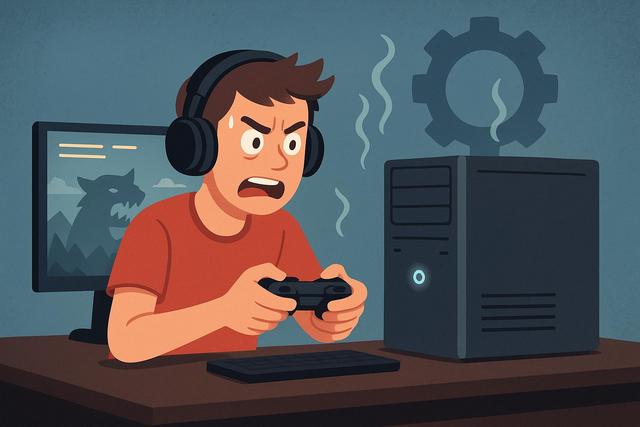
Your PC has a good graphics card, a recent processor, and enough RAM; however, your video games continue to lag. This situation frustrates many gamers because it seems illogical. In reality, several technical and software factors explain why a game may experience FPS drops, stuttering, or excessive loading times, even on a powerful PC. Understanding these causes allows you to take effective action, so you can achieve a smooth gaming experience without necessarily upgrading your hardware. In this article, you'll discover why your games lag despite your good setup and, most importantly, how to fix these issues. You can also download the latest version of Roblox here.
A Poor Balance Between PC Components
A high-performance PC relies on a precise balance among its components. However, many gamers focus solely on the graphics card, as it significantly impacts performance. A weak processor can cause a bottleneck, preventing the graphics card from reaching its full potential. This phenomenon, known as CPU bottlenecking, leads to FPS drops even with high-end GPUs.
RAM also plays a crucial role. A PC may have 32 GB of RAM, yet slow frequency or poor configuration can limit performance in modern games. Additionally, mechanical hard drive storage slows loading times and can cause stuttering, as the game waits for data.
Poorly Adjusted Graphics Settings in Games
Today’s video games offer advanced graphics settings. Yet, some options consume excessive resources for minimal visual gain. Ray tracing is a perfect example of this issue, as it heavily taxes the GPU and sometimes the CPU. Activating this option without compromises may cause your game to lag, even on a solid configuration.
Resolution also directly affects performance. Gaming in 4K requires significantly more processing than at 1080p, which may push your graphics card to its limits. Options like ultra anti-aliasing, ultra shadows, or maximum render distance can also reduce FPS.
Here are settings often responsible for slowdowns:
- Ray tracing and advanced lighting
- Ultra quality shadows
- Maximum render distance
- Very high anti-aliasing
Outdated or Improperly Installed Graphics Drivers
Graphics drivers facilitate communication between the system and the graphics card. When these drivers become outdated, compatibility issues arise. Recent games leverage specific optimizations, so an old driver can hinder performance.
Improper installation can also create conflicts. For example, an incomplete update may leave corrupted files as the system retains old data. In this case, the GPU may function poorly despite being powerful.
Background Software Consuming Resources
Windows runs numerous background services. However, some third-party software consumes a lot of CPU and RAM resources. Antivirus programs, RGB software, or streaming applications work continuously, resulting in decreased in-game performance.
Having web browsers open during gaming sessions exacerbates the situation. Each tab uses memory by loading dynamic content. This accumulation can lead to micro-freezes, especially in resource-intensive games.
Poor Power and Performance Management
Windows offers several power modes. The balanced mode sometimes limits processor frequency to reduce energy consumption. This behavior can cause sudden FPS drops, as the CPU fails to reach its maximum frequencies.
NVIDIA or AMD control panel settings also influence performance. A misconfigured option can enforce vertical sync or cap the frames per second. Thus, even with a high-performing PC, the game may feel slow.
Overheating Automatically Reducing Performance
Temperature is a frequent cause of slowdowns. When the processor or graphics card heats up too much, they activate thermal throttling. This mechanism automatically lowers frequencies to prevent damage, resulting in a sharp decline in performance.
Dust, dry thermal paste, or poorly ventilated cases exacerbate this issue. Even a high-end PC can end up lagging if the cooling is inadequate.
Poorly Optimized or Configured Games
Some games launch with imperfect optimization. Developers address these issues through updates; however, early players often experience performance drops. This phenomenon also affects powerful setups, as the game engine poorly utilizes the hardware.
Internal settings, such as the graphics API, also influence results. A game might run better under DirectX 11 than under DirectX 12, so a simple change can improve smoothness.
Incompatible Resolution and Display
The display directly affects perceived performance. Playing on a 144 Hz monitor without achieving that FPS can create a sense of lack of fluidity. Moreover, a resolution too high overloads the graphics card, which has to calculate more pixels.
Vertical sync, or V-Sync, can sometimes add latency. This option limits FPS to prevent tearing, but it might create the impression that the game is lagging.
Windows-Related Issues and Updates
Windows receives regular updates. Some improvements fix vulnerabilities; however, others can temporarily create performance issues. A poorly optimized service may use CPU continuously, impacting gaming performance.
Corrupted system files can also cause strange behavior. The PC remains powerful, but the system struggles to function properly due to internal errors.
Comparison of Common Causes of Slowdowns
| Main Cause | Impact on Games | Recommended Solution |
|---|---|---|
| CPU Bottleneck | Unstable FPS | Upgrade the processor |
| Outdated Drivers | Overall performance decrease | Properly update |
| Overheating | Throttling | Improve cooling |
| Too High Settings | GPU saturation | Adjust graphic options |
How to Improve Performance Without Upgrading Your PC
Several simple actions can enhance performance without hardware investment. Start by updating your graphics drivers, as this step resolves many issues. Then close unnecessary software, allowing the PC to dedicate its resources to gaming.
Intelligently adjust graphic settings. Lower resource-intensive options and maintain a resolution suitable for your display. Also, regularly clean your PC, as dust can hinder proper cooling.
Finally, monitor temperatures and frequencies with specialized software. This observation helps quickly detect anomalies, allowing you to fix issues before they impact your gaming sessions.
Understanding Why a Powerful PC May Lag in Games
A powerful PC does not always guarantee a smooth experience, as many factors come into play. Games utilize hardware differently, so an imbalance or poor setting can lead to slowdowns. By understanding these causes, you take control of your performance and fully enjoy your games.
Therefore, if your games lag despite having a good PC, don’t panic. Analyze the configuration, optimize the system, and adjust settings, as these actions often transform the experience without spending a dime.


